Two-Factor Authentication (2FA), also known as Multi-Factor Authentication (MFA), adds an extra layer of security to your Race Roster user account. It helps protect your account beyond just a username and password, reducing the risk of unauthorized access.
We strongly recommend enabling 2FA to keep your account data secure.
What you will need to complete this process
- a desktop device
- your Race Roster user account login credentials (email/username and password), accessed from the desktop device
- a mobile device
- a supported authenticator app or text messaging (SMS) service, on the mobile device
Having both device types is ideal for an easy, secure process. If you only have a mobile device available, be advised that you will be navigating various digital locations from a single screen.
Steps to enable Two-Factor Authentication (2FA)
1. Sign in to your Race Roster user account, preferably from a desktop device. Go to raceroster.com/signin and proceed using your existing email address and password.
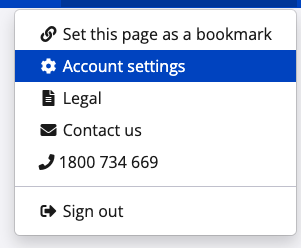
2. Navigate to account settings by clicking on your name or profile icon in the top right corner. Select "Account settings" from the dropdown menu.
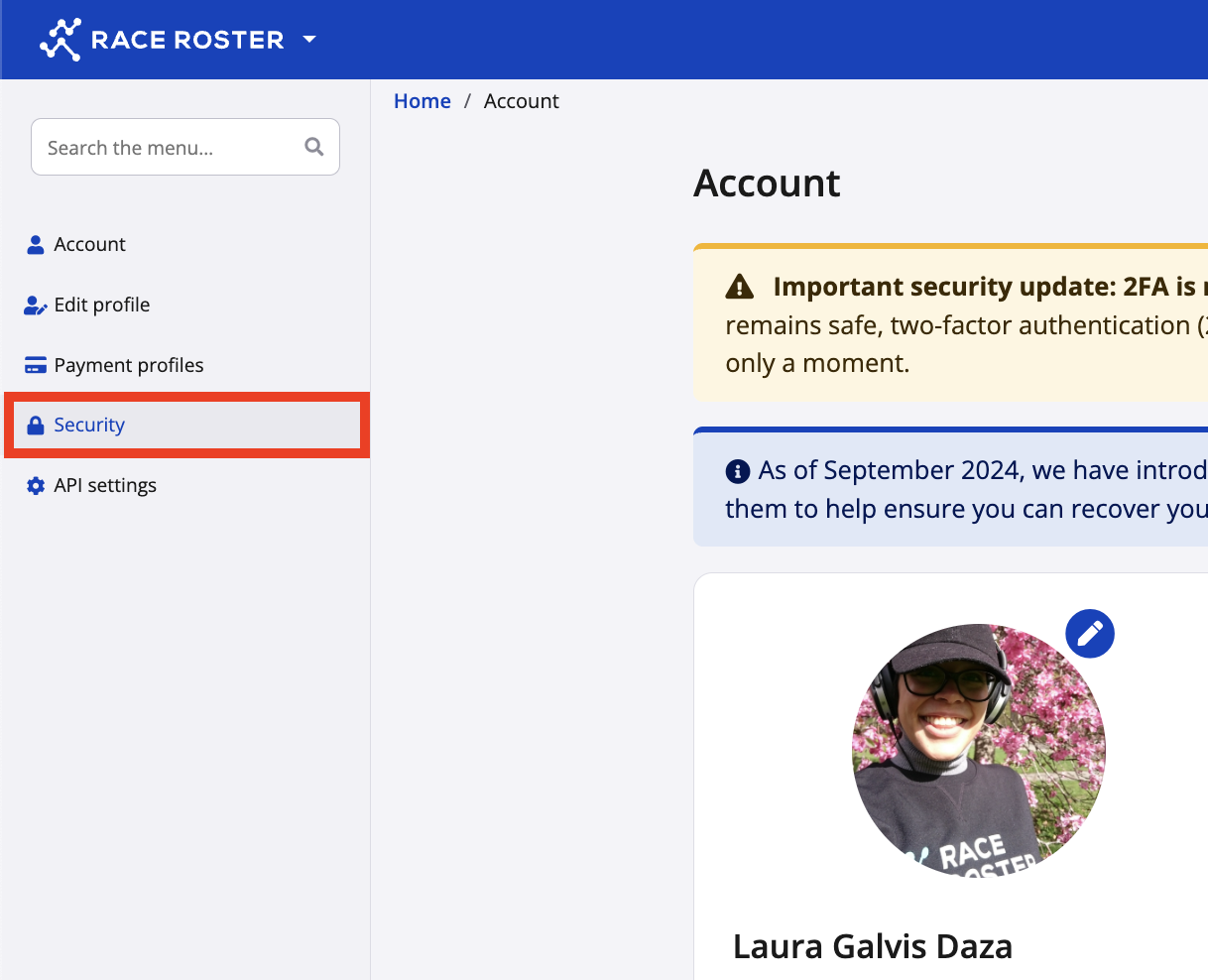
3. Access security settings. Navigate to the lefthand menu and click "Security" (screenshot follows).
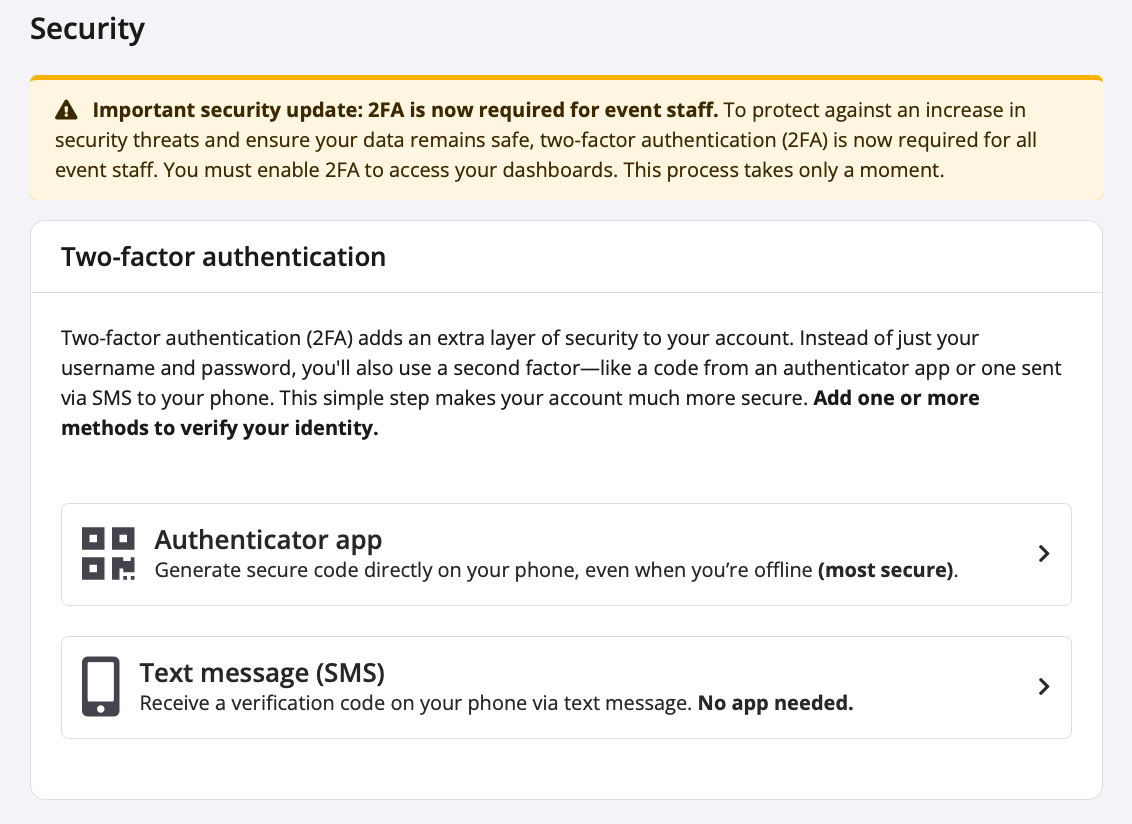
4. Choose your verification method. On the Two-factor authentication page, available verification methods are displayed (screenshot follows). You must select a method and follow all subsequent prompts while using your mobile device in tandem.
METHOD 1: Authenticator app (recommended)
An authenticator app is a third party app that is downloaded onto a mobile device (for example, your smartphone or tablet). Once set up, the app will contain a numerical code that corresponds specifically to your Race Roster user account, among accounts to other websites which you may also add to the app.
We recommend the following third party apps: Google Authenticator, Microsoft Authenticator and Authy. Other apps may also be compatible.
This is the most secure option. Additionally, it does not rely on a service plan or Internet wifi connection to receive codes.
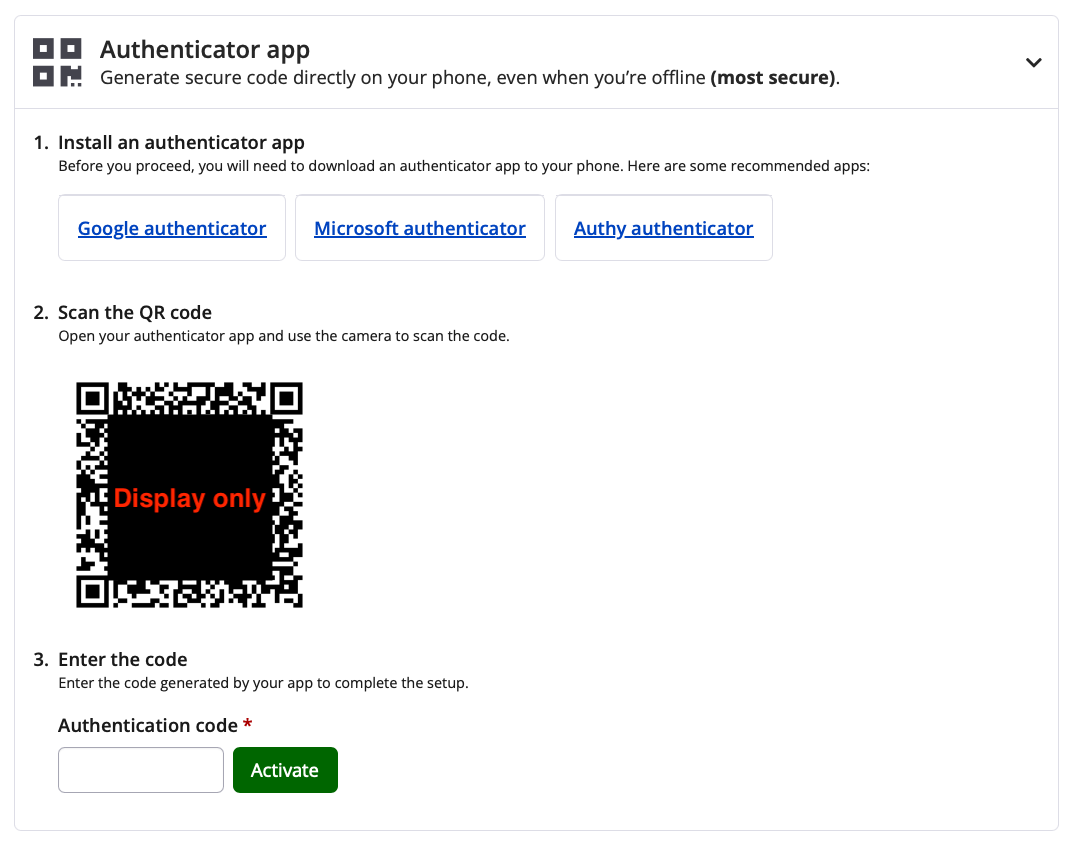
1. Install an authenticator app
- If you signed into Race Roster using a desktop device (CPU, laptop), now use your mobile device's app store for download and setup.
- If you signed into Race Roster using the same mobile device on which you will be installing the app, use the links provided OR navigate to your device's app store to download and set up the one you want to use.
2. Scan the QR code
- Now that you have an app installed on your mobile device, open it and click to add a new account code. For example, there may be a "+" button which opens a camera function. Hold your mobile device up to the QR code that appears on your desktop screen. The app on your mobile device should detect the QR code with the camera automatically, and load "Race Roster: [email address]" as a new account entry, with the corresponding numerical code.
- Note: This step is not designed to work using a single device. The QR code must be displayed on a screen separate from that of your mobile device, so that you may use the mobile device camera to scan it while using the authenticator app.
3. Enter the authentication code
- Enter the corresponding numerical authentication code visible from the app on your mobile device into the "Authentication code" field on your desktop device, then immediately click the green "Activate" button.
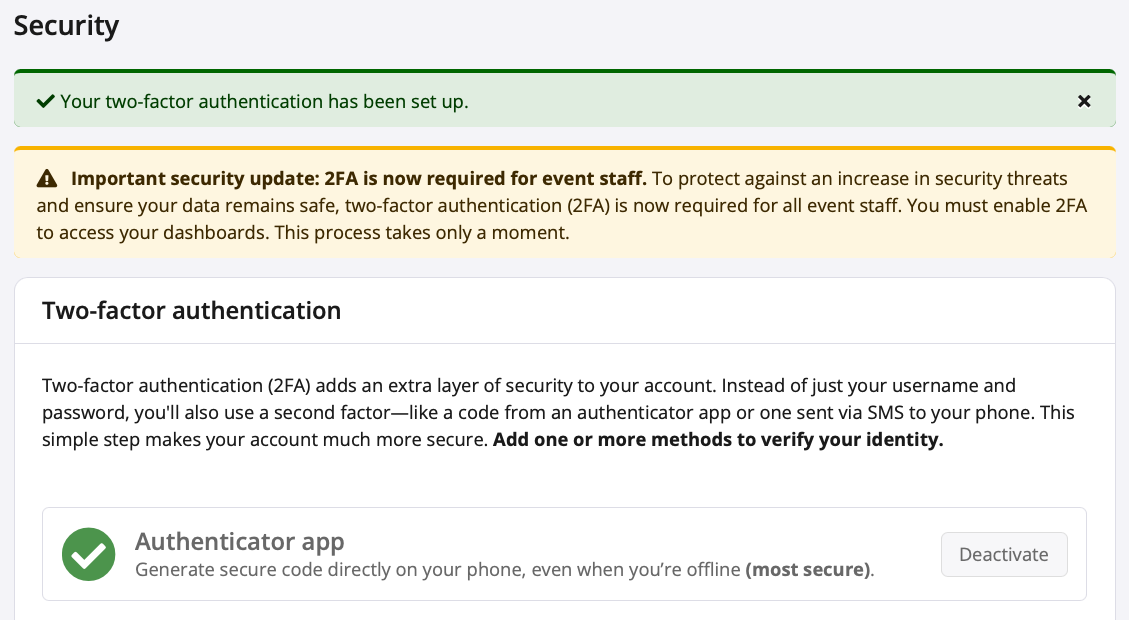
Once done correctly, the authenticator app section will collapse. A green banner will appear at the top of the security page, with a check mark saying "Your two-factor authentication has been set up". Screenshots of the section before and after follow.
Skip down to step 5.
METHOD 2: Text message (SMS)
If unable to use an authenticator app, you may select Text message (SMS) for receiving verification codes.
The SMS option is available to users with phone numbers from the following countries: United States, Canada, Japan, Singapore, New Zealand and Australia.
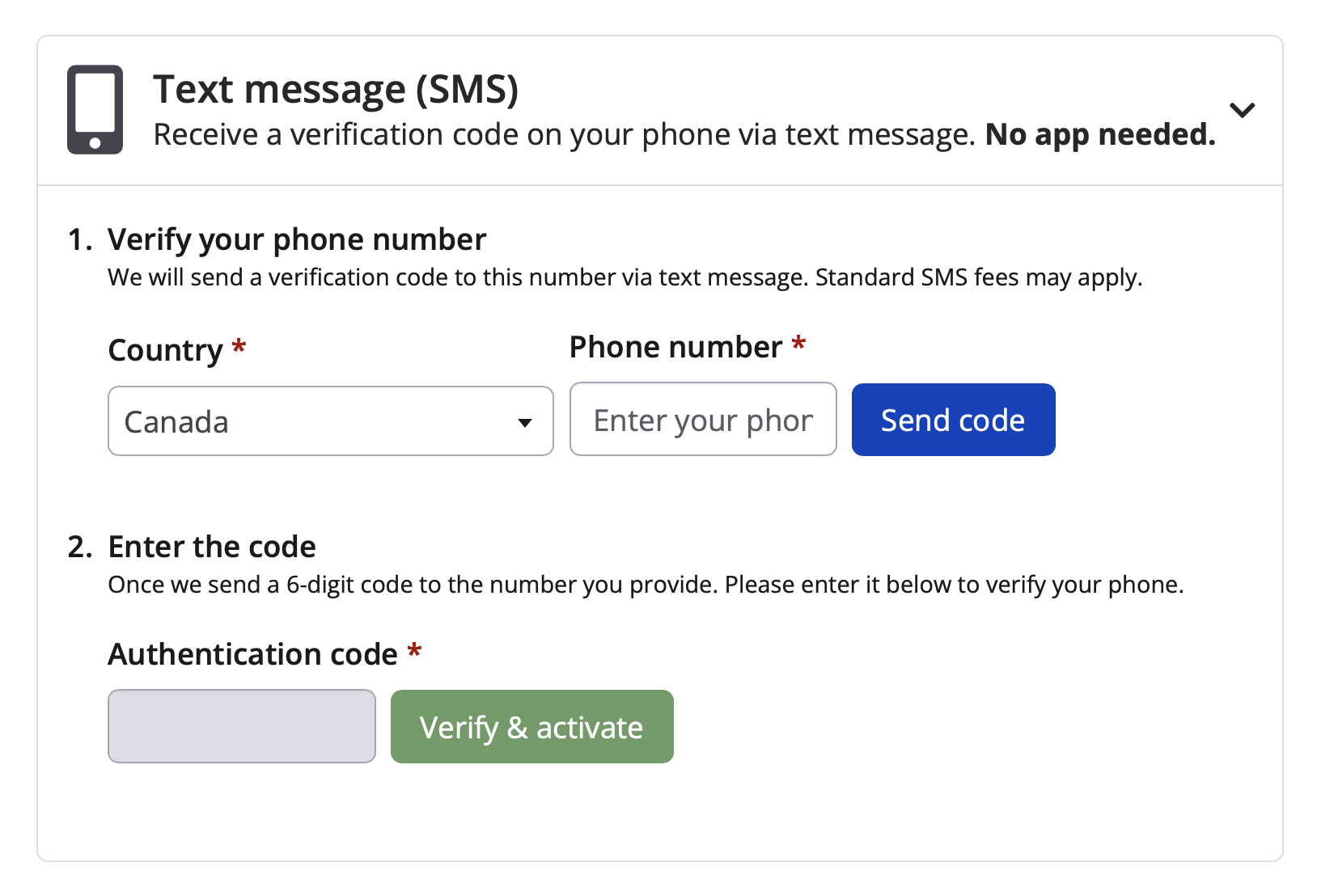
1. Enter and verify your mobile phone number
- Select the country where your phone number is registered using the dropdown menu.
- Then, enter the phone number in the field. Only number characters are necessary; avoid dashes, parentheses or spaces.
-Click the blue "Send code" button.
-If successful, you will see a message in green. If not, there will be a red message and you may try again.
2. Enter the 6-digit code
- On your mobile device, navigate to your SMS text messages to locate one sent by Race Roster.
- In the Race Roster text message, there will be a simple 6-digit code which you may either copy or memorize.
- If you signed into Race Roster using a desktop device (CPU, laptop), now enter the code there.
- If you signed into Race Roster using the same mobile device on which you received the SMS text message, return to your web browser to the page on Race Roster where you may enter the code.
- After entering the 6-digit code into the "Authentication code" field. Click the green "Verify & activate" button.
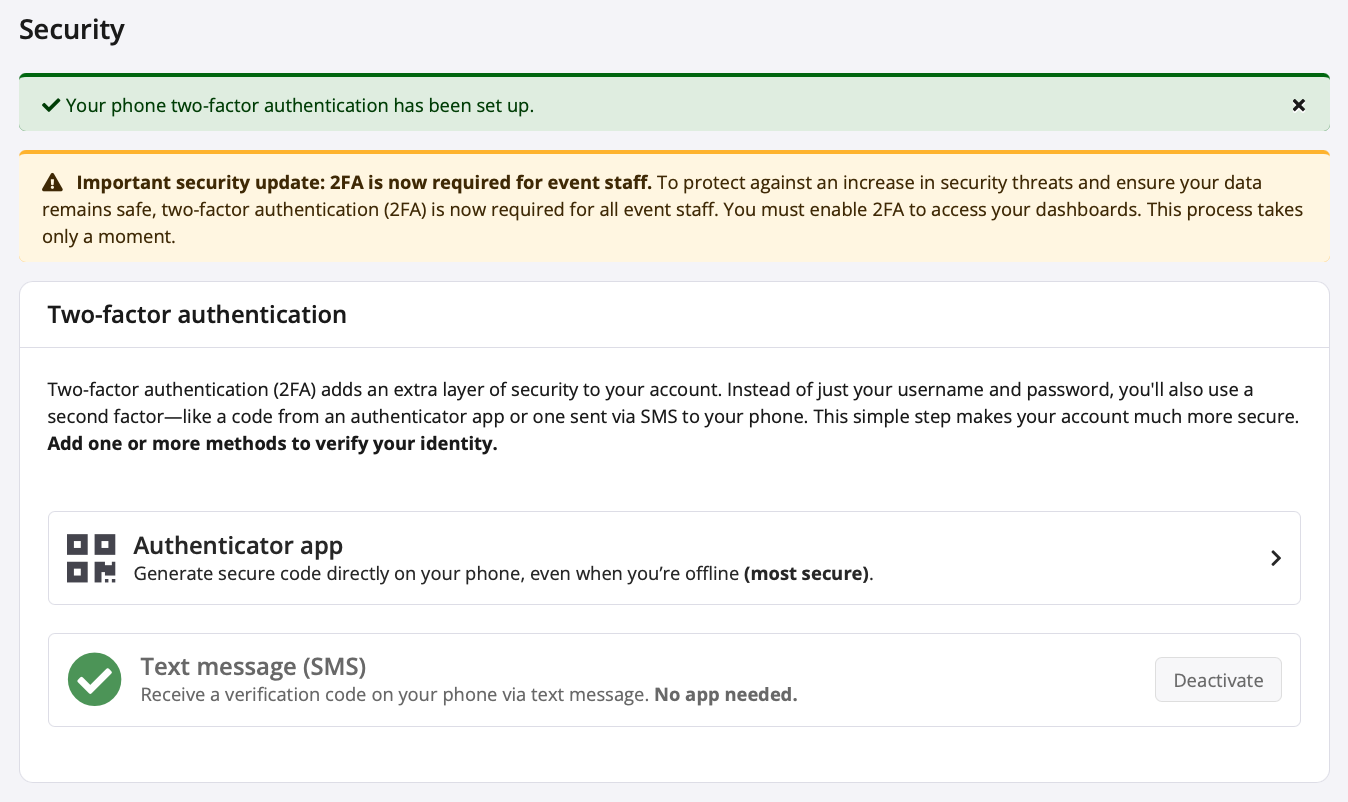
Once done correctly, the text message (SMS) section will collapse. A green banner will appear at the top of the security page, with a check mark saying "Your phone two-factor authentication has been set up". Screenshots of the section before and after follow.
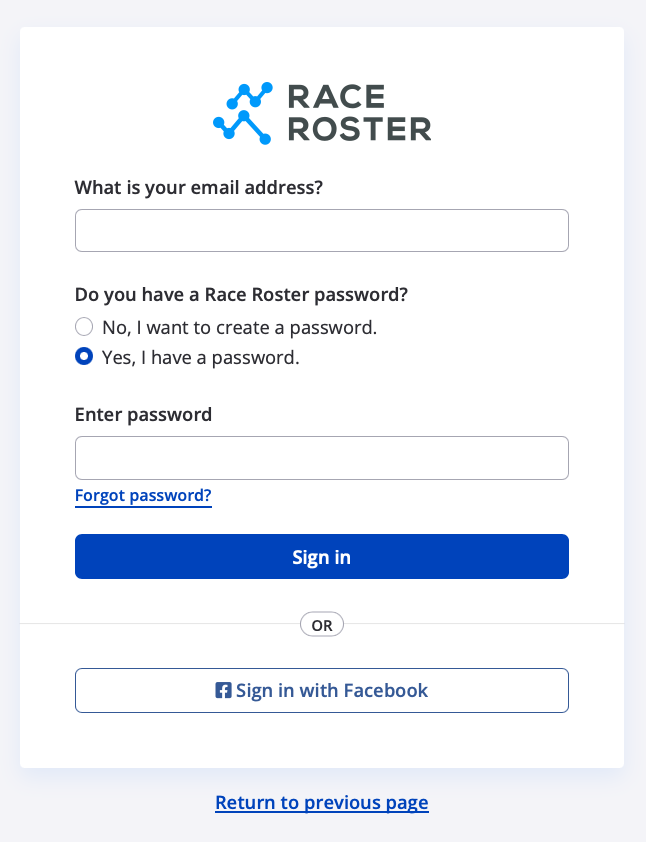
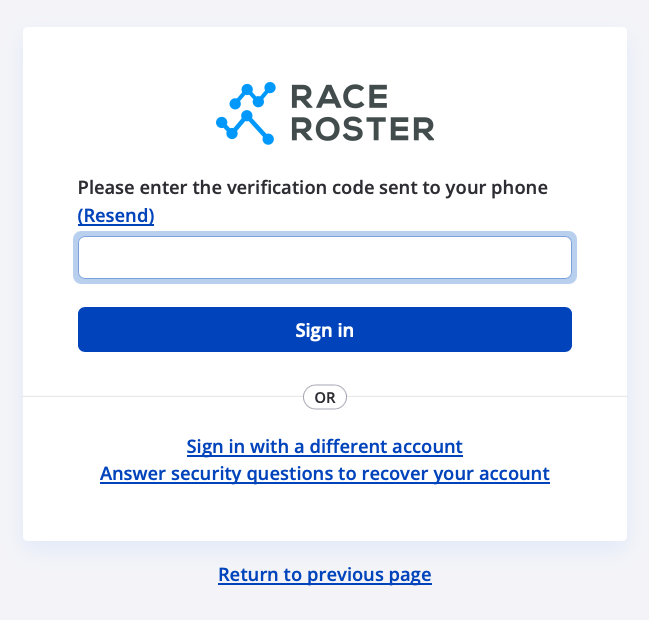
5. Now that Two-Factor Authentication is enabled, each login will require your email/username, password, and a time-sensitive code, adding an important layer of protection for your account data. Screenshots below show these two login steps.
Security tips
- Always verify the sender’s email domain. Official Race Roster communications will come from an @raceroster.com email address.
- Do not click suspicious links. When in doubt, visit Race Roster directly via your web browser.
If you accidentally clicked a suspicious link, change your password immediately and ensure 2FA is enabled.
If you need assistance with this setup, or would like to make changes after having already enabled 2FA, please contact us by calling:
- Australia: 1800 734 669
- New Zealand: 0800 734 669
- North America and the rest of the world: 1 855 969 5515