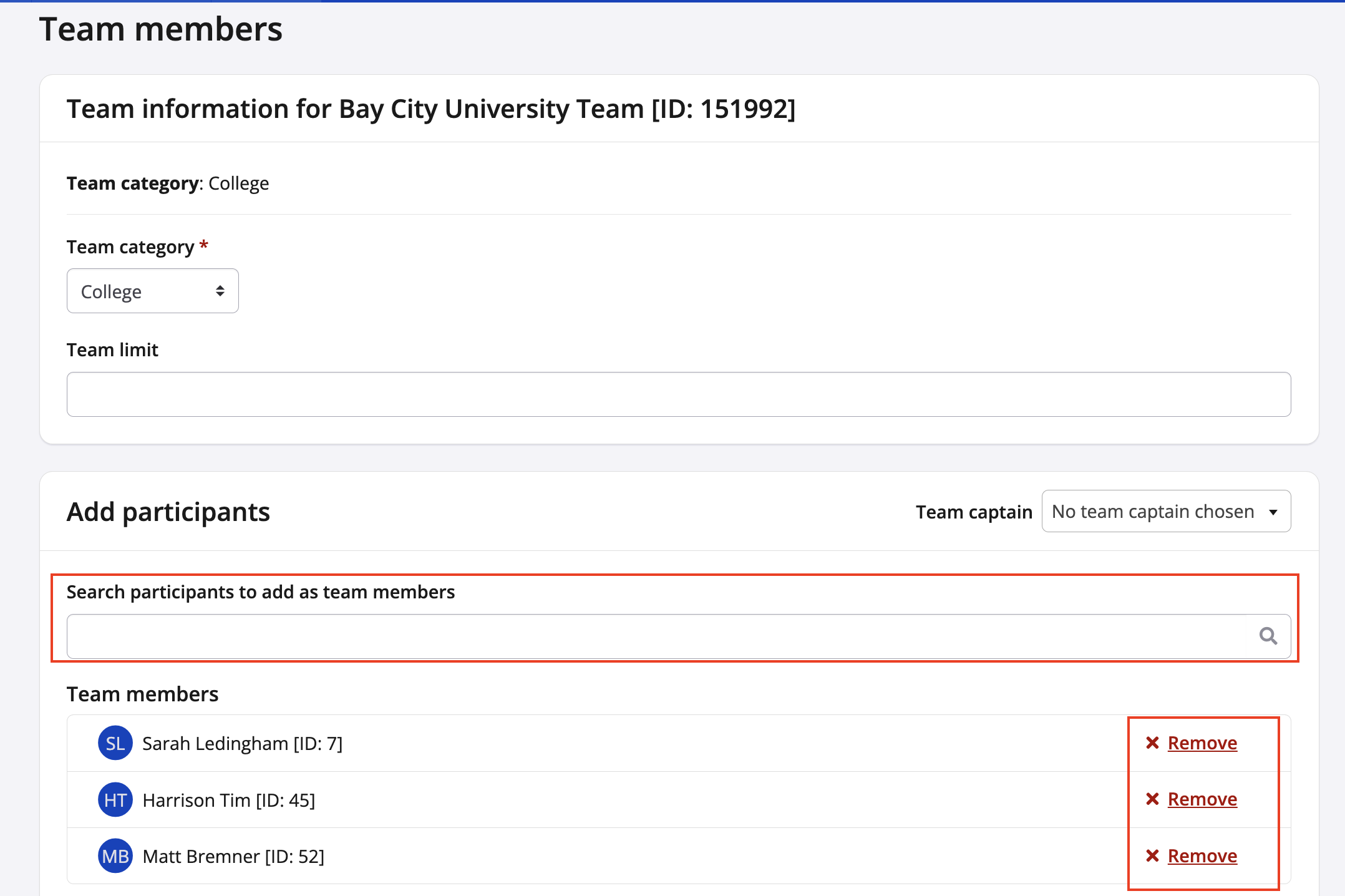
The Members feature will now allow all directors to update the team leader or update the team member list.
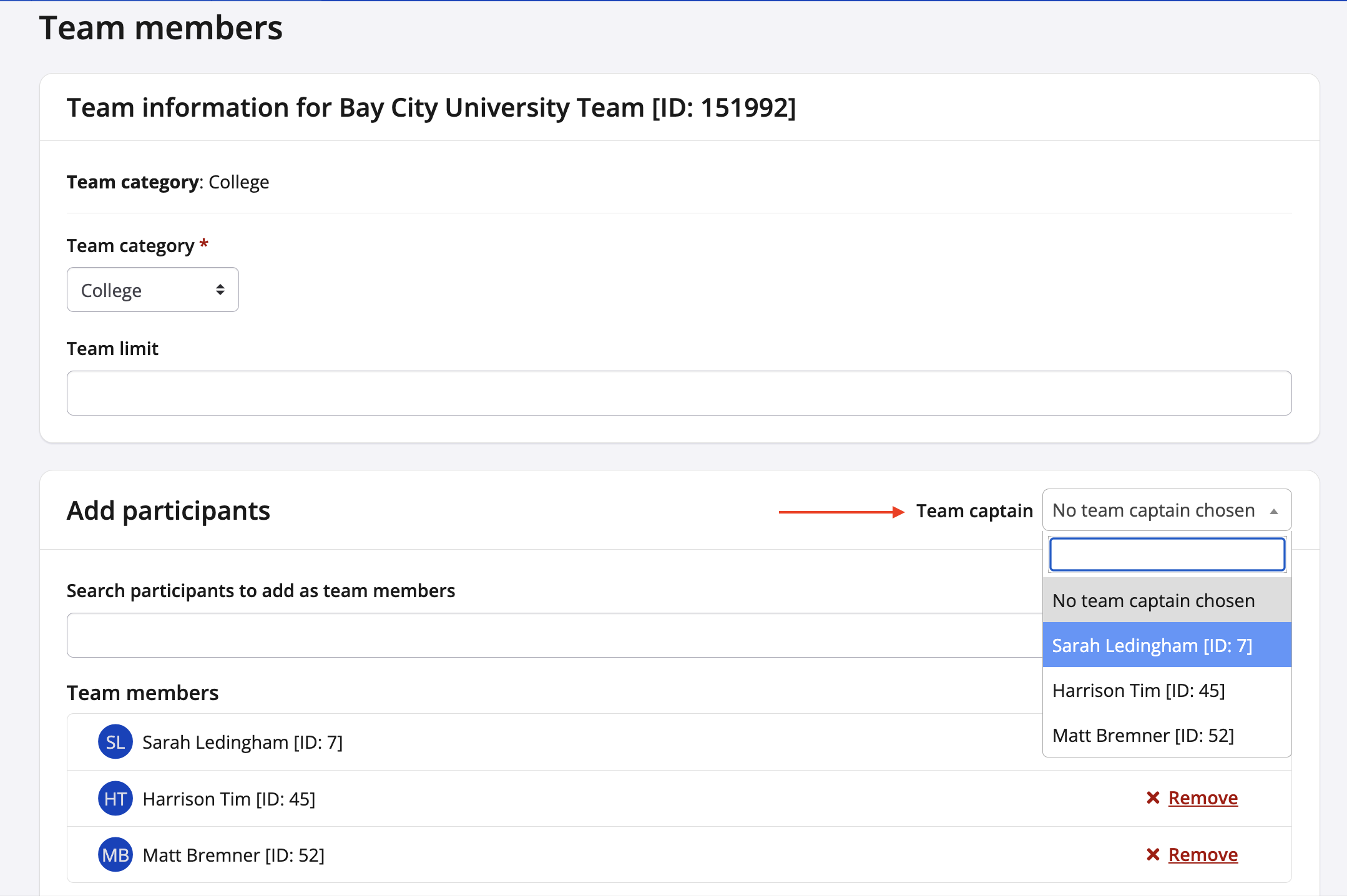
To update the Team Leader:
- Login to your dashboard as an Event Organizer.
- The quickest way to edit team info is to use the main Event Dashboard.
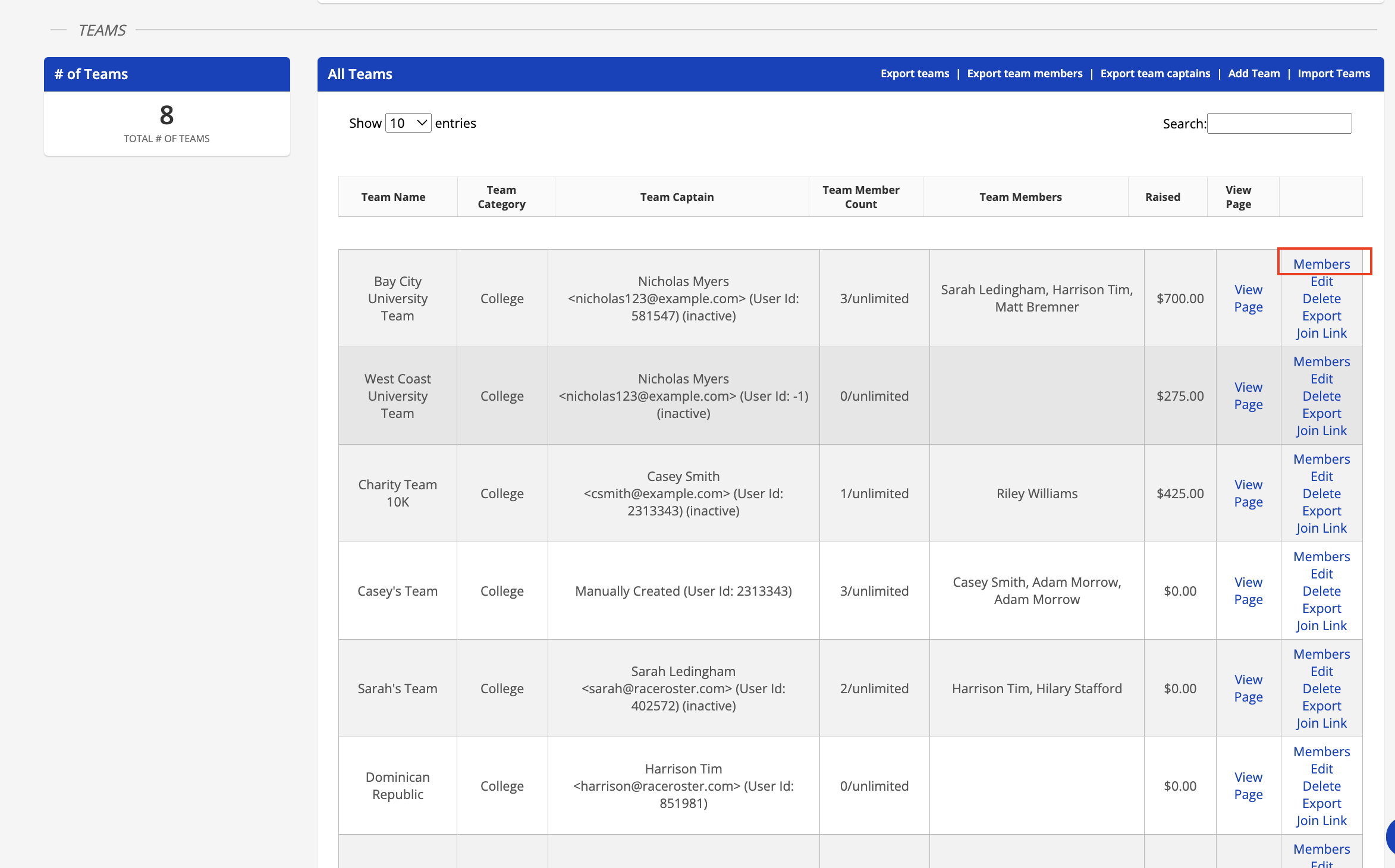
- Scroll down OR use command or ctrl F to bring up your finder window and search 'all teams' to search for the right section, or scroll down until you find the TEAMS section (pictured below)
- Navigate to the right-hand side and use the search bar to find the team you would like to update
- Once you have found the team, click Members and the members modal will pop up
- Use the Team Leader drop-down on the righthand side of the page to change the team leader
- Scroll down and click Save Team Information
To update team members:
- Login to your dashboard as an Event Organizer.
- The quickest way to edit team info is to use the main Event Dashboard.
- Scroll down OR use command or ctrl F to bring up your finder window and search 'all teams' to search for the right section, or scroll down until you find the TEAMS section (pictured below)
- Navigate to the right-hand side and use the search bar to find the team you would like to update
- Once you have found the team, click Members and the members modal will pop up
- Navigate to the Select Team Members section
- Use the search bar provided to ADD members to a team
- Click on the red remove buttons to REMOVE members from a team