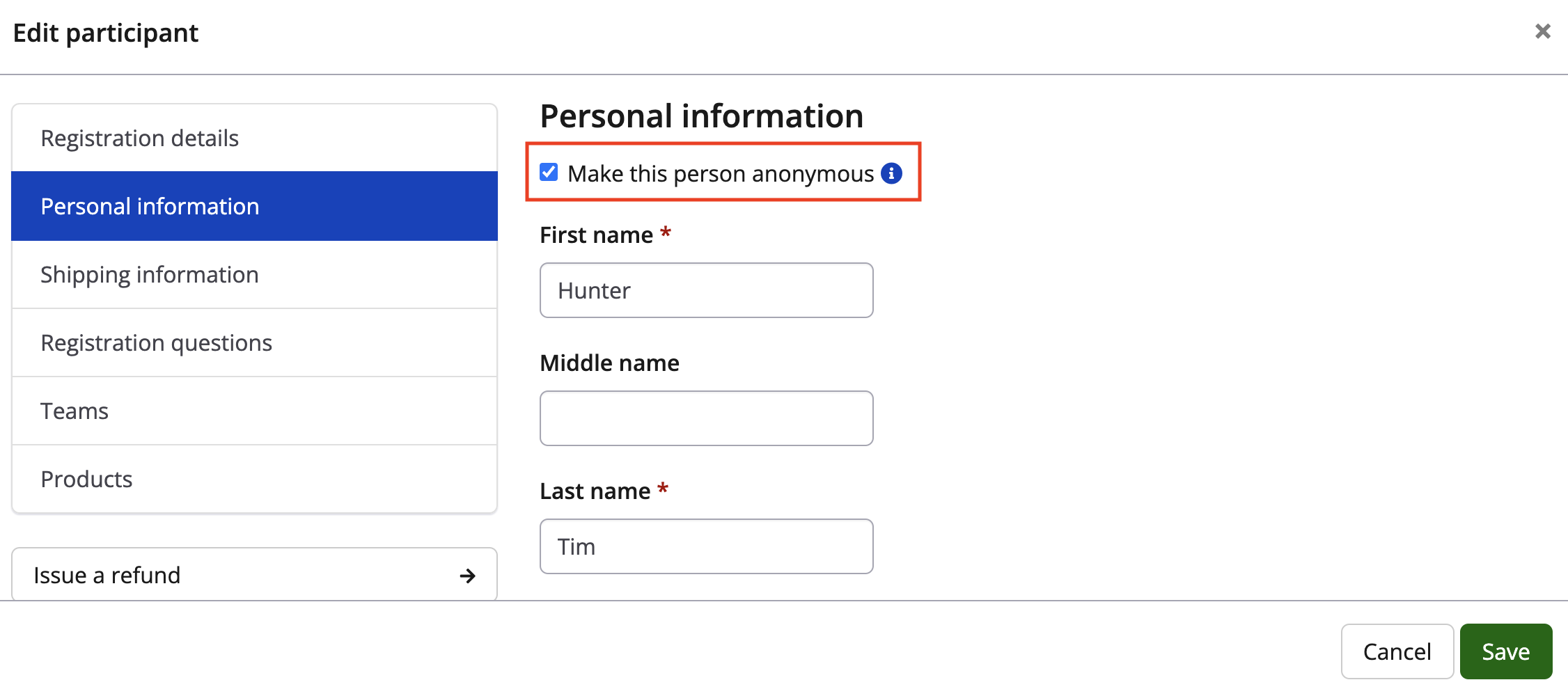
If a participant would like to ensure that their names do not show on the public facing screen, the 'Anonymous' option is the best option!
To anonymize a participant’s data in the CRM, the process must be completed for each event. Once the participant list for each event within your Organization is updated, the changes will be reflected in the CRM contact. Please follow the steps below to anonymize your contact:
- Locate the contact in the CRM
- View their profile, then copy the Event ID linked to the relevant participation.
- 3Go to the Participant list for that event by clicking Participants > Participant list.
- The system will open up a report menu, scroll through the date and field options and make changes before clicking View Results
- You will see a search bar open on the right above your results, type in the participant's name or email to find their registration
- Once their name pops up, simply click Edit
- A modal will pop up with participant info, scroll through name and address info until you see 'Anonymous'
- Check the check box
- Scroll to the bottom and hit Save
- The anonymized data will now be reflected in both the event record and the CRM profile
- Repeat this process for each event associated with the participant
Please Note: Anonymous participants will be excluded from any public facing feature. This includes pledge pages, registration confirmation lookup, team lists, and charity leaderboards.
Looking for more articles on changing registration info? Visit our Manage Participants section.