1. Login to your dashboard as an Event Organizer
2. Navigate to the left of your screen and select Settings > Teams settings from the drop-down menu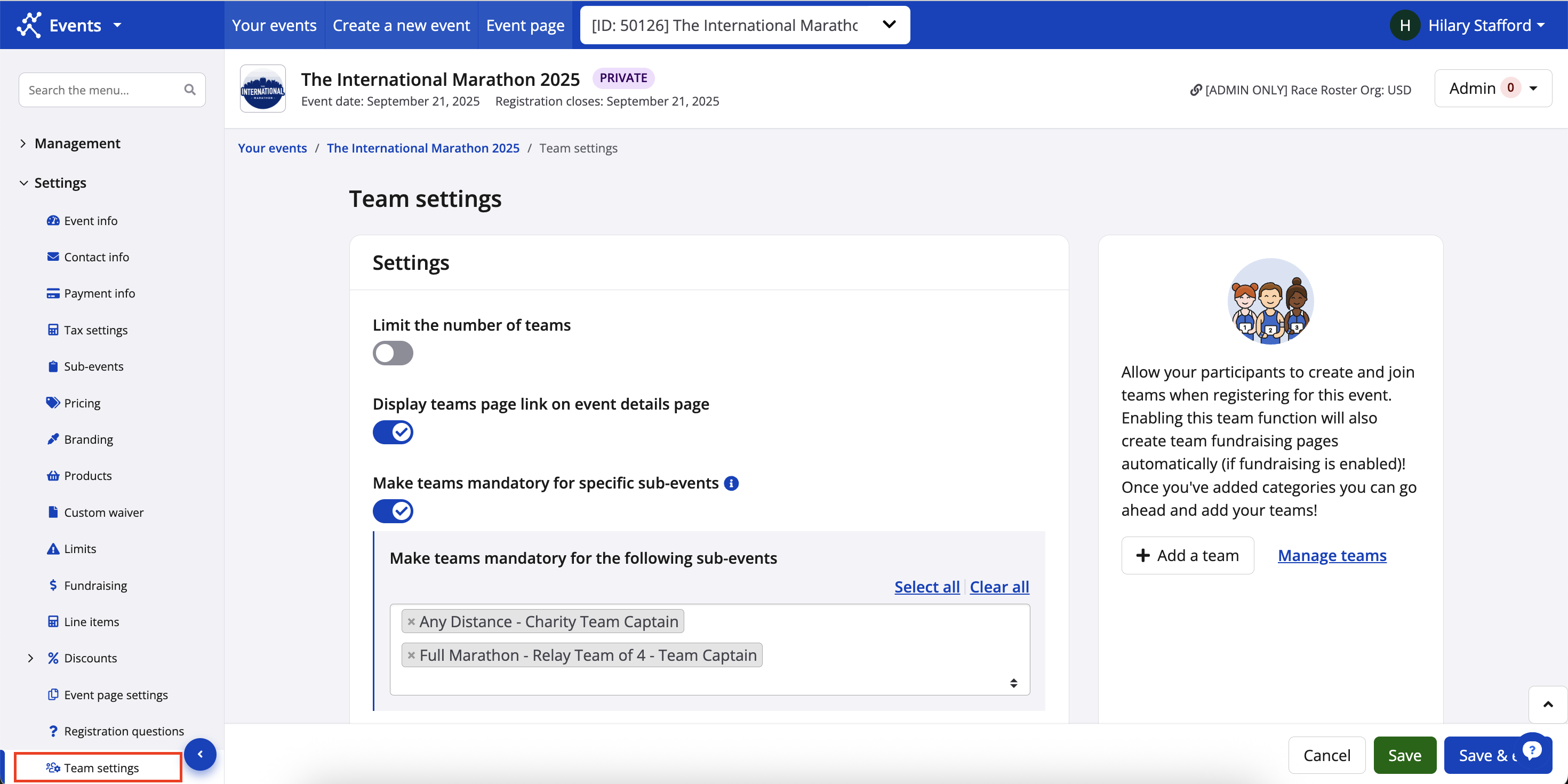
3. First, create your team category and add team-specific questions if applicable then scroll down to team-specific discounts section and click Add discount
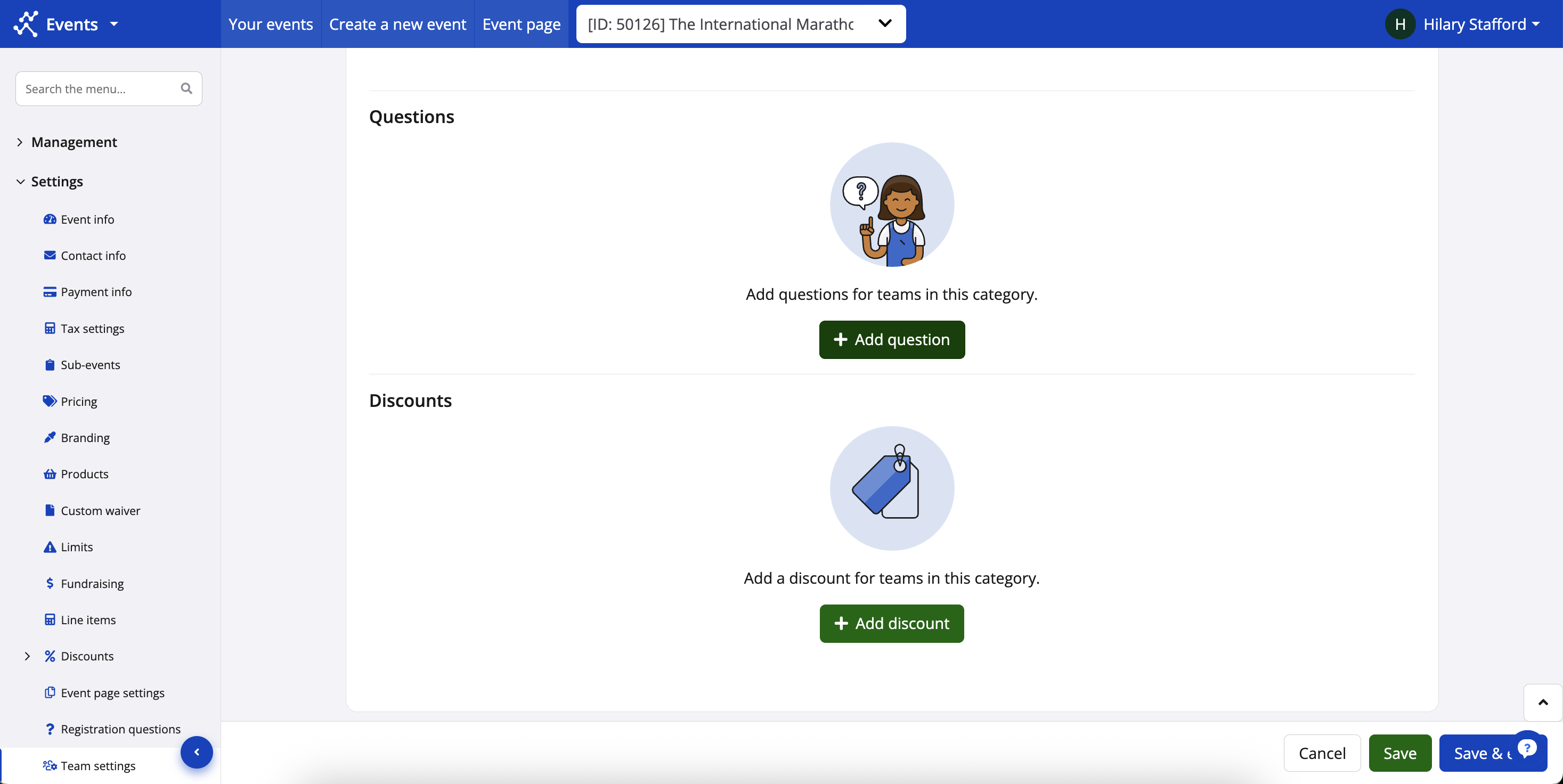
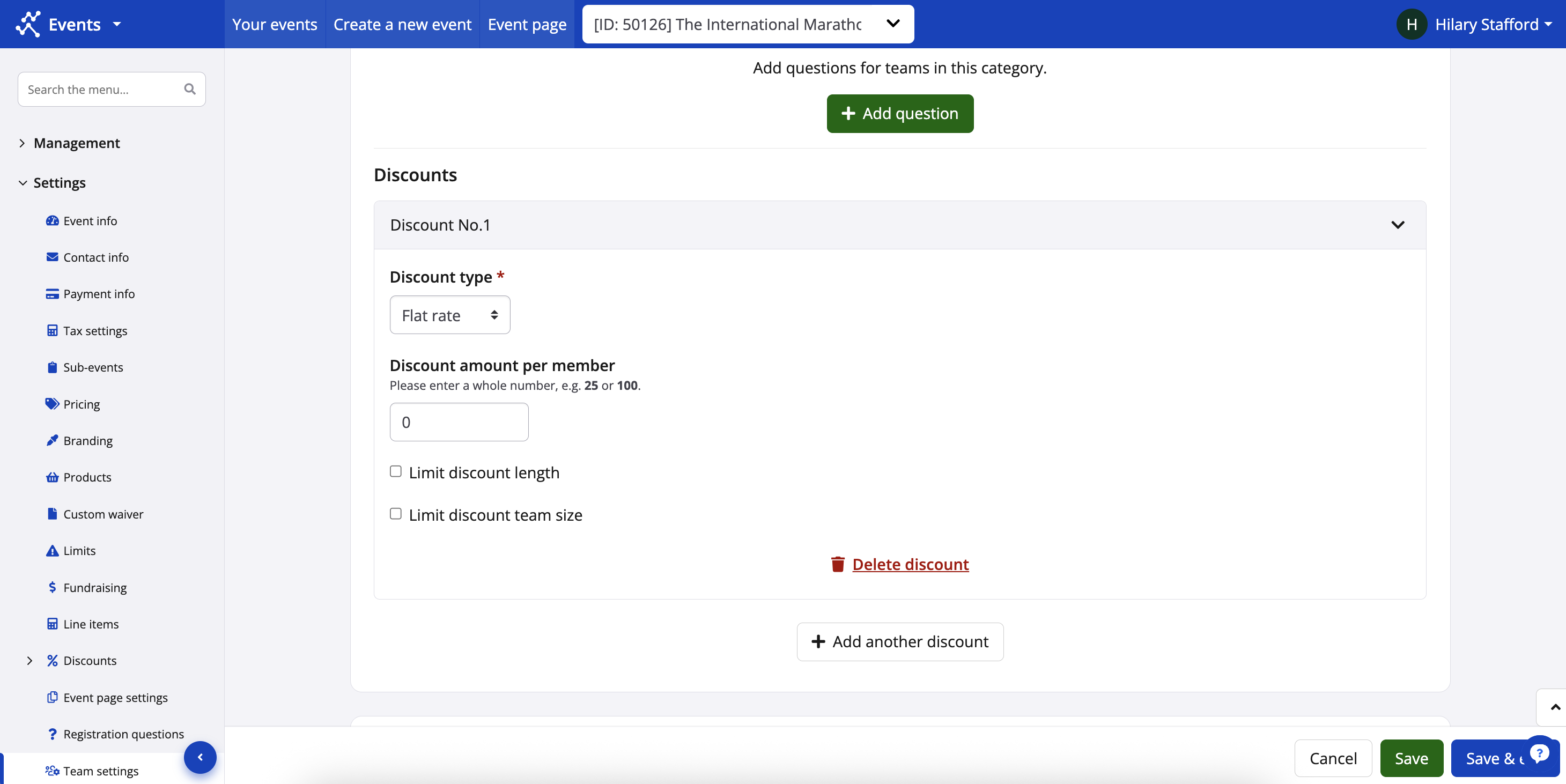
4. The system will then open fields for:
-
- Discount Type - flat rate (ie/ $5 off) or percentage (ie/ 25% off)
- Discount Amount - what is the discount amount (ie/ 5 or 25)
- Discount Length - how long is this discount available to team members?
- Team Size - is there a team member limit to receiving the discount?
5. Each registrant that chooses this team category will be given a discount at checkout.
6. If you wish to remove the discount simply click Delete discount at the bottom of the specific discount
7. Scroll to the bottom and click Save before navigating away from this page
NOTE: The discount section must be configured for each team category separately
For instructions on setting up teams and team categories visit this article, How do I set up and configure teams? and for more on specific team configurations, visit our Team Configuration section.