Stream Connect is our FTP (File Transfer Protocol) API that allows you to transfer large numbers of image files quickly and securely. It works well with third party FTPs such as FileZilla Client. By connecting an FTP such as that to Race Roster, you can upload race day photos directly into your gallery. Using FTP ensures an efficient and reliable process for managing high volumes of images, saving time while keeping your gallery organized and ready to share with participants.
Step 1 — Download or log in to your FTP tool
- If you do not already have a preferred FTP tool, we recommend going to https://filezilla-project.org/ and click Download FileZilla Client. The application will then be available on your desktop.

Step 2 — Connect Race Roster to the FTP, using Stream Connect
- Log in to your Race Roster timer dashboard .
-
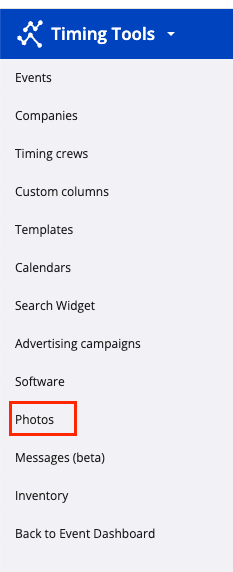
Navigate to Photos from the left-hand sidebar.
-
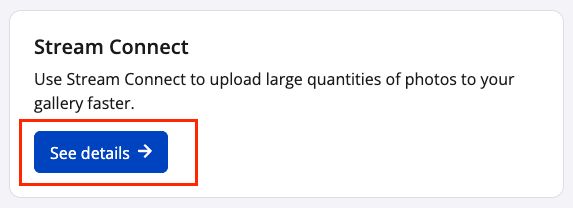
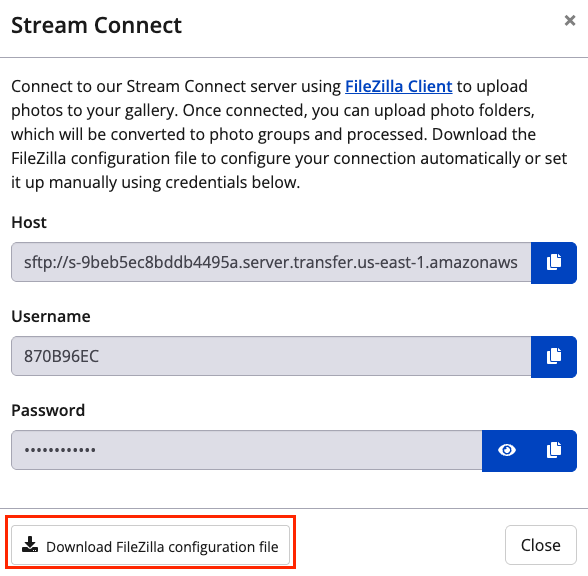
Under Stream Connect select the blue "See details ->" button.
-
Download the FileZilla configuration file to configure your connection automatically. If using another third party FTP, set it up manually by copying and pasting the visible credentials.
Remember: These credentials can be used to connect to other FTP platforms, not just FileZilla!
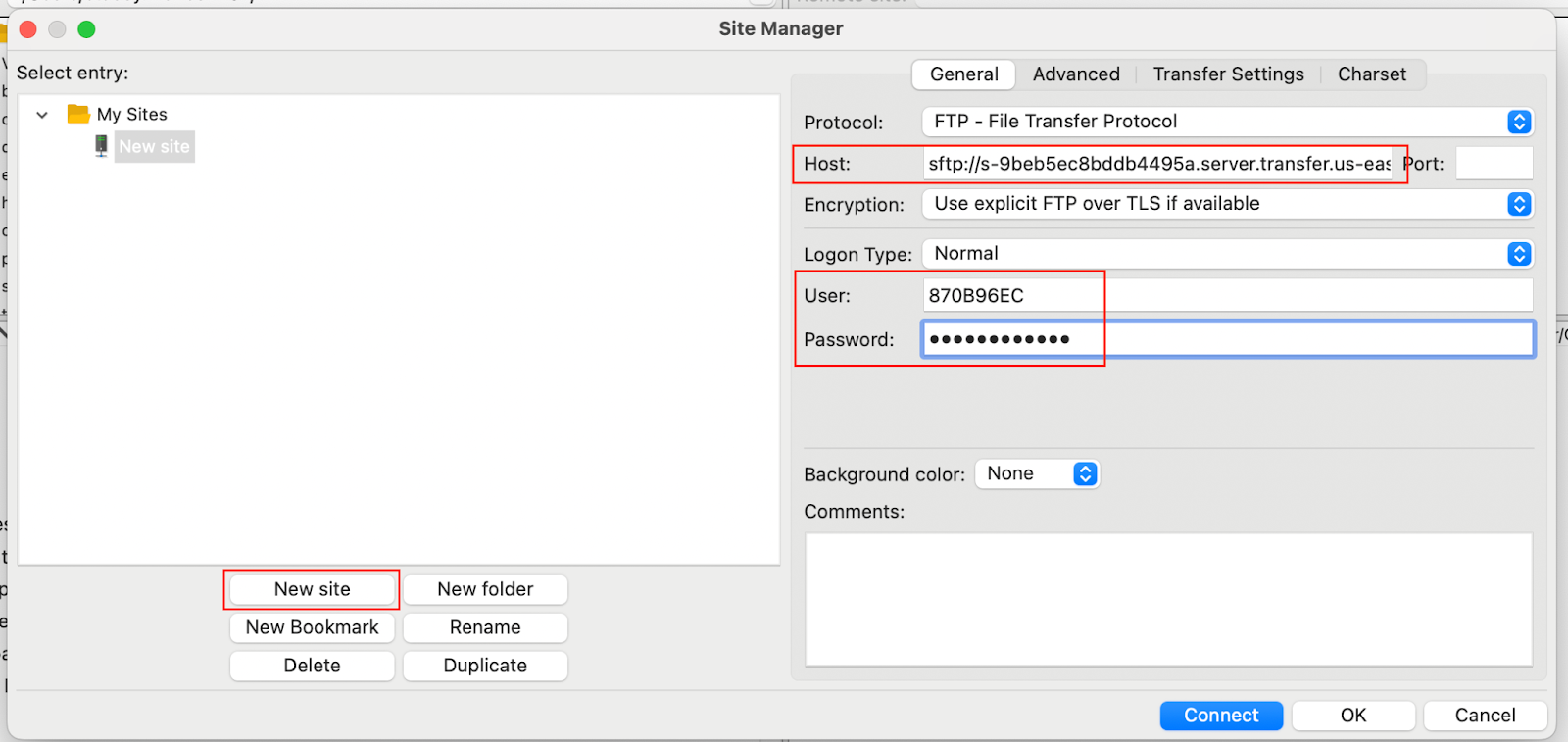
- In FileZilla, select File → Site Manager.
- Select New site and enter the available Host, Username and Password details from Race Roster. Then, click Connect.
Step 3 — Transfer images in FileZilla or your FTP tool
-
In the top left hand window of FileZilla find the Folder of your event day photos. Drag and drop to the bottom right hand window.
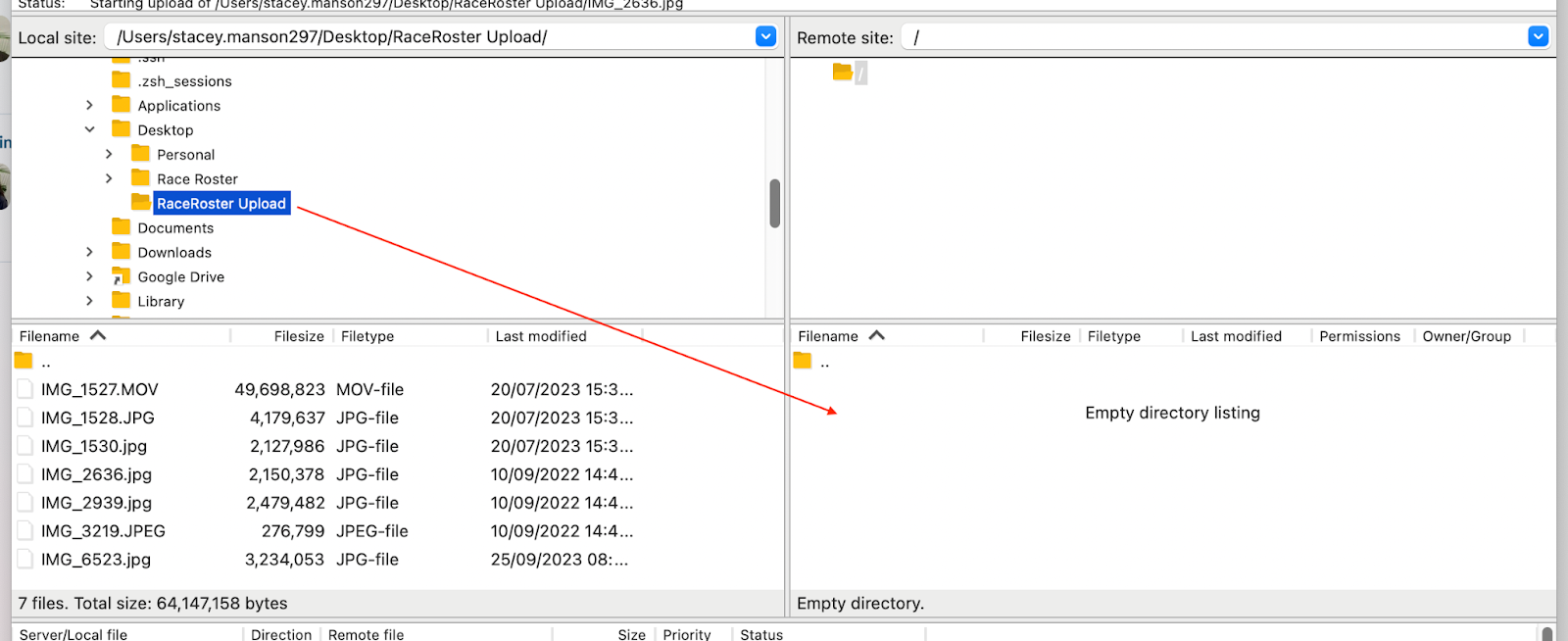
Tip: Ensure you are dragging across a single folder. Sub-folders inside a master folder will not upload. Zipped or compressed folders are not supported.
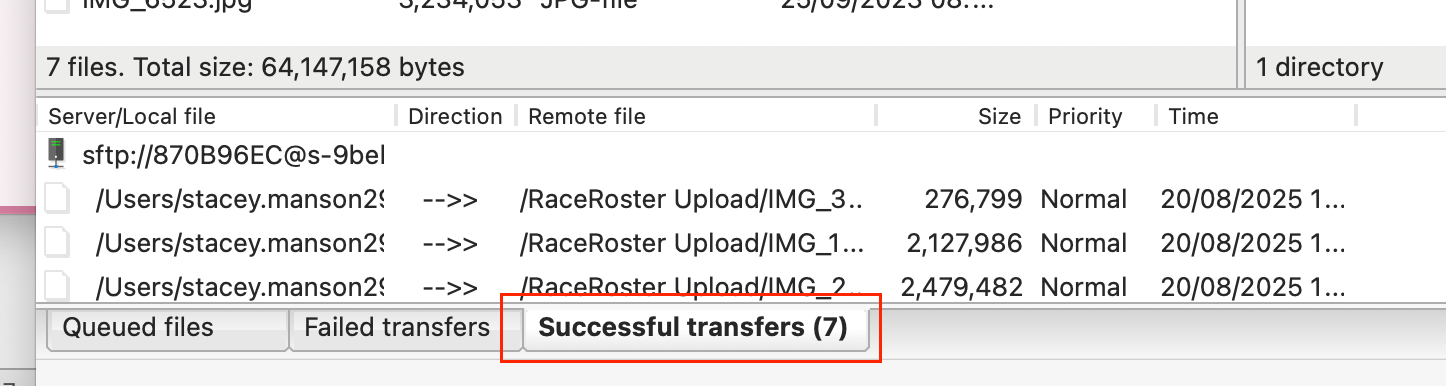
- Once the files are ready they will be visible in the Successful transfers tab.
Step 4 — Create your event day gallery
- For additional steps, please read our other article How to create a photo gallery .
-
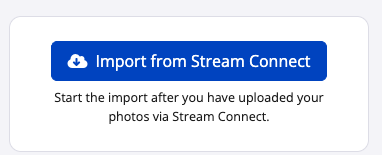
When you arrive at the Upload Photos step select Import from Stream Connect.
- Refresh to ensure all files have been uploaded.
- Click Save to finalize the process.