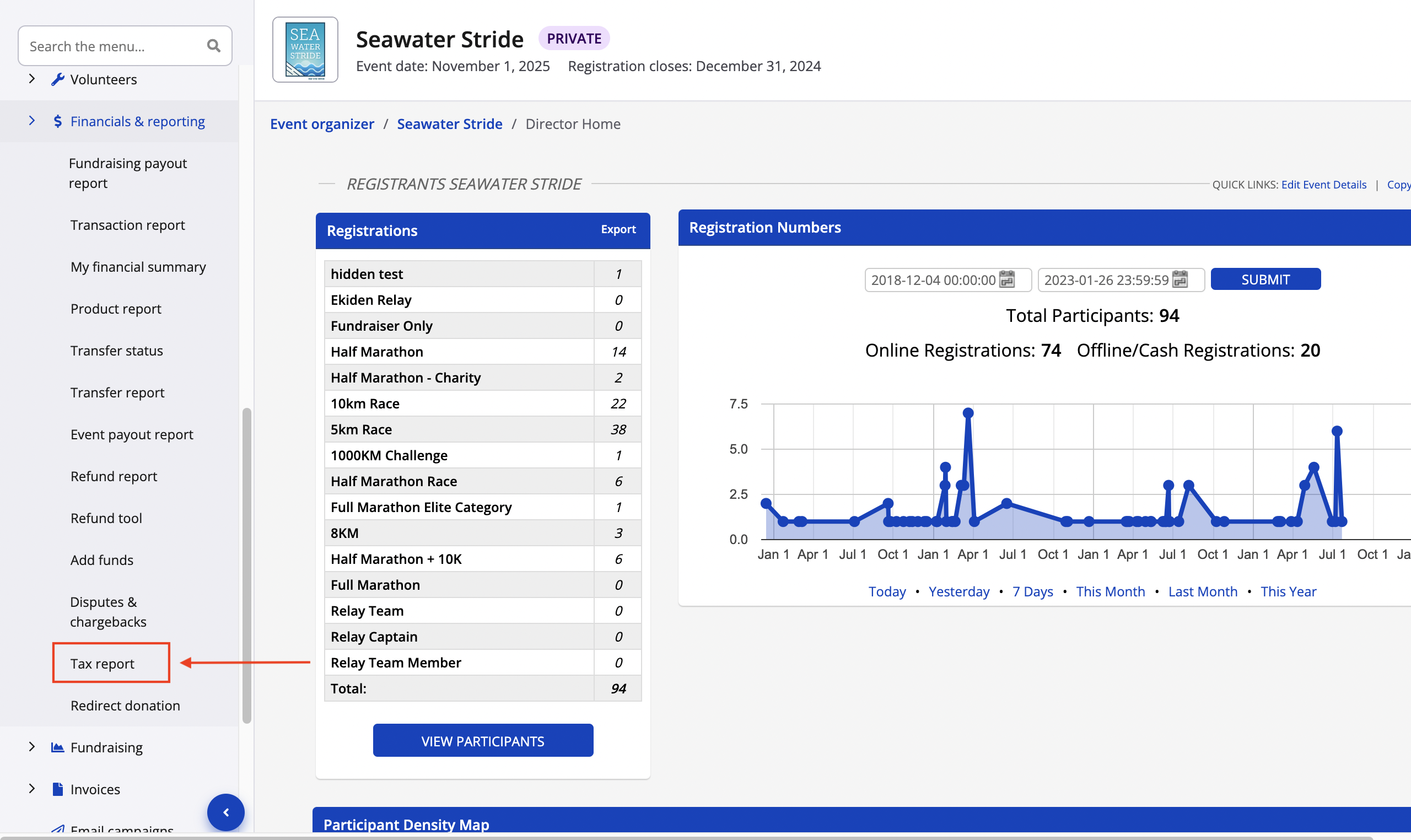
1. Login to your dashboard as an event organizer.
2. From the lefthand side menu of your event dashboard, find the tax report under management -> financials & reporting -> tax report
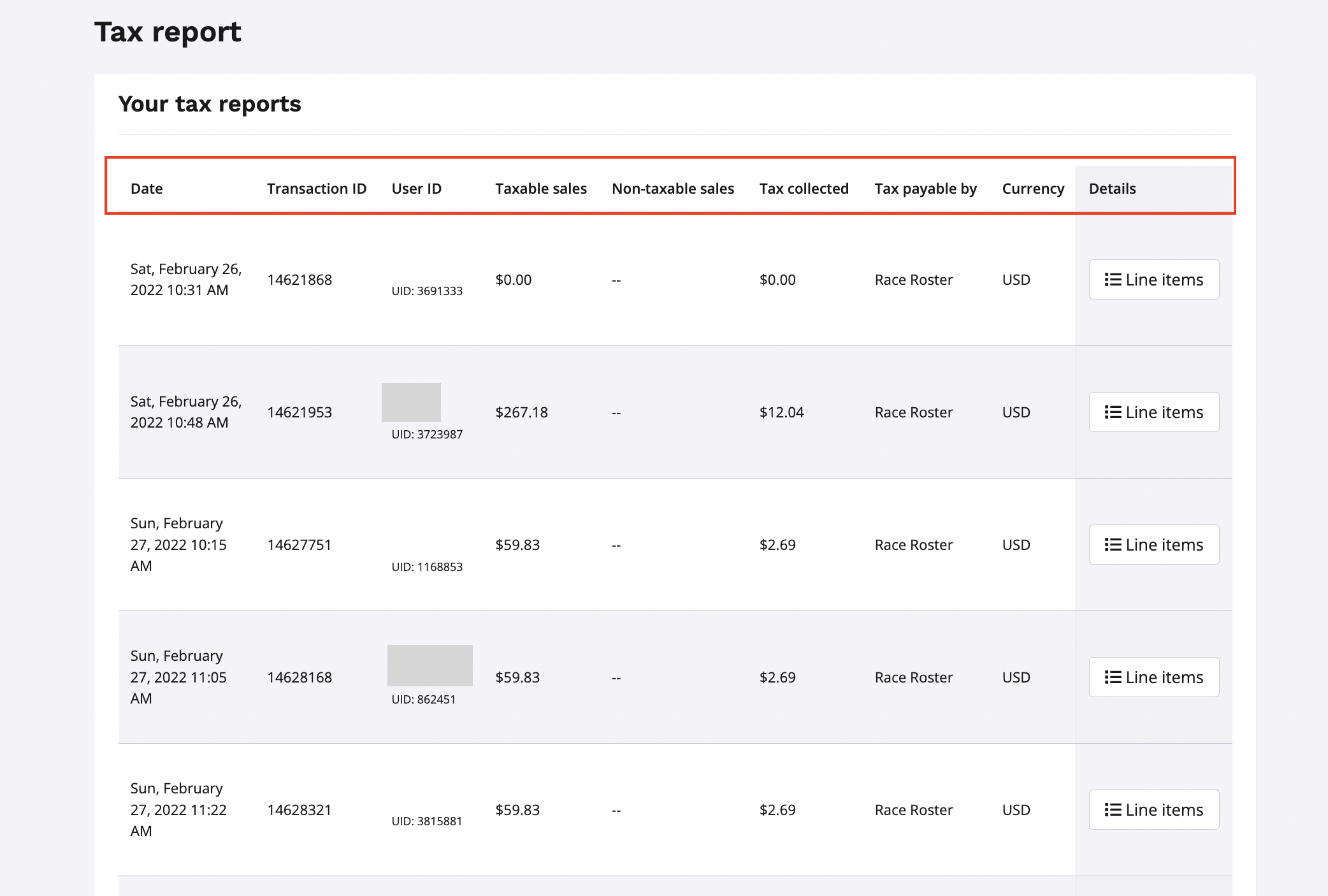
3. From your tax report page, you will be able to view and export your tax report with the following information transaction information available:
- Date
- Transaction ID
- User ID
- Taxable sales
- Non-taxable sales
- Tax collected
- Tax payable by
- Currency
- By type
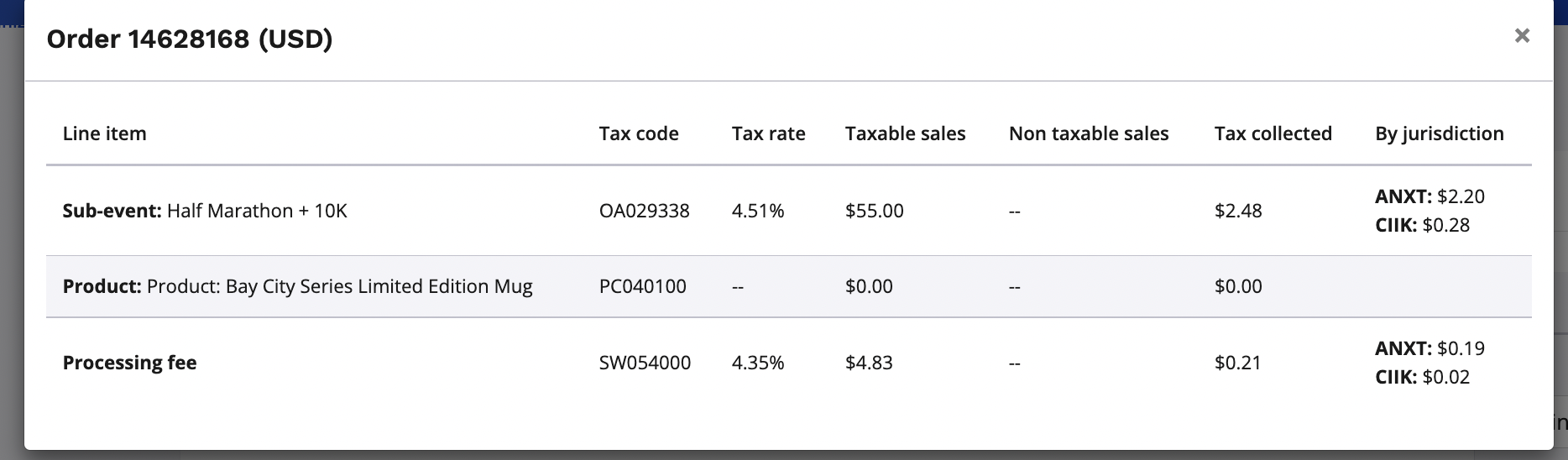
4. By clicking on the white line items buttons under the details column, you can view a breakdown of each transaction line by line outlining:
- The tax rate applied
- Total for taxable sales
- Total for non taxable sales
- Total tax collected
- Tax jurisdiction
5. To download your tax report as a .csv file, scroll to the bottom of the page and click the blue download report button.
Note:
- Canadian events display differently and show a "by type" column which displays the tax line item being included in the transaction
- Non-marketplace states will not display the jurisdiction column in the tax report
- Tax codes and jurisdiction codes are generated from Avalara. Please refer to Alavara's website to better understand these codes: https://help.avalara.com/Avalara_AvaTax_Update/Download_jurisdiction_codes