Race Roster offers the ability for event organizers to create bundles which allow for participants to register for multiple sub-events during one registration. For example, a bundle sub-event can be called "5K + 10K" which allows the participant to register for both the 5K and 10K sub-events at once during one checkout, answering all questions providing selections relevant to both.
To learn how to set up bundle sub-events on your event page, follow the steps below.
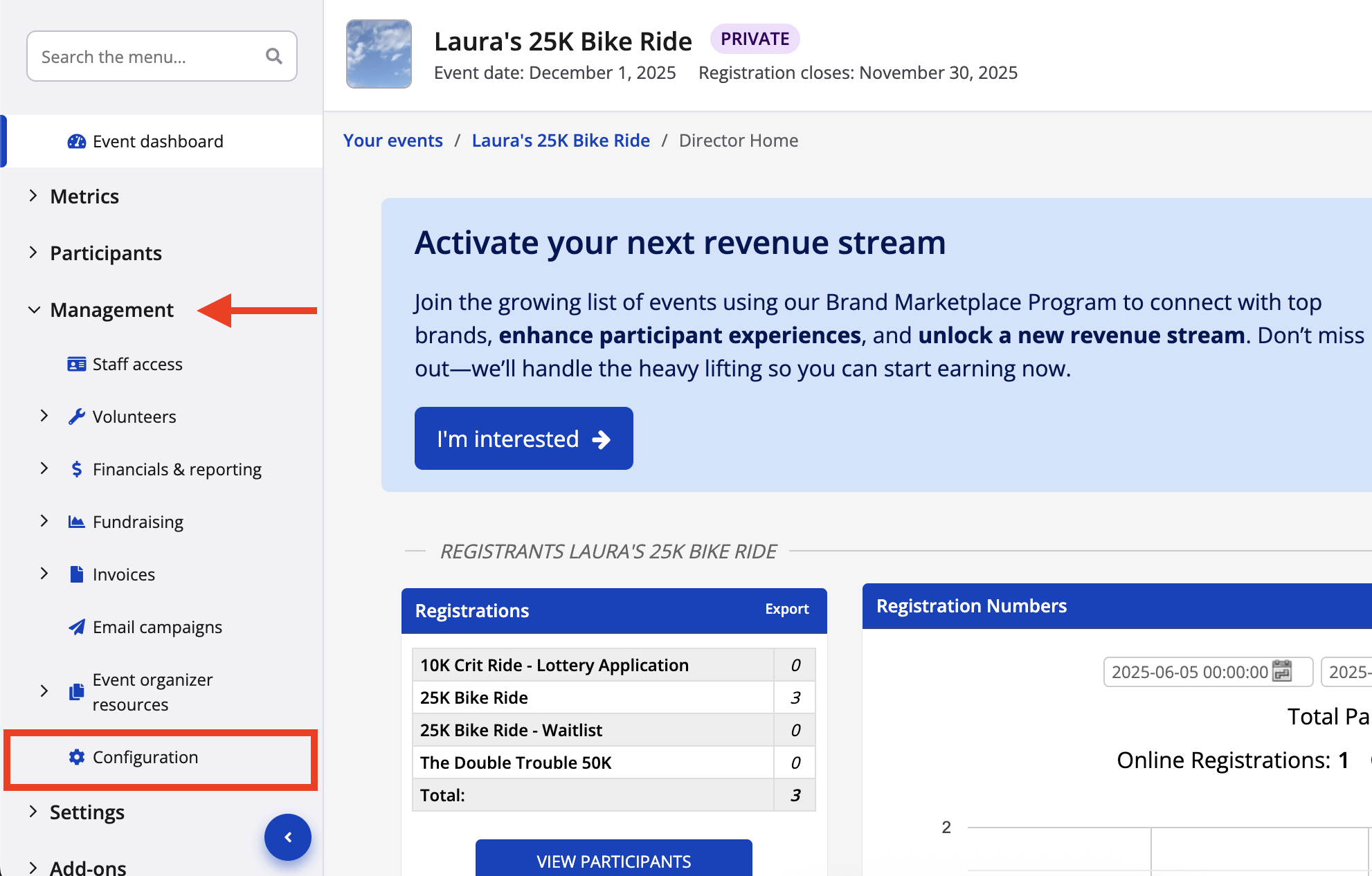
1. From your event dashboard, click on Management -> Configuration to enable the correct setting for bundles.
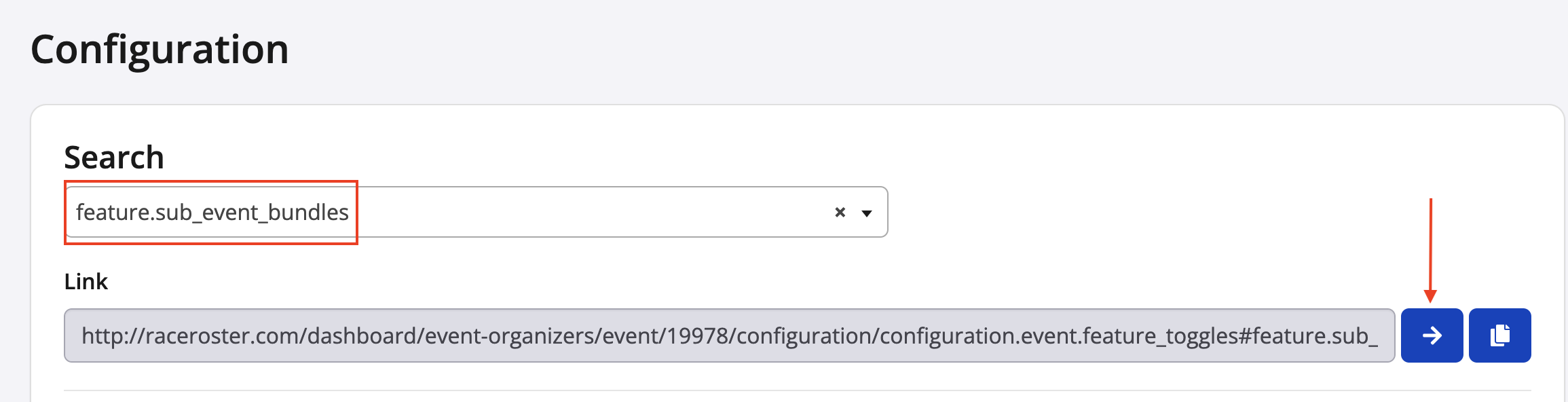
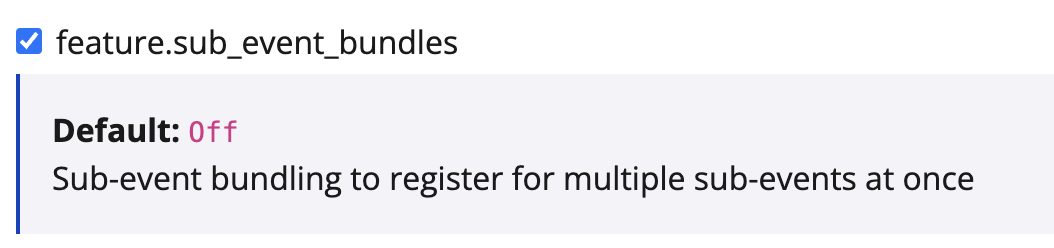
2. From your configuration settings, type in feature.sub_event_bundles and click the blue arrow button to find the corresponding setting. Enable the setting by checking the box next to the setting name and then click Save.
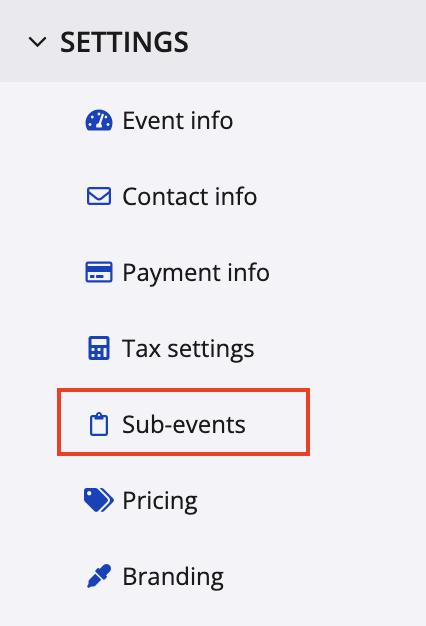
3. With the bundle setting now enabled, from your lefthand menu bar, click on Settings -> Sub-events to begin creating your bundle.
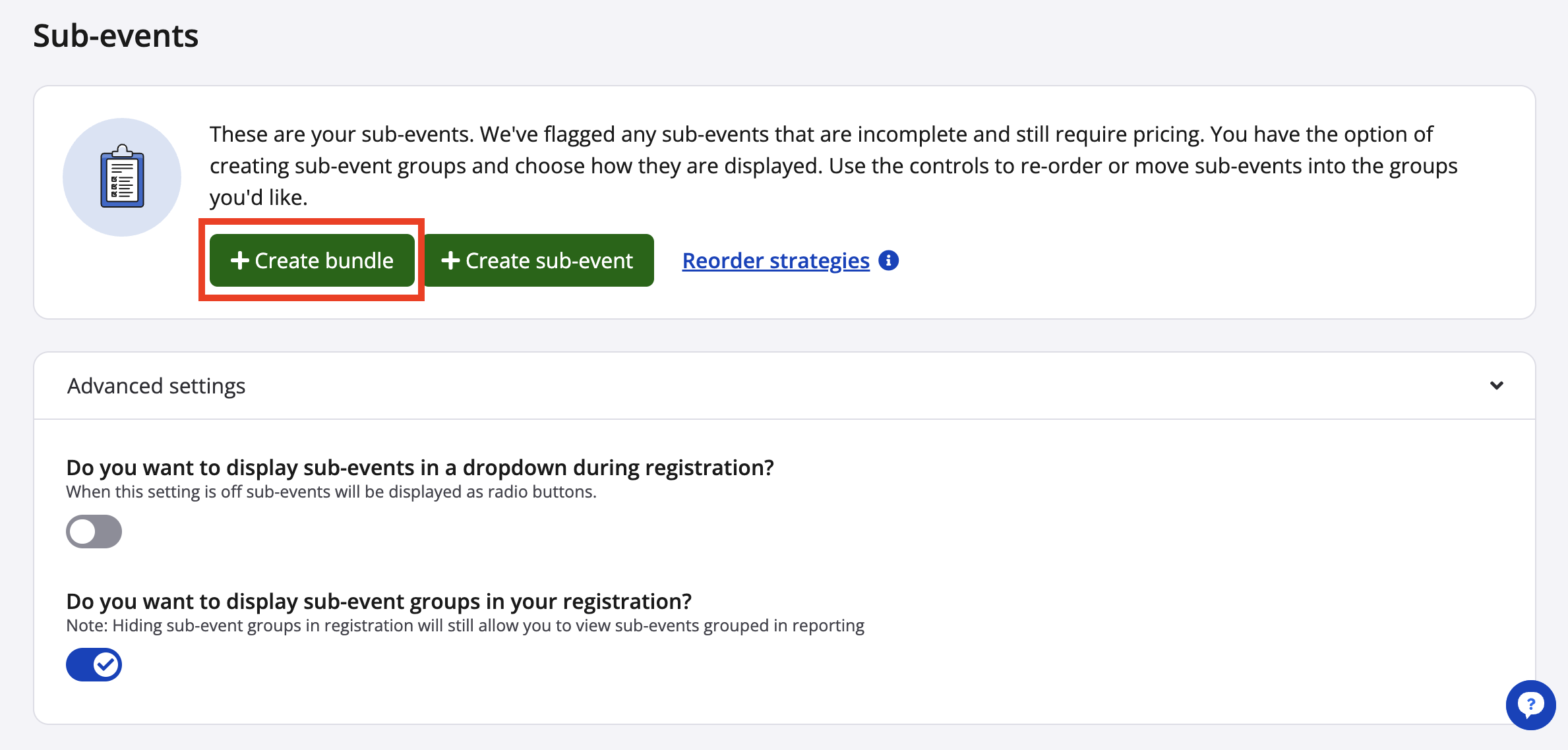
4. From your sub-event settings, you will now find a green button labeled "+ Create bundle". Click on this button.
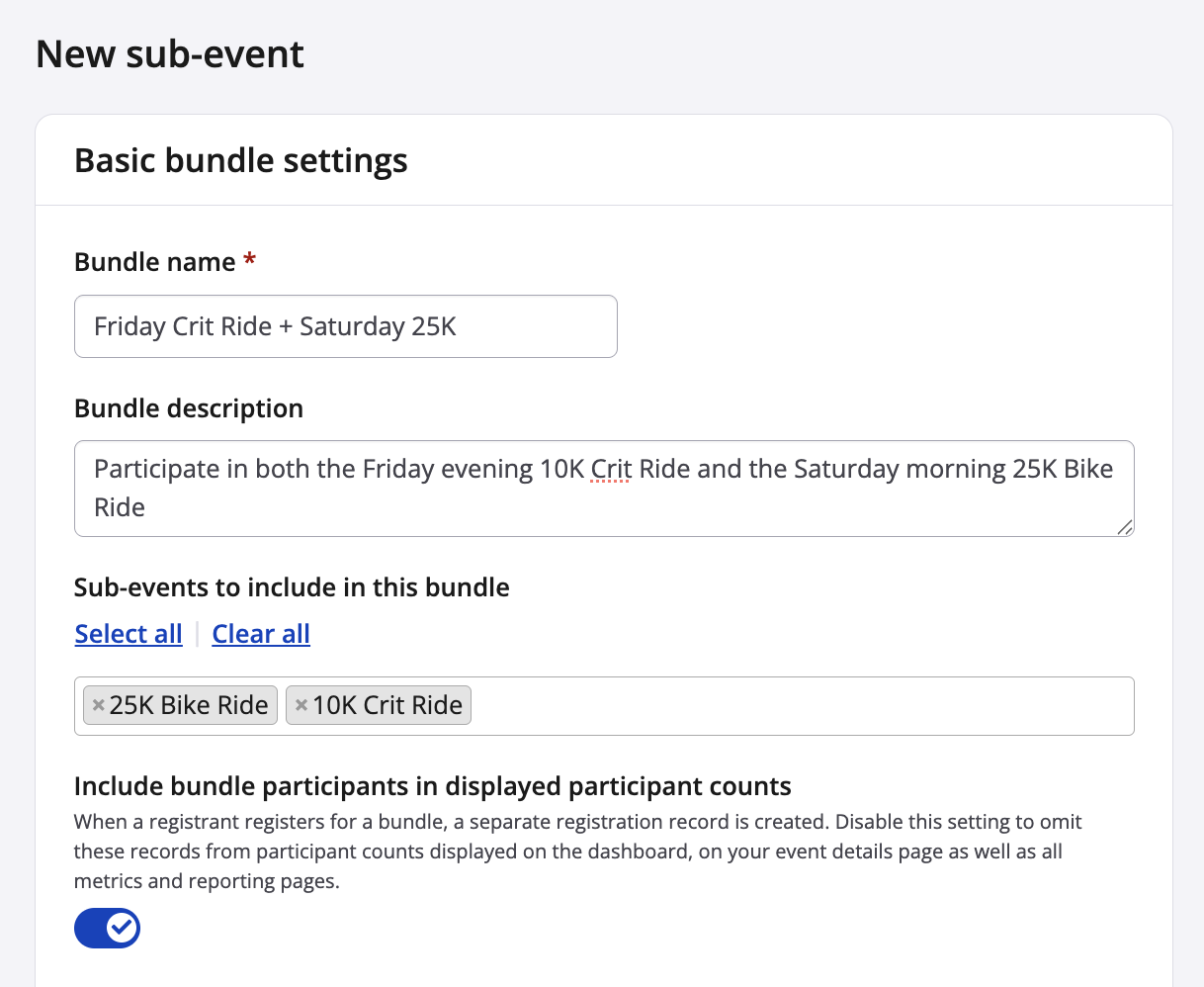
5. To begin creating your bundle, first complete the following fields and sections:
- Bundle name - For example, 5K + 10K Combo or Friday Crit Ride + Saturday 25K)
- Bundle description (optional) - Add information about what is included by registering in this sub-event
- Sub-events to include in this bundle - Select the sub-events that will comprise the bundle
- Include bundle participants in displayed participant counts - When a registrant registers for a bundle, registration records are created as follows:
Participant ID 1 - the bundle itself
Participant ID 2 - the first sub-event in the bundle
Participant ID 3 - the second sub-event in the bundle
and so on.
Disable this setting to omit the bundle record from participant counts displayed on the dashboard, on your event details page as well as all metrics and reporting pages.
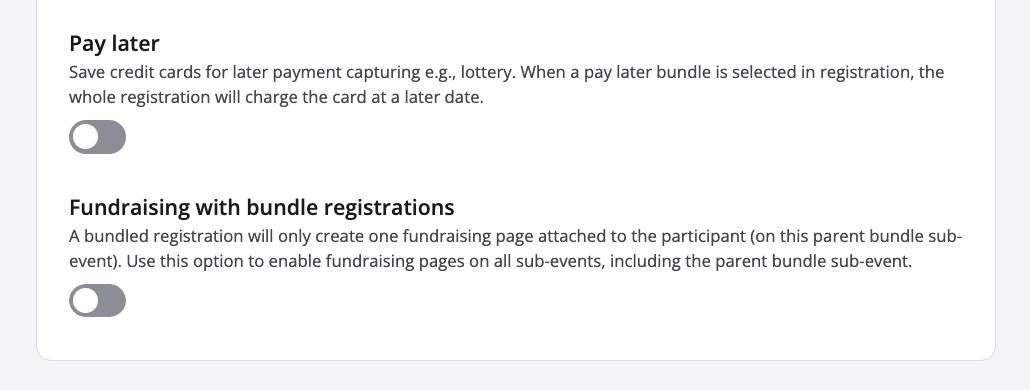
- Pay later - Also known as Charge later
- Fundraising with bundle registrations -
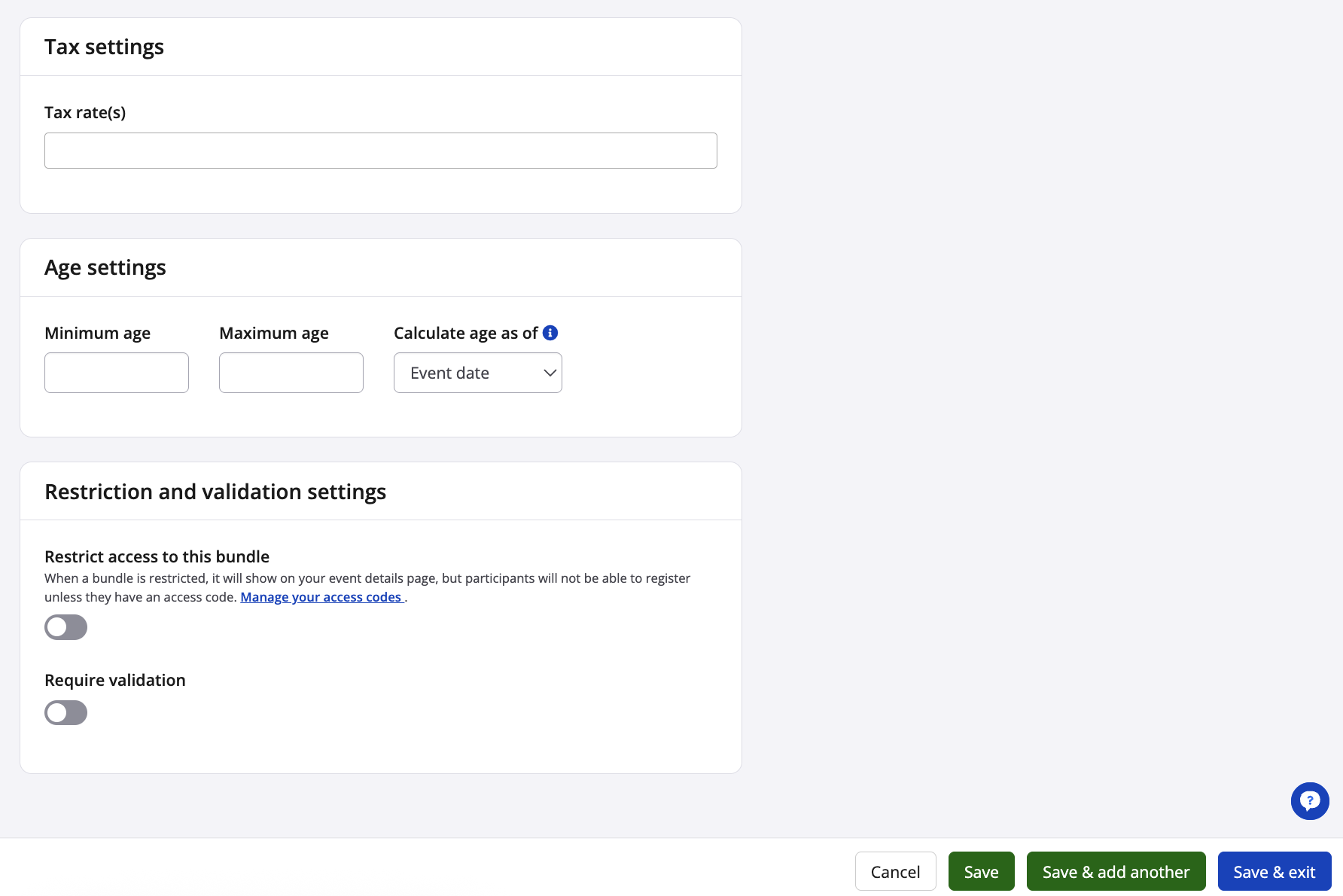
6. On the same page, complete your setup with the tax settings, age settings and restriction and validation settings sections. Should you need guidance on these three sections, please refer to Steps 4 through 6 of our other article, How to create a sub-event .
Click save & exit once complete.
7. After creating your bundle, you can add pricing from your pricing settings to have your new bundle be made visible within your registration flow. Once visible, participants will be able to register for your bundle.
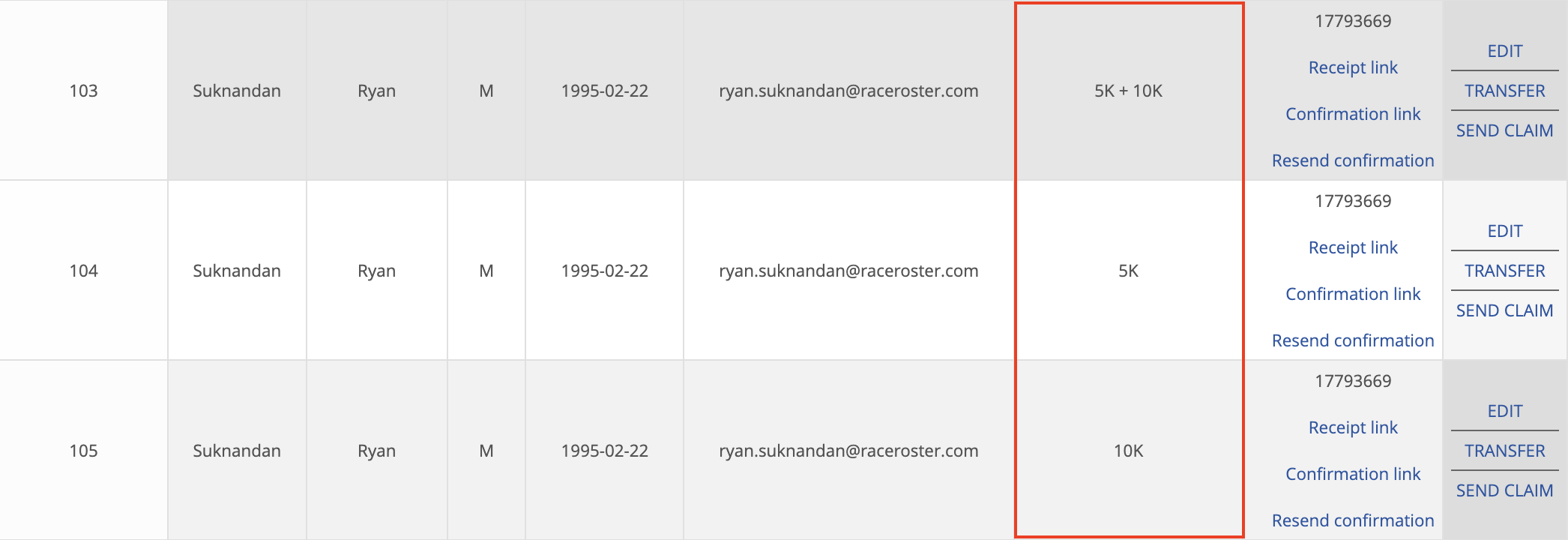
8. As users register for your bundle sub-event, there will be multiple registration records that exist within your participant list. One registration will exist for the bundle sub-event itself, as well as a separate registration for each of the individual sub-events within the bundle.
If you have any questions, please reach out to us at director@raceroster.com