Race Roster has added the ability to create organizations. This feature that allows event organizers who organize multiple events on the platform to create one single organizational view across all of their events, from one dashboard called Race Roster CRM. This includes importing payment profiles at the organizational level, as well as maintaining total contact numbers (particularly participants) across multiple events.
This organization could correspond to your event management business, event production company, scoring and timing company, nonprofit or charitable organization, endurance/sports club—the entity or group responsible for the various events you organize, year over year.
To begin creating your own organization on Race Roster, follow the steps below.
1. Head to raceroster.com and sign into your Race Roster user account.
2. After signing in, you will be redirected to your welcome page. From your welcome page, click on the green create button in the top righthand corner, then select create an organization from the dropdown.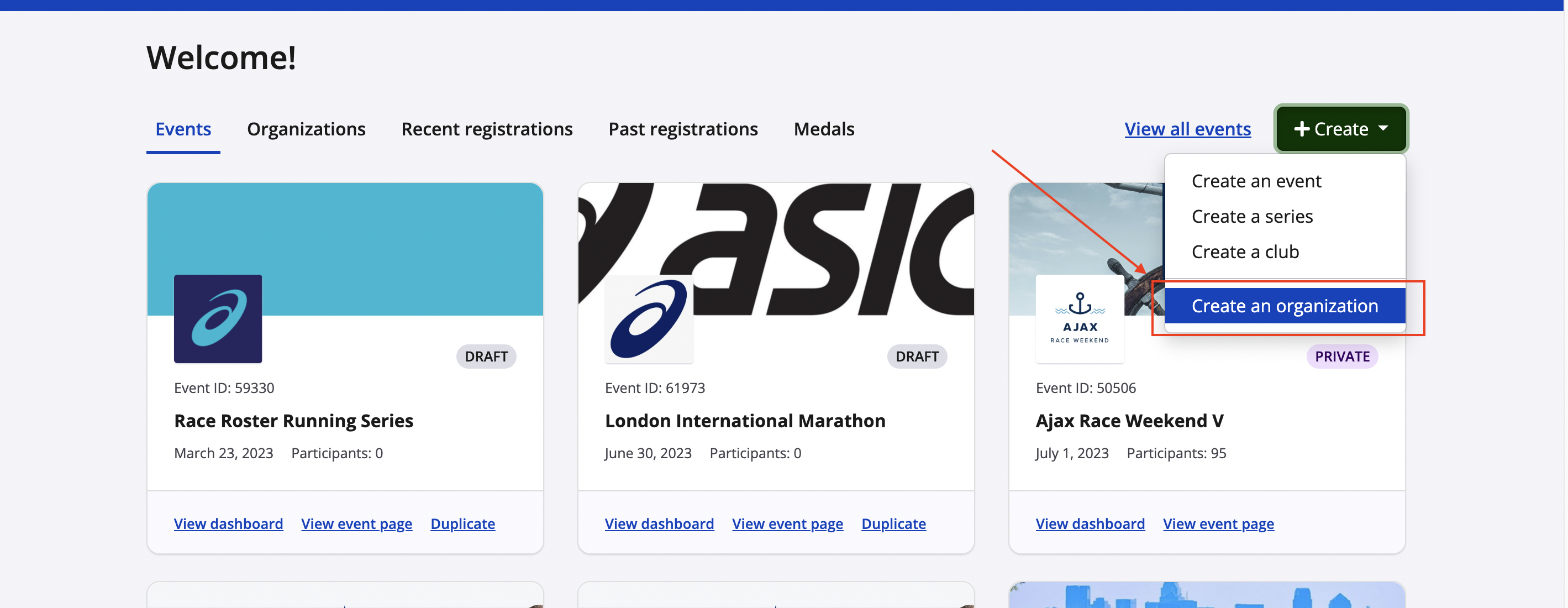
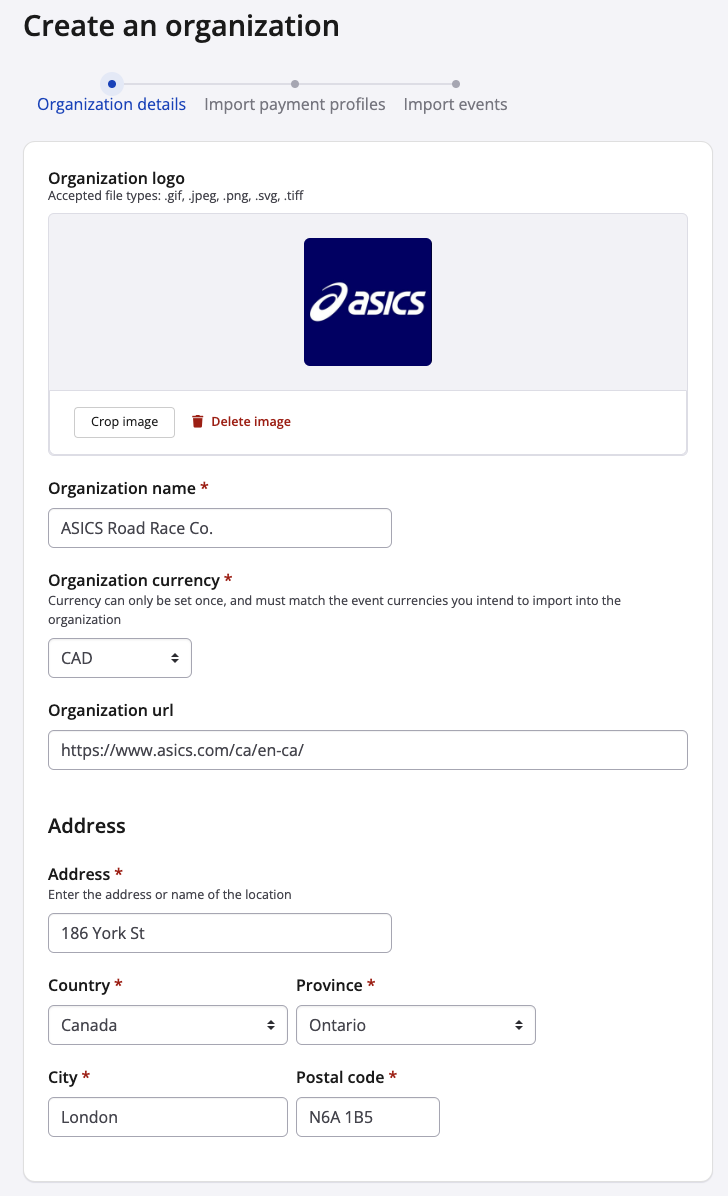
3. Provide the following information for your organization:
- Organization logo (optional) - File upload resulting in an internally-visible icon
- Organization name - The name of your organization as it will appear in internally-visible dropdown menus, and from the imported event dashboards
- Organization currency
- Note: Only events sharing the same currency can be imported to your organization; if you manage events in different currencies, you will need multiple organizations.
- Organization URL (optional) - Your organization's home website, outside of Race Roster.
- Organization address
- Note: An address is required in order to use CRM email campaigns; it will appear at the footer of all sent CRM emails.
- Select time zone
- Note: Effective October 2025, a time zone is required if you'd like to make use of our upcoming "Delayed send" setting in CRM email campaigns. The time zone indicated here is reflected in any custom report time stamps, but it does not reflect in organizational dashboard widgets (for the latter, the signed in user time zone applies).
- Organization point of contact - The name and contact information for the person responsible for the organization, only public-facing when the organization has fundraising capabilities enabled

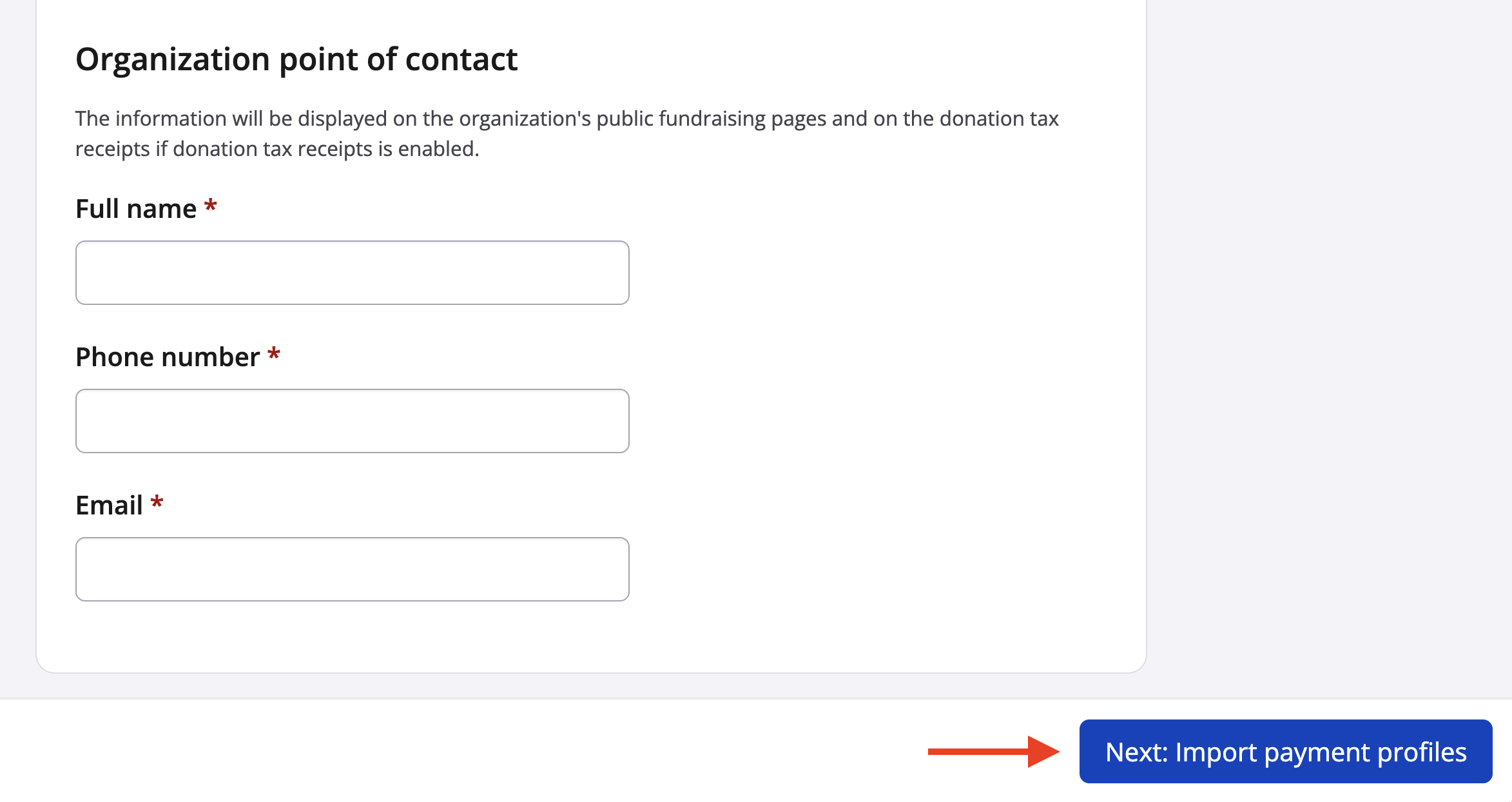
Click on the blue Next: Import payment profiles button in the bottom righthand corner to continue to the next step.
4. Select the existing payment profile(s) under your Race Roster user account that you wish to import into your newly-created organization. Organization and payment profile currencies must match. Users can also later create a new payment profile from within their organization, so this step may be skipped if needed.
- Note 1: By importing a payment profile that is associated with a specific event's payment info section, you will automatically bring that event into the organization as well.
- Note 2: You may not import a payment profile that already belongs to another organization. If you need to move a payment profile from one organization to another, remove the profile from the first organization's dashboard, then import it to your new organization.
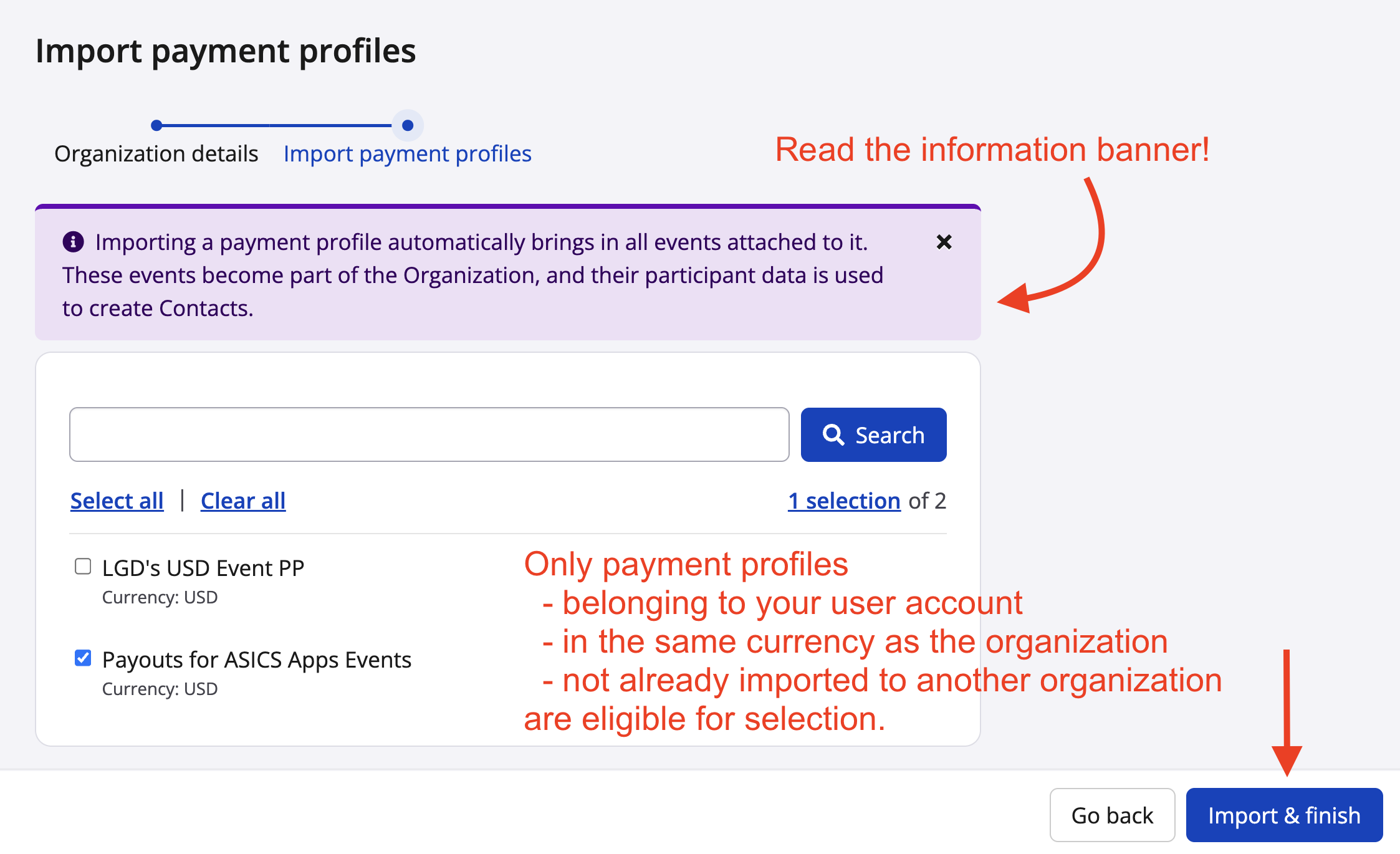
Click the blue "Skip & finish" or "Import & finish" button to finalize.
5. Your organization has now been created, and you will land on the dashboard. Click on Events > Events from the lefthand side menu to review which events, if any, have been imported. From that page, you may also create new events that will belong to the organization, or import events that you have staff access to.
- Note: If you import events from this page, the event will not be owned by the organization and its payment profile will not be imported. It will appear labelled as "Production Company Data", meaning that dashboard metrics and contacts will be visible, while payment information will not.
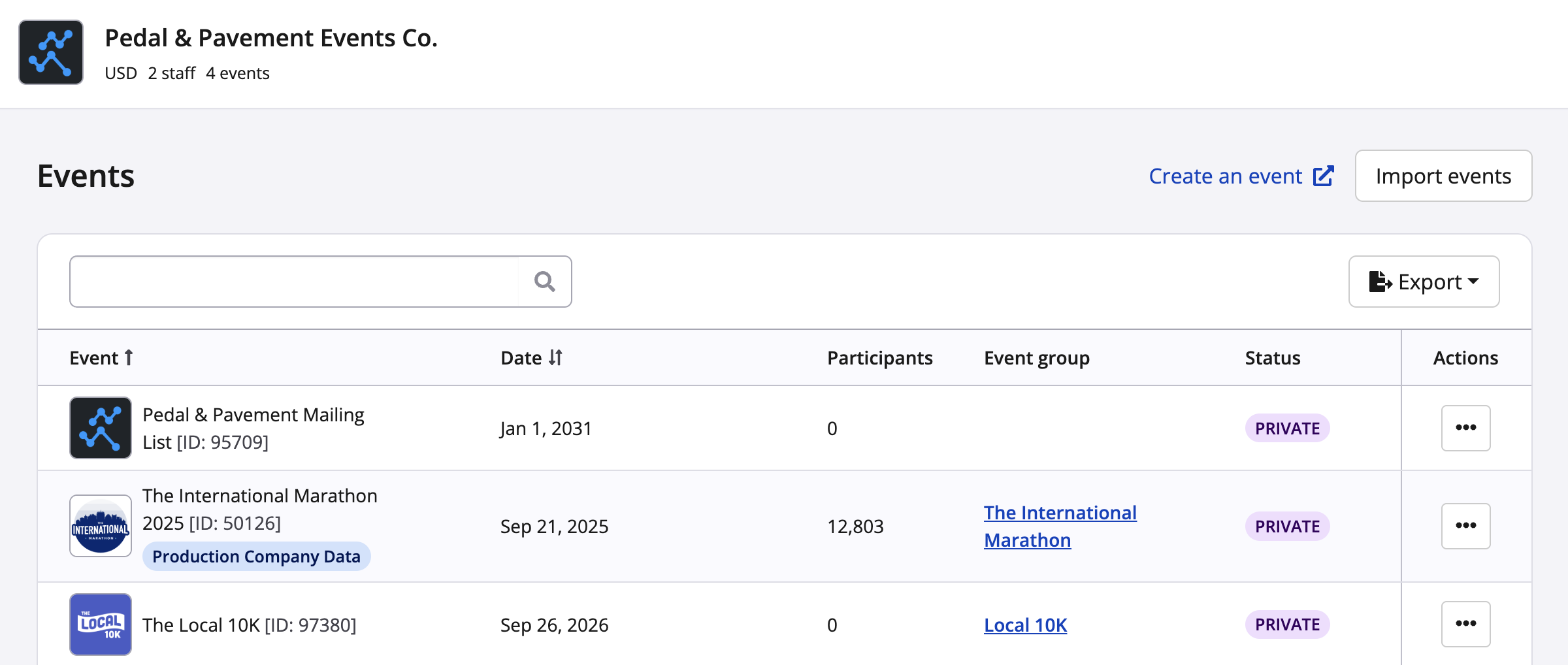
From your organization dashboard you will be able to view the following information for your events you chose to include:
- Net revenue across all of your events (customizable)
- Total number of events within the organization
- Total number of LIVE events within the organization
- Total number of events in draft/demo status
- Upcoming events within your organization
- Event types
- etc
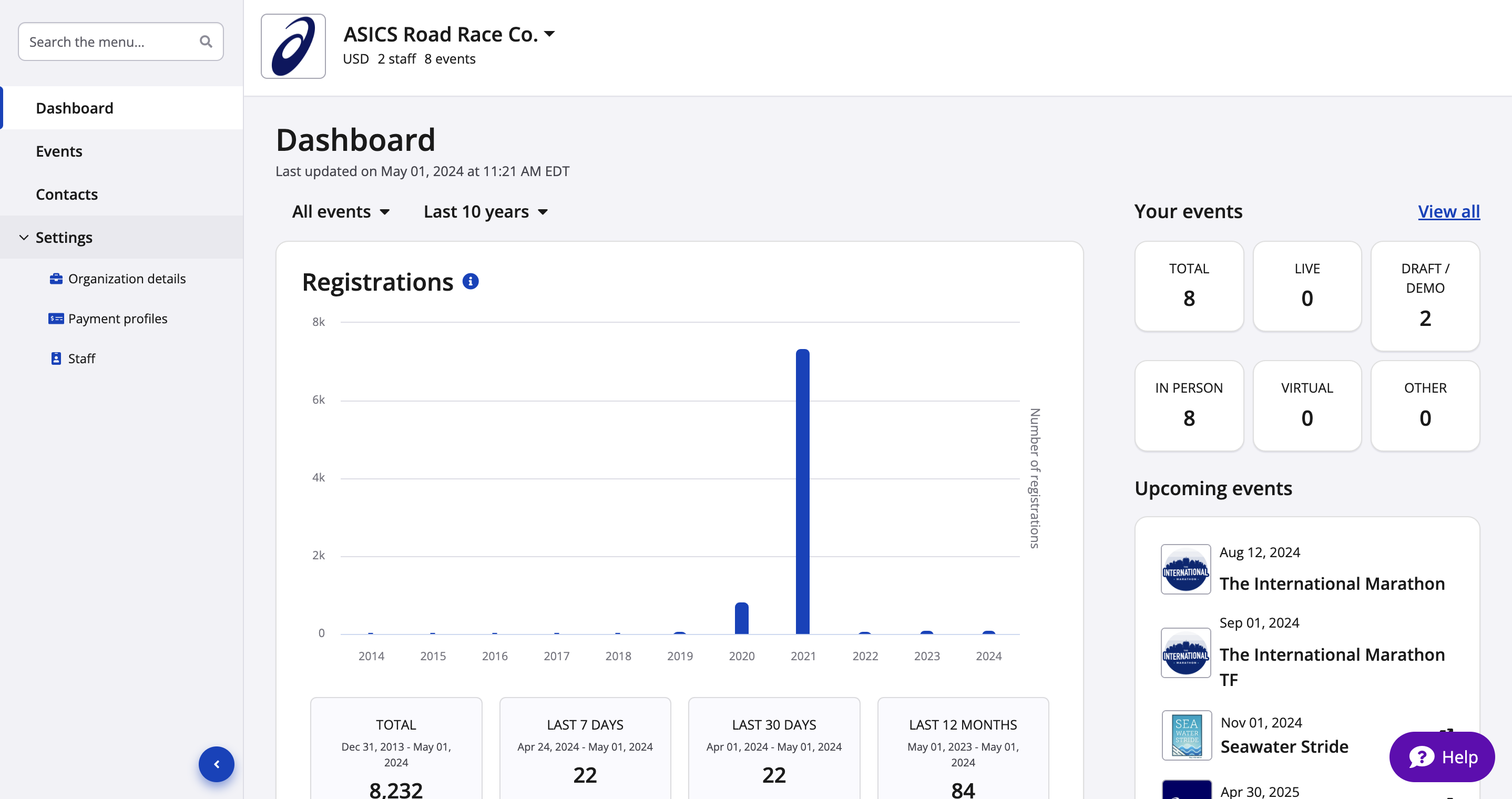
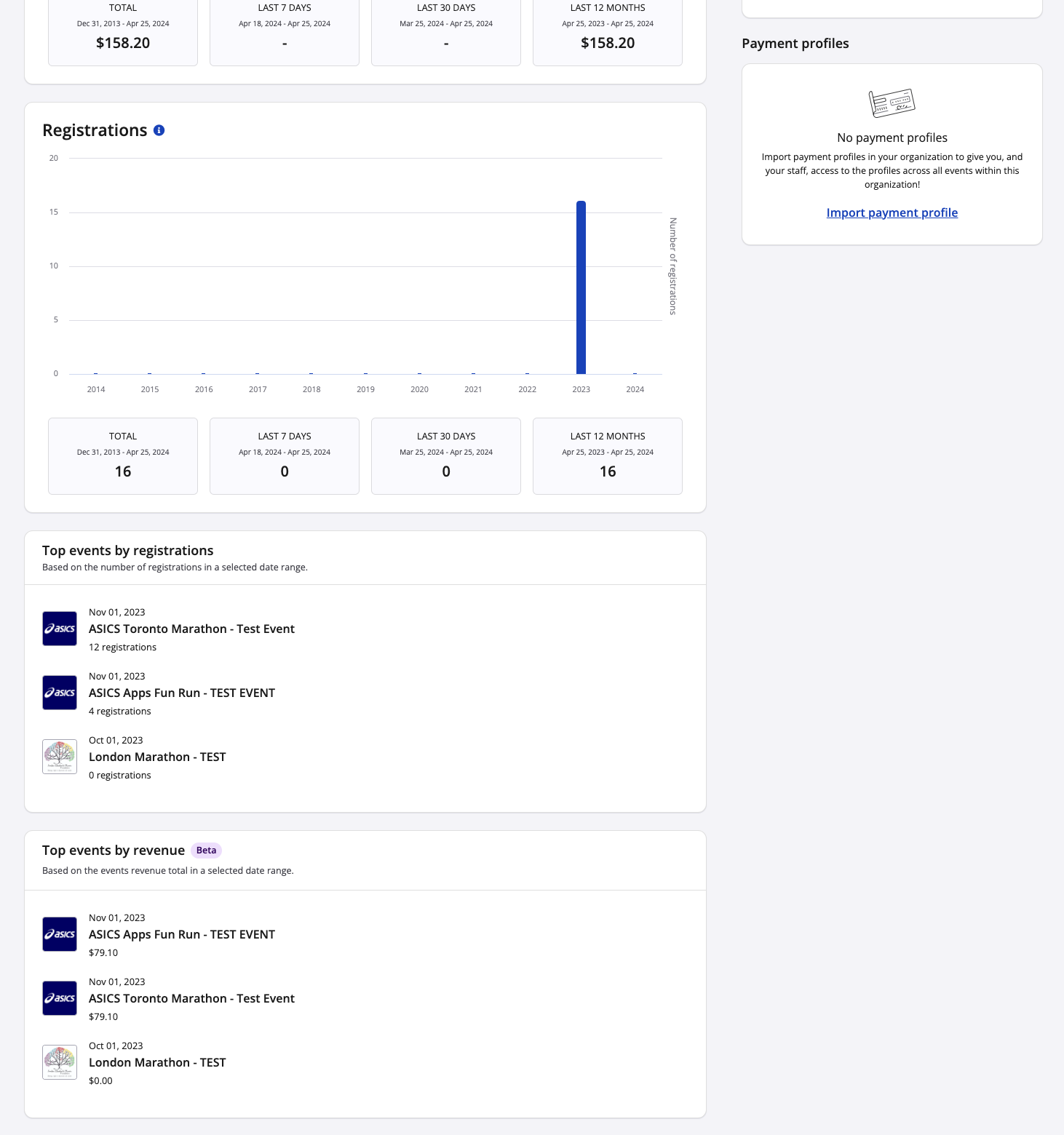
You will also be able to keep track of registration totals across all of the events included within your organization.
If you have any questions or concerns when creating your organization, please contact us at director@raceroster.com (director@raceroster.com.au) and we'd be happy to help.