Once your results are posted, you can still make quick adjustments on the front facing results page.
Step 1: Go to the front facing results page
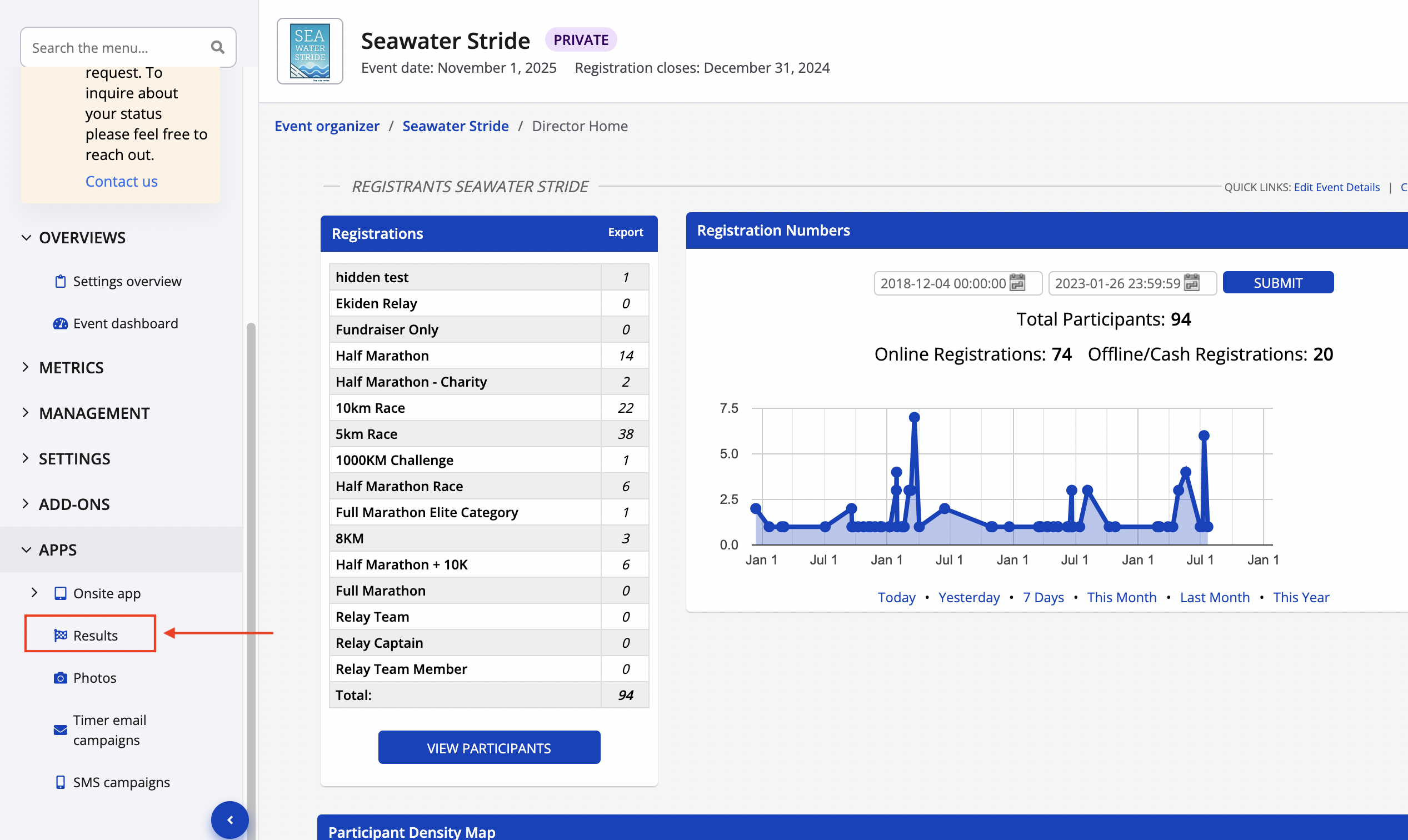
1. Go to your Event Organizer dashboard and click on Apps -> Results
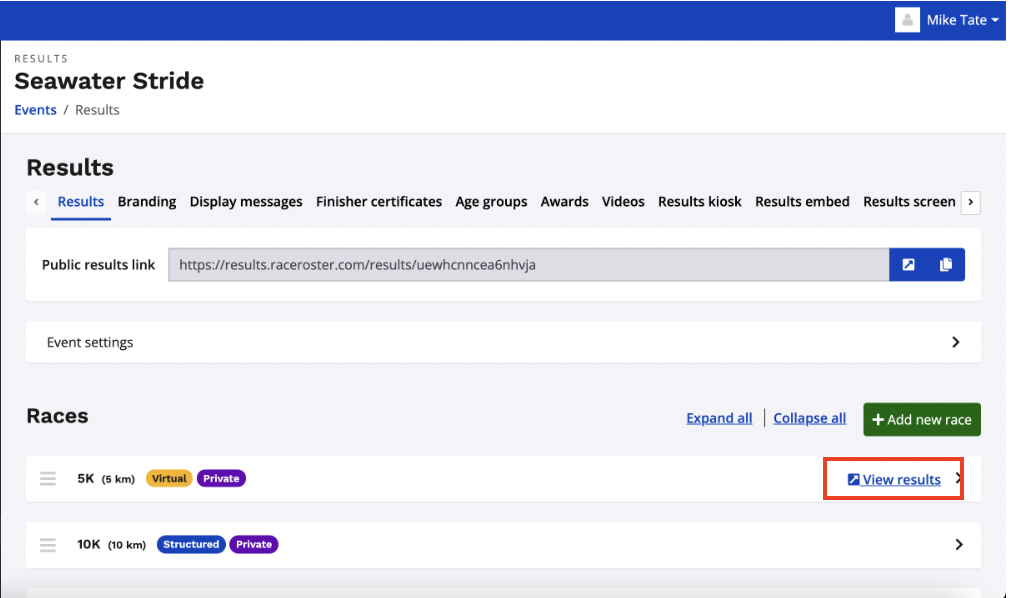
2. Find the results page that you would like to edit and click View results
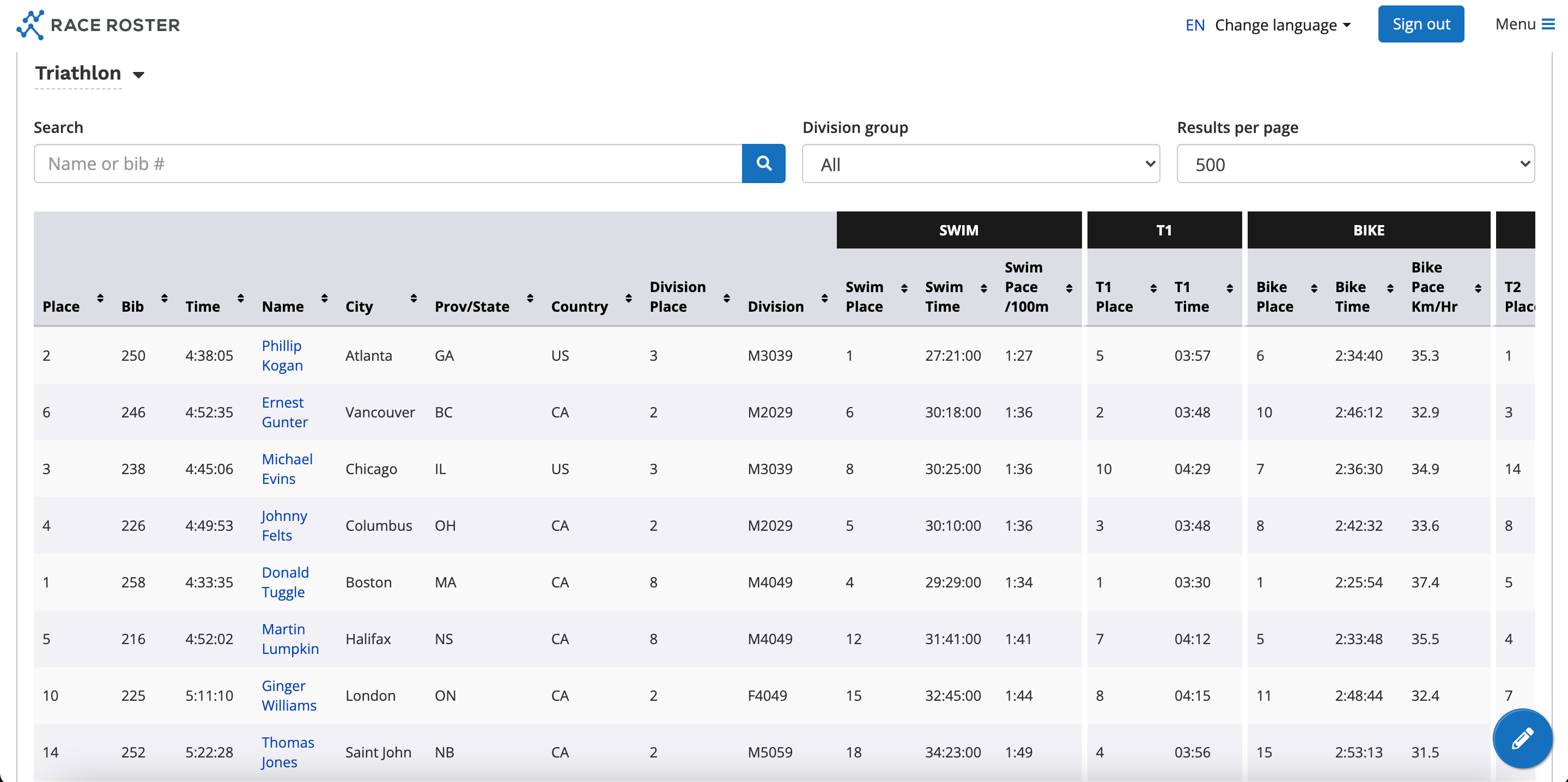
3. You will now land on the front facing results page
Step 2: Making column edits
1. Navigate to the bottom right hand side and click the pencil button
NOTE:You will only see this button if you are logged in and have timer permissions
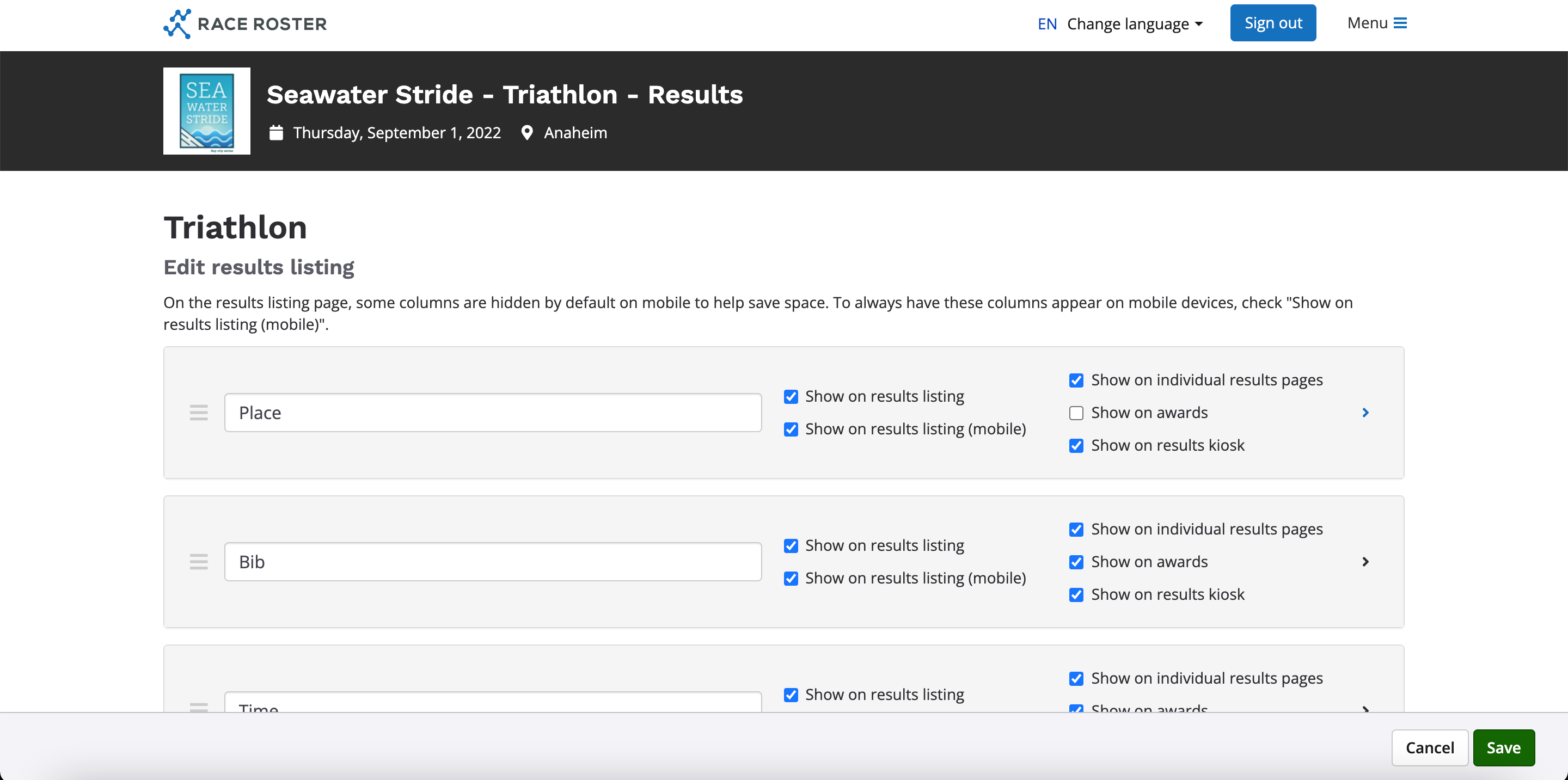
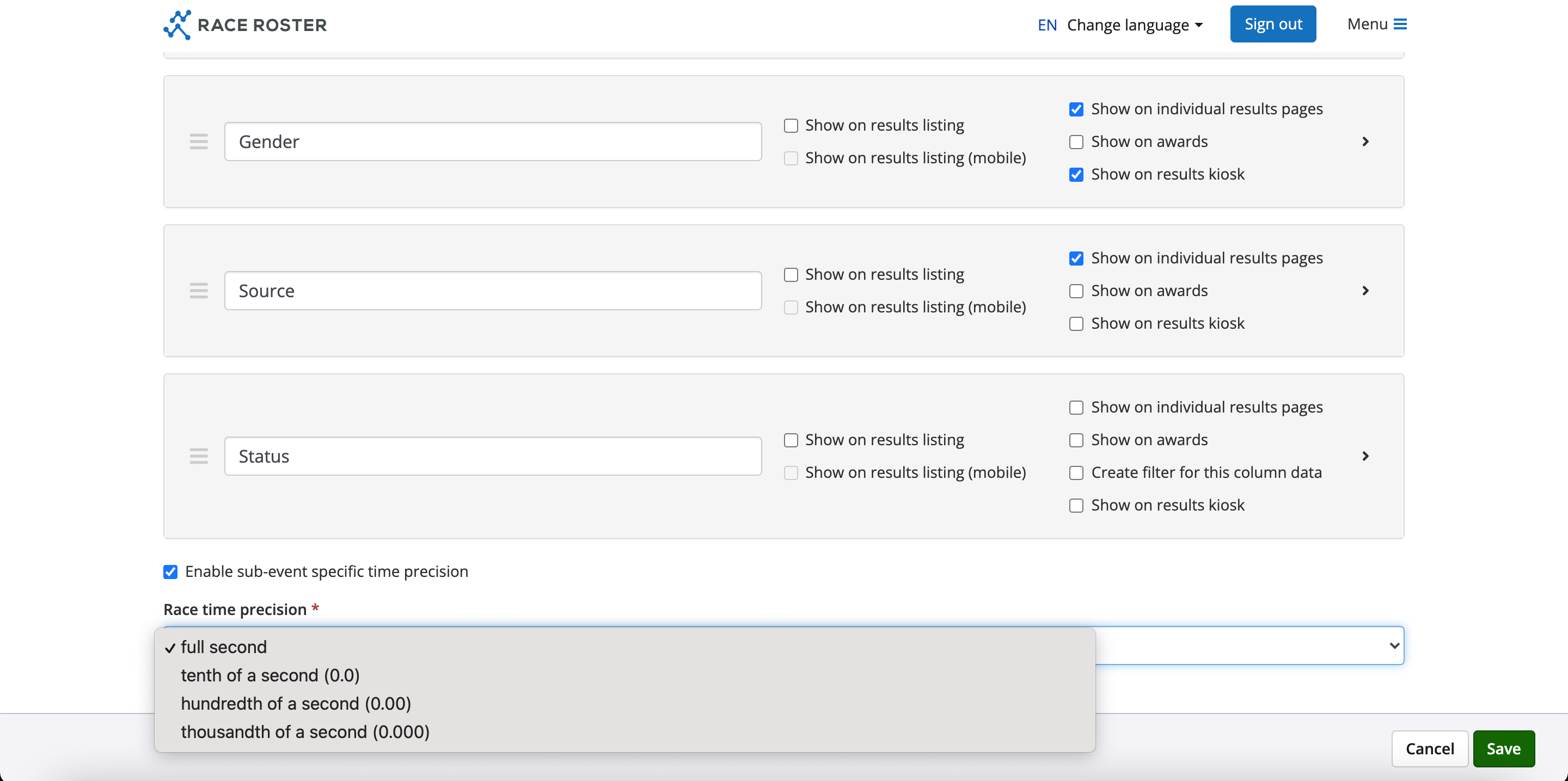
2. On this page you can edit the following:
- Column names - Delete and rename or just edit the column name in the field provided
- Adjust their order - Use the three lined button on the far left of the column to adjust the column order
- Hide the column - Check off the hide column box to hid
- View the content of a column - You can view a sample size of the column content by clicking on the > icon on the far right hand side
- Race time precision - Scroll to the bottom of the page and use the race time precision to determine the time
3. Click Save once updates are complete