Start groups—also commonly referred to as start waves or corrals—are designated sections where endurance event participants are organized at the start line, based on their expected pace or finishing time. You may use our start groups feature to create such start groups ahead of time, for them to appear in registration. Registrants are able to select a start group to join, and you may establish rules by which to verify whether the registrant is eligible or not.
To create your event's start groups, set up start group verification eligibility, and manage start group assignments, follow the steps below.
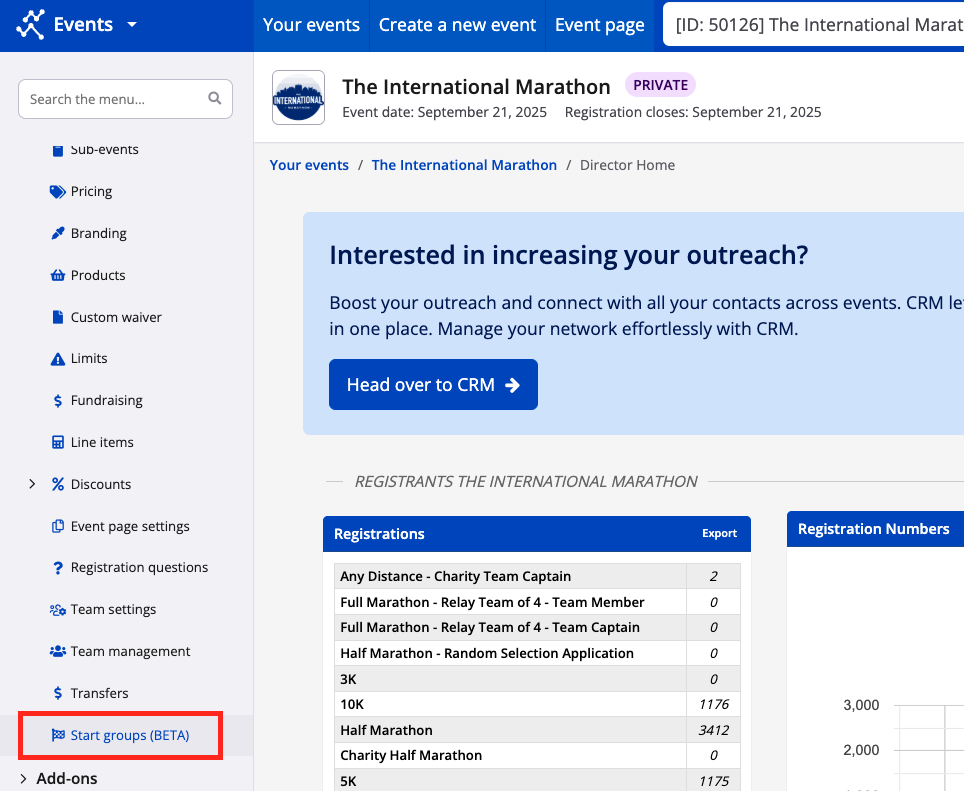
1. From your event dashboard, navigate to Settings > Start groups from the lefthand navigation bar.
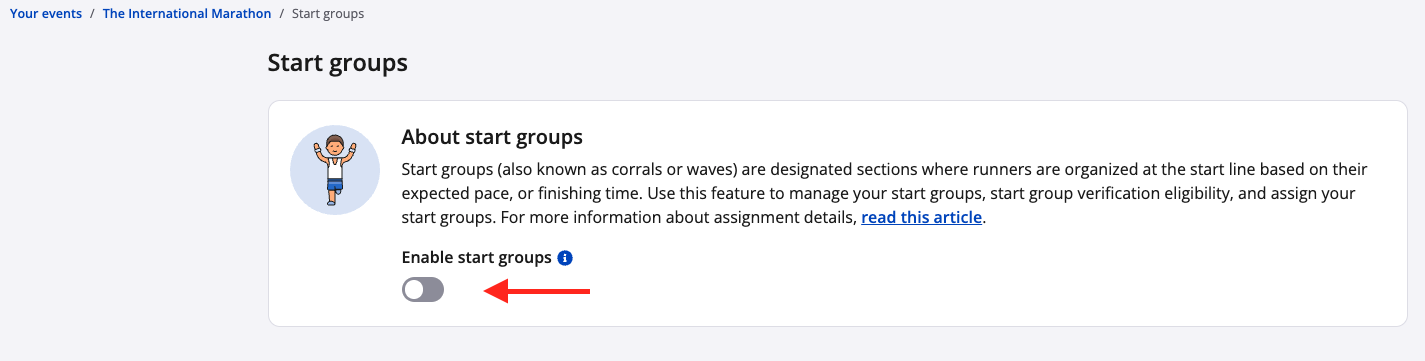
2. From the "start groups" page, use the toggle to enable the start groups feature.
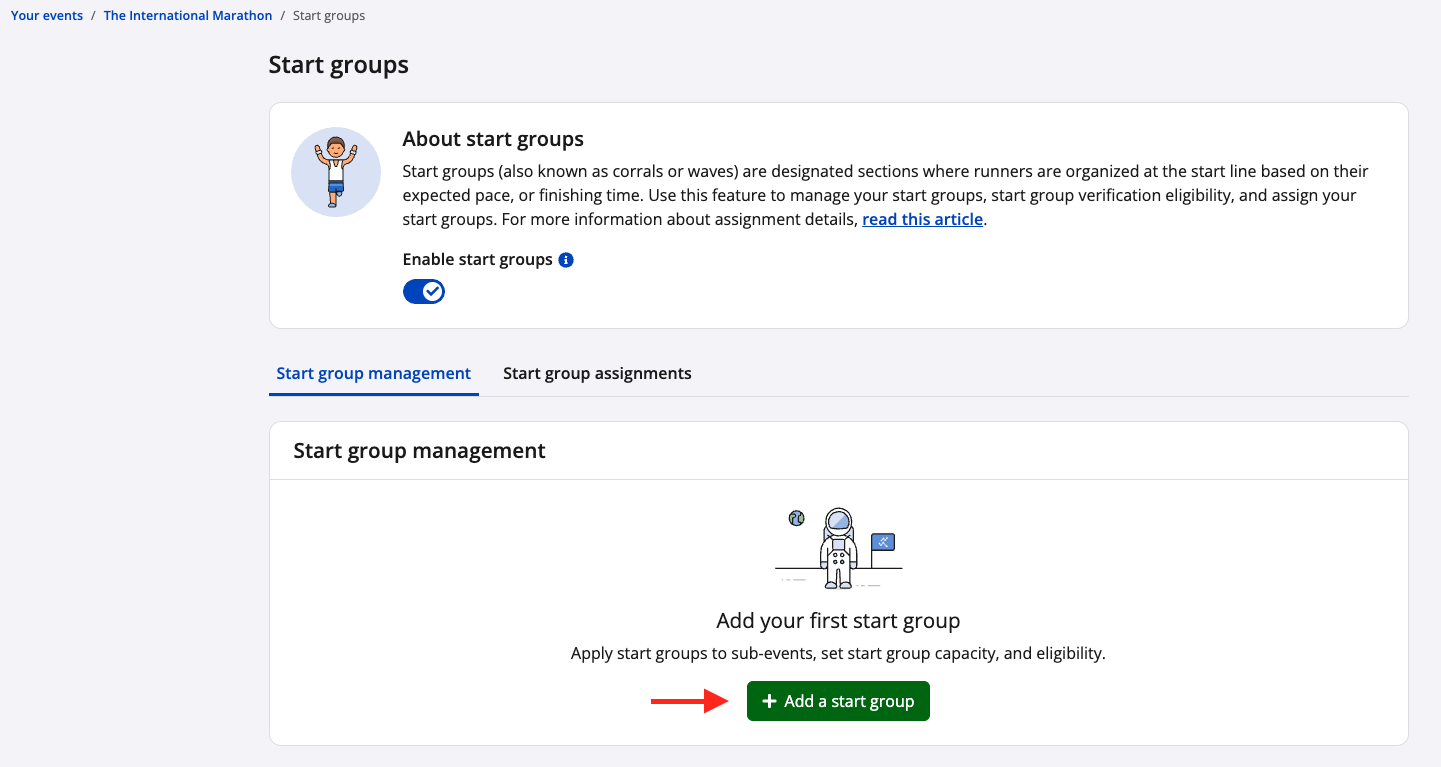
3. You will see two tabs appear: "start group management" and "start group assignments". Click "+ Add a start group" from the first tab.
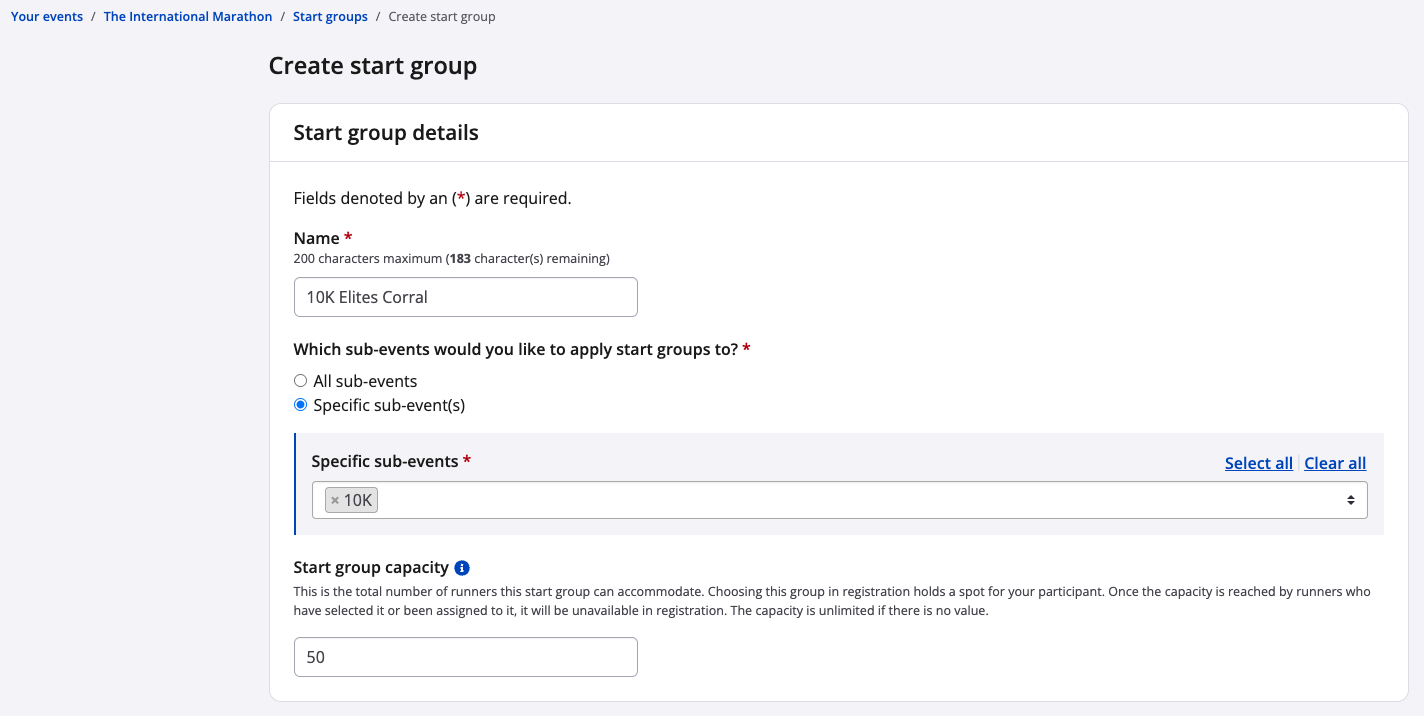
4. From the "create start group" form, fill out the start group details:
- Start group name
- Applicable sub-events (if needed)
- Start group capacity (if needed).
We recommend making the name specific to the distance(s) and the start group pace or finishing time.
Note: If you have two race distances starting at the same time in the same physical location, it's up to you whether to create separate sets of start groups for each sub-event, or a single set to share (for example, if sharing, you could create start groups called "Marathon and Half Marathon Elites Corral", "Marathon and Half Marathon Corral A - 3:05 to 3:34 min/km", "Marathon and Half Marathon Corral B - 3:35 to 4:05 min/km", and so on).
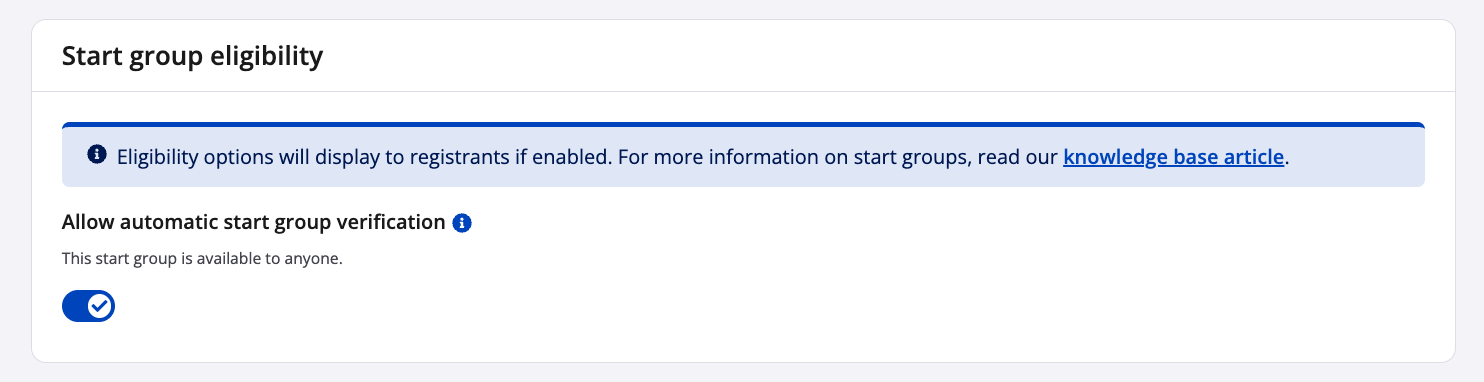
5. Under the start group eligibility settings, you will see a blue informational banner, followed by the "Allow automatic start group verification" toggle. This toggle is enabled by default, so that the start group you are creating may be available for any registrant to join, without the need for additional verification. Once a transaction is complete, the system will mark the start group as both requested and assigned to the participant.
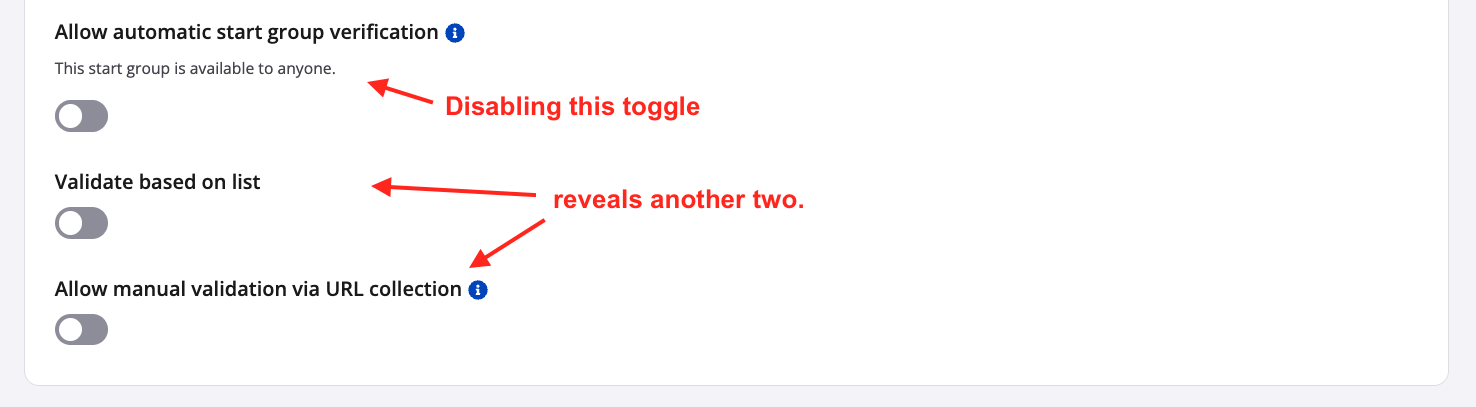
If, on the other hand, you want the start group to require an eligibility check, turn the toggle off.
Two new toggles become visible. You may enable one, both or neither:
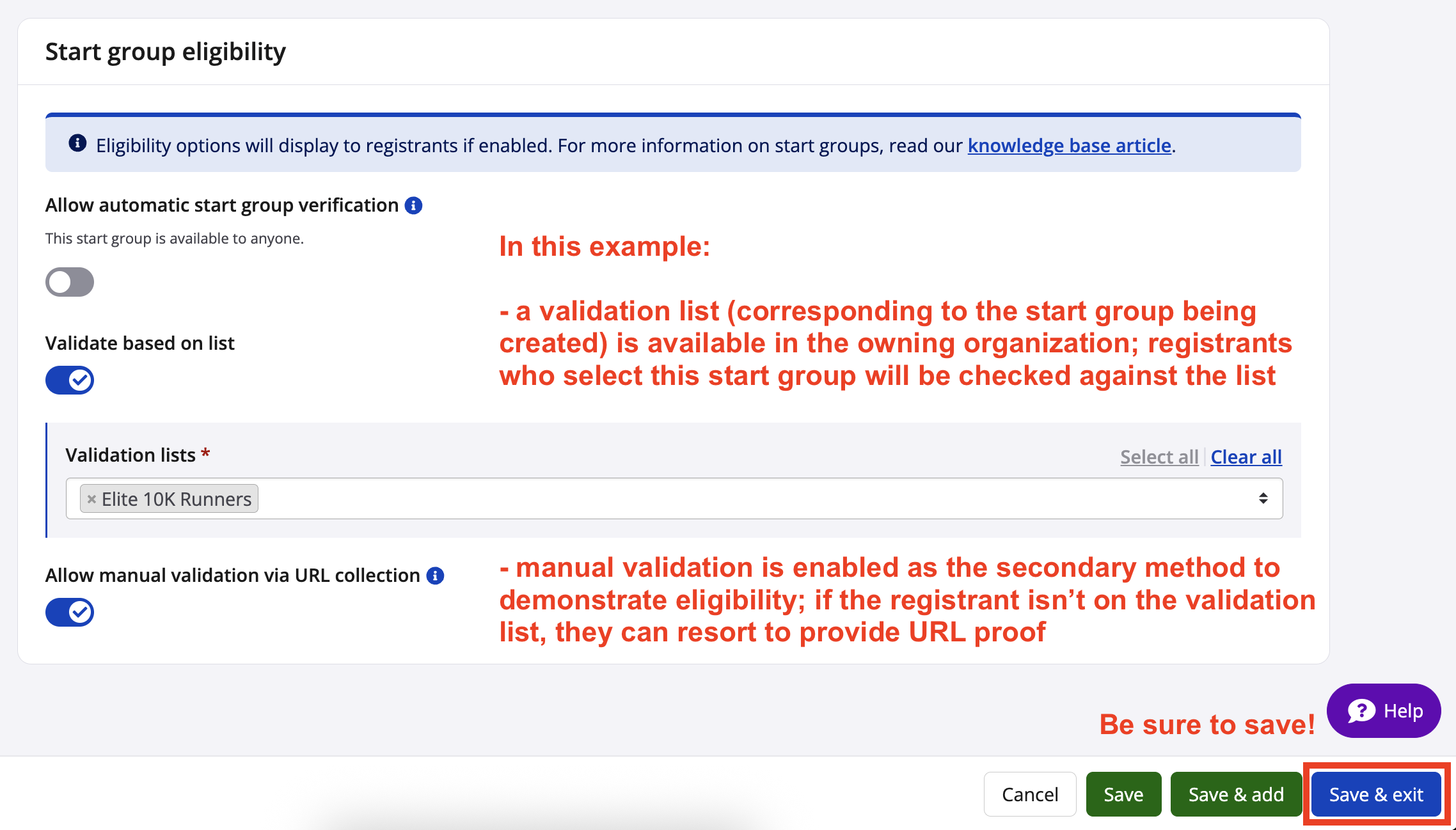
- Selecting "Validate based on list" will only be available if the event's owning organization in Race Roster CRM contains at least one validation list. To learn more, read our other article Understanding Race Roster CRM's validation lists .
- Selecting "Allow manual validation via URL collection" will prompt the registrant with a new field in which to enter a URL corresponding to a past event result. This is intended to provide evidence that the registrant is capable of a specific pace or finishing time.
- If no eligibility toggle option is selected, registrants will only request a start group assignment, and it will be up to you to perform a final check to assign them into the start group.
6. Be sure that you're happy with your selections before clicking "Save & exit".
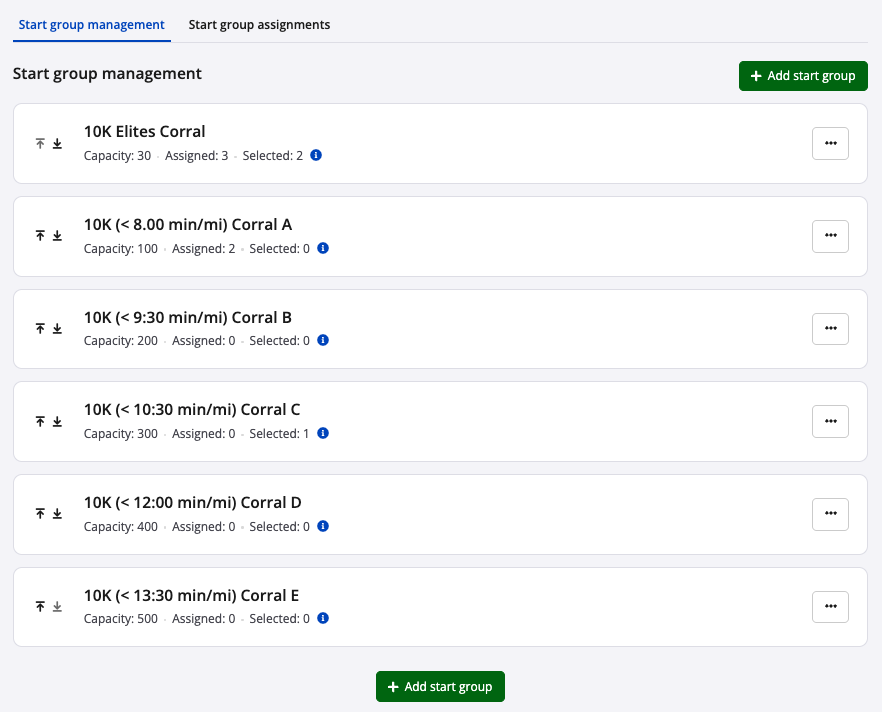
7. Once the start group is saved, you will be brought back to the start group management tab and see a summary display with capacity, registrants assigned to the start group (automatically or manually), and registrants who have selected the start group (requested in registration).
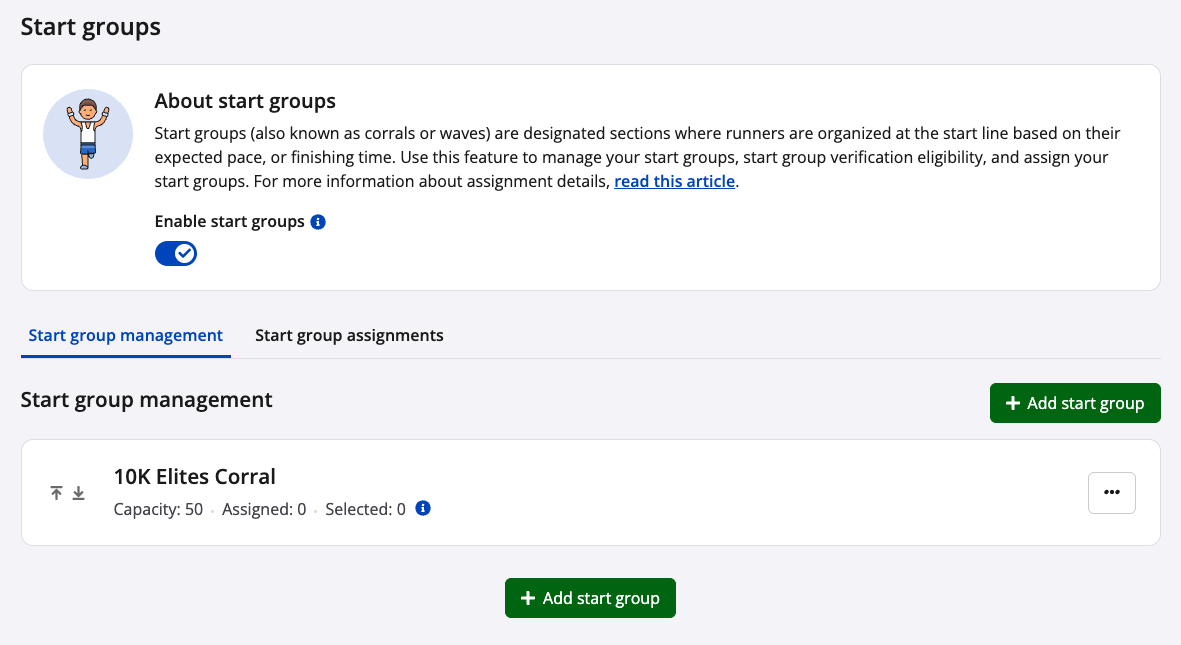
8. You may add as many start groups as needed. Bear in mind that the exact start group names are visible in the registration form. As stated in step 4, we recommend specifying on the pace or estimated finish time directly in the name.
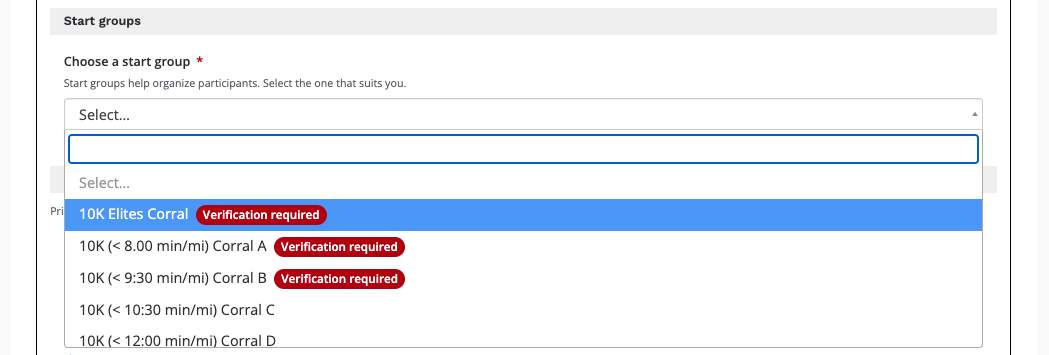
9. In the registration form, registrants will see the start groups as a dropdown menu. They will also see if verification is required for eligibility in each one, as applicable.
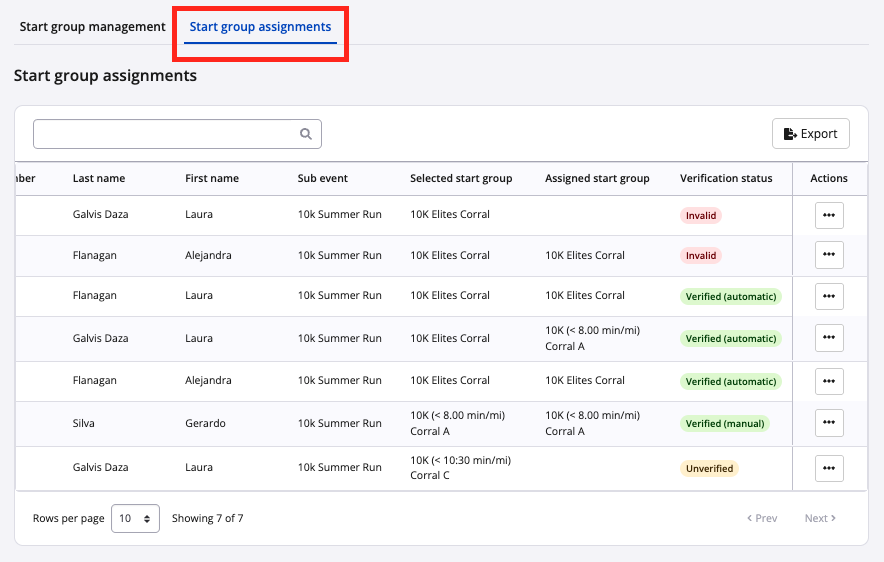
10. Back in the event dashboard's start groups page, visit the start group assignments tab. Here, you may manage participants requesting to be placed in a start group. The table displays relevant data column fields:
- Selected start group: the registrant's selection in online or onsite (kiosk) registration, or the event organizer's input under this field while bulk-importing or manually-adding the participant
- Assigned start group: the system's acceptance of the participant's request based on validation list verification, automatic assignment or the event organizer's manual assignment for the participant
- Verification status: the state of the participant's eligibility for a requested start group
-
- Invalid: Participant does not meet the eligibility criteria
- Unverified: Participant is awaiting verification and assignment by the event organizer
- Verified (manual): Participant has been verified for the start group by the event organizer (e.g., results URL has been reviewed, participant and event organizer have made contact, etc.)
- Verified (automatic): Participant has been verified by the system (i.e., participant fulfilled validation list eligibility OR start group had automatic verification enabled)
-
11. To change a participant's assigned start group and/or verification status, click the corresponding "Action" button and select "Edit assignment" from the dropdown menu. 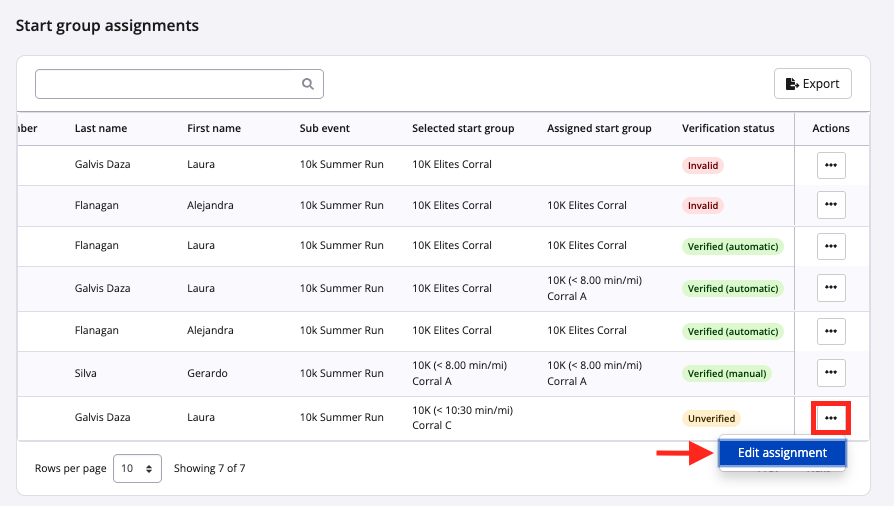
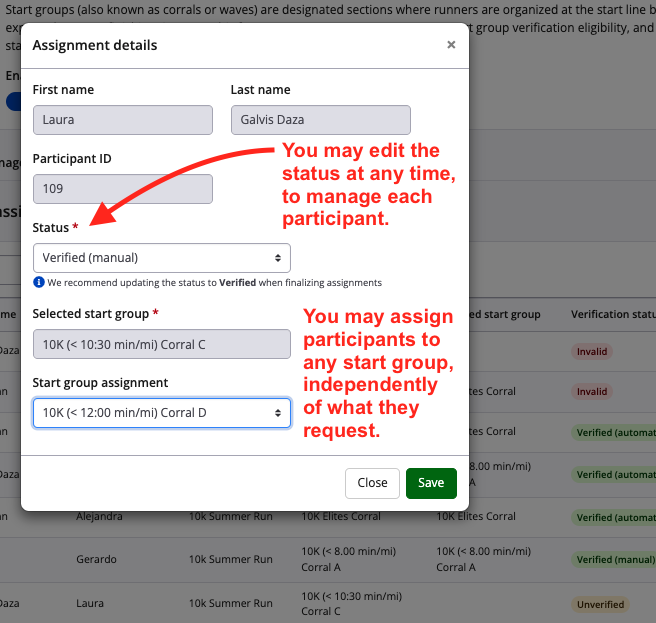
12. You will be brought into the participant's assignment details modal, where you may make edits.
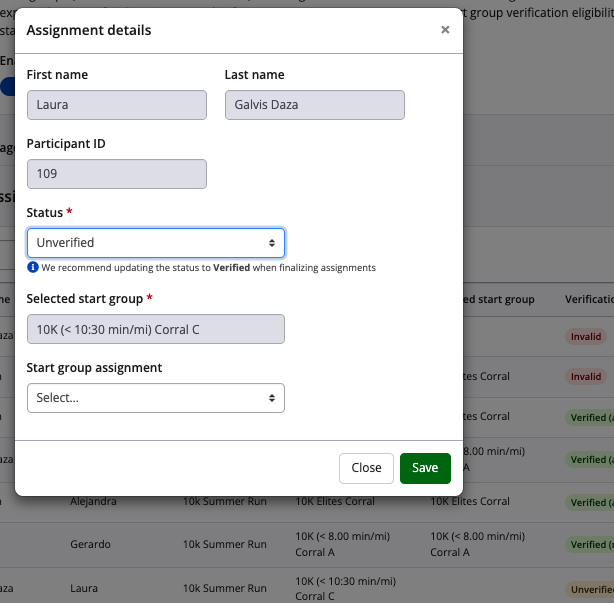
13. Select from the various dropdown options for the "Status" and "Start group assignment" fields. Be sure to click the green "Save" button when finished.
Questions and feedback about the start groups functionality may be directed to director@raceroster.com (director@raceroster.com.au).