Race Roster offers the ability for event organizers who have multiple events on the platform to create an overarching organization in our CRM dashboard. An organization allows a user to connect each of their individual events under one umbrella. Learn more about CRM organizations .
What are organizational promo codes and how are they used
With this feature, event organizers can also create organizational promo codes. This allows the organizer to create a single promo code or group of promo codes that can be redeemed across multiple events that are part of the organization. Organizational promo codes simplify the code creation process across numerous events with a one-time set up, while also maintaining consistency in the naming of codes across all affiliated events.
For example, you may want to create a promo code for a loyalty contact that would allow them a 30% discount on one out of your recurring spring, summer and fall events, and let the contact redeem the promo code on the event they want. With this tool, you can set up a promo code without the hassle of asking which of the three events they will register for, or the worry that it will be redeemable beyond the intended allowance.
Setup
To create organizational promo codes across your events on Race Roster, please follow the steps below.
1. Create an organization in Race Roster CRM. If unsure, learn how by reading this other article.
2. Import all of the events where the promo code(s) will apply to the organization. You may want to create event groups as well.
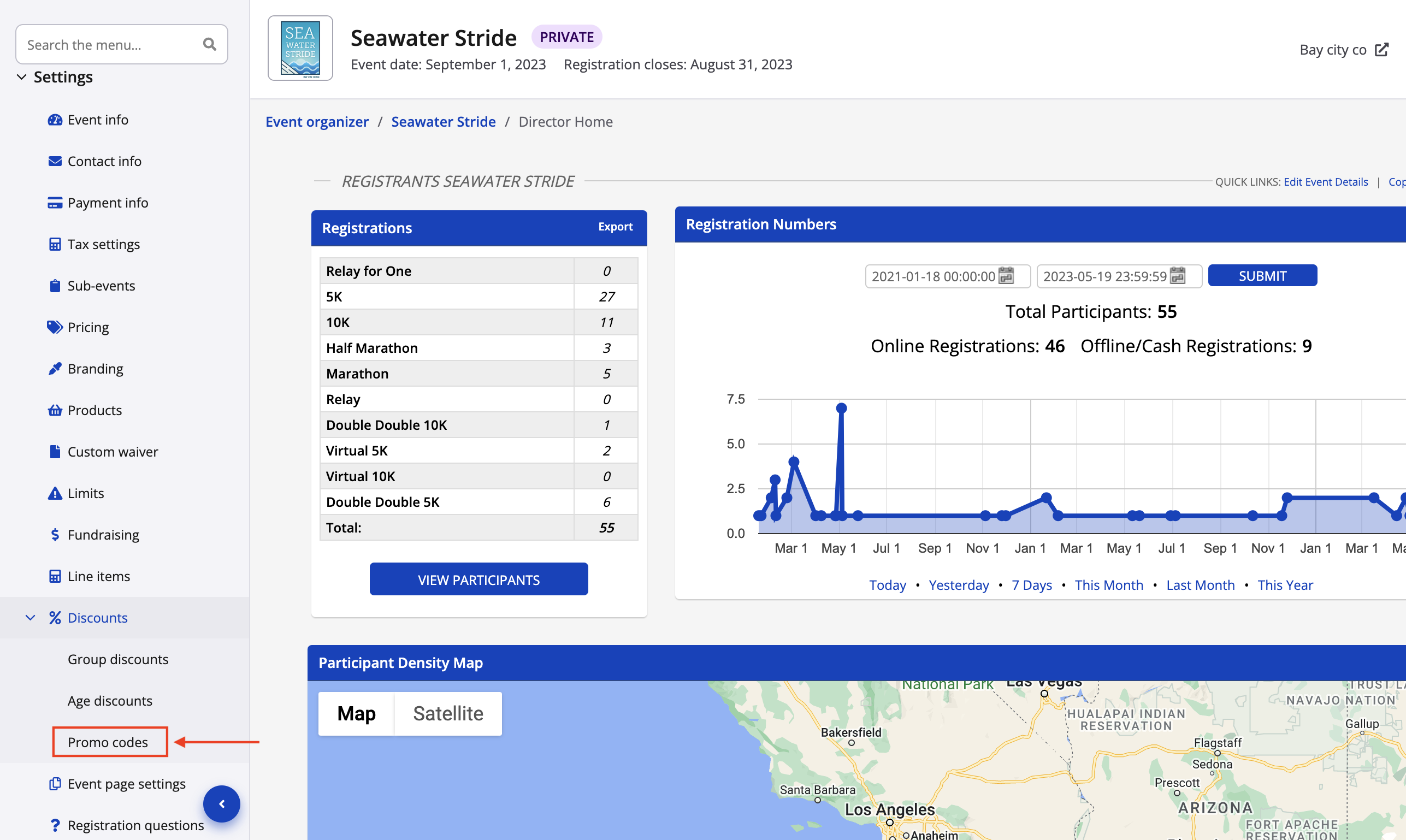
3. Begin creating your organizational promo codes by visiting the event dashboard of one of the applicable events. Click Settings > Discounts > Promo codes from the lefthand menu. Screenshot follows.
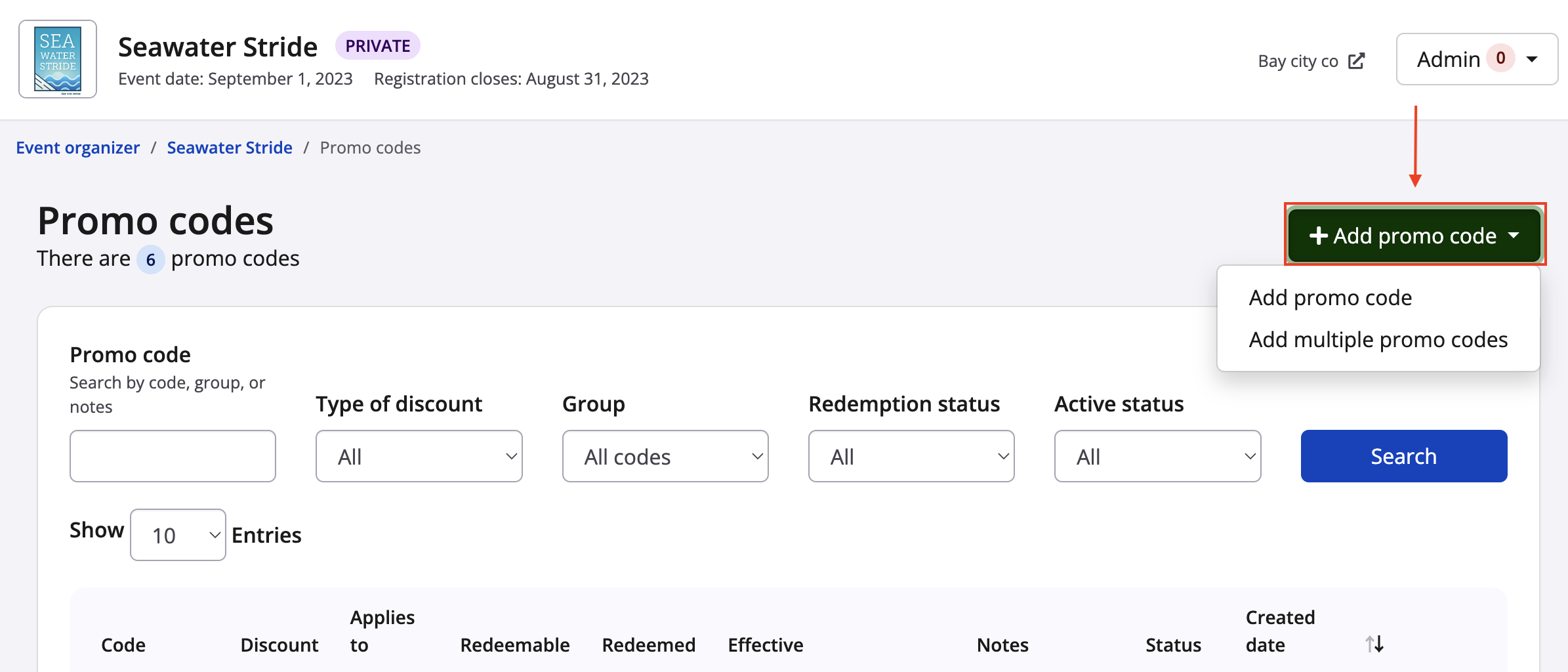
4. From the promo code settings, click the green "Add promo code" button in the top left corner of the page and then select Add promo code or Add multiple promo codes depending on your needs.
Here is the difference:
- Add promo code: A single promo code may be redeemed once or several times, by the same or different users. A promo code that's only redeemable once works well for corporate clients/special guests, or during troubleshooting scenarios. A promo code that's redeemable several times works well for flyers or limited time offers promoted to the public, as it's the same code being used over and over again, possibly multiple times by the same registrant or household.
- Add multiple promo codes: This option works well for bulk year-to-year deferrals or select participant groups. This option allows you to set up the exact same settings simultaneously for unique promo codes, where the code will belong to a group. For example, you may need ten different promo codes where they all provide 50% off, apply to the 10K sub-event and are valid until September 30th. You may later download and assign the group of codes to a list, for a one-to-one ratio of promo code to intended participant.
Screenshot follows.
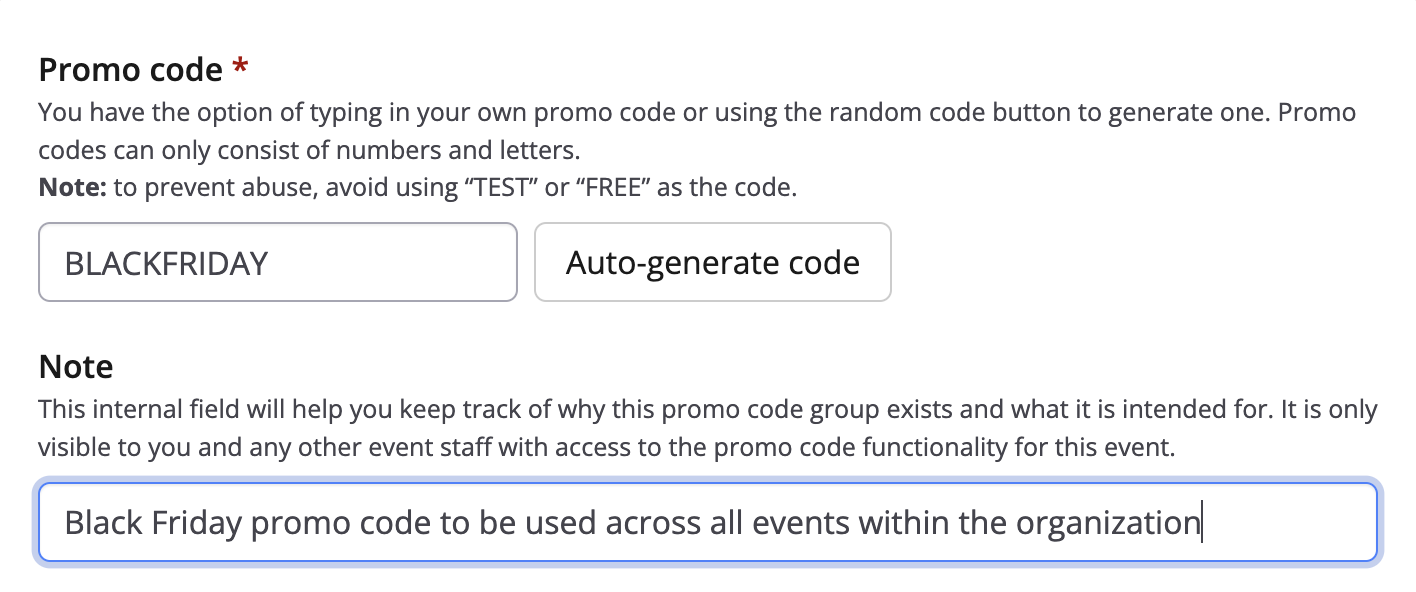
5. Enter the following information for your promo code or promo code group:
- Code name (all capital letters and/or numbers) or promo code group name (for your internal reference)
- (Promo code group only) Number to generate: the number of unique promo codes you would like in the group
- Note: can be used as a reminder to explain why this code was originally created; only viewable internally
Screenshot follows for the single promo code creation.
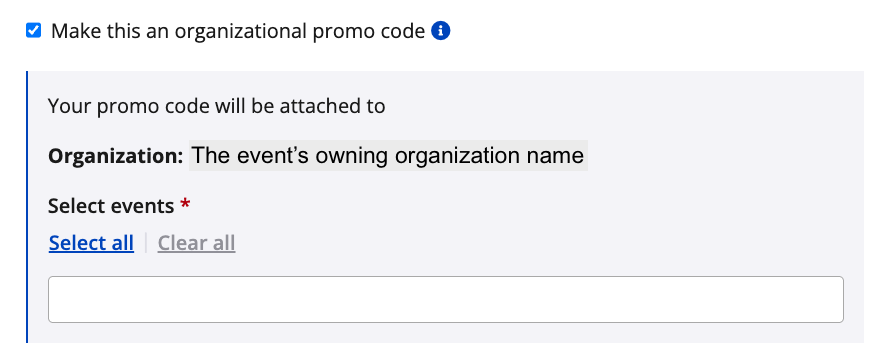
6. Select the checkbox "Make this an organizational promo code". This will reveal a short, new section.
7. Now that your event belongs to an owning organization, you will see it named. In the multi-choice search bar, select the events within that owning organization across which you'd like to make the code(s) redeemable. Currently, the system will let you:
- Select all events within the owning organization
- Hand pick events within the owning organization
Coming later in 2025, you'll also be able to:
- Select an event group within the owning organization (i.e., a pre-set group of events)
8. After configuring your code's organization settings, configure your remaining settings for your new code as follows:
- Select if your promo code should applicable for
- Sub-event registrations
- Products
- Both
- Under 'Discount Type' select percentage, a flat fee or set pricing
- Under 'Discount Amount' add a dollar or percentage value for the discount or final price
- For 'Maximum Number of Redemptions' set limits on the number of times you would like the code to be available for use
- Under 'Time Window' define a timeframe using dates on the calendars in which codes can be used
- Under 'Sub-events' decide on which sub-events the discount code can be used (all or restrict to specific)
- Under 'Activation' you have the option to make the code available for use or disable it
8. Click the blue "Save & exit" button to save this code on all of your selected events within your organization.
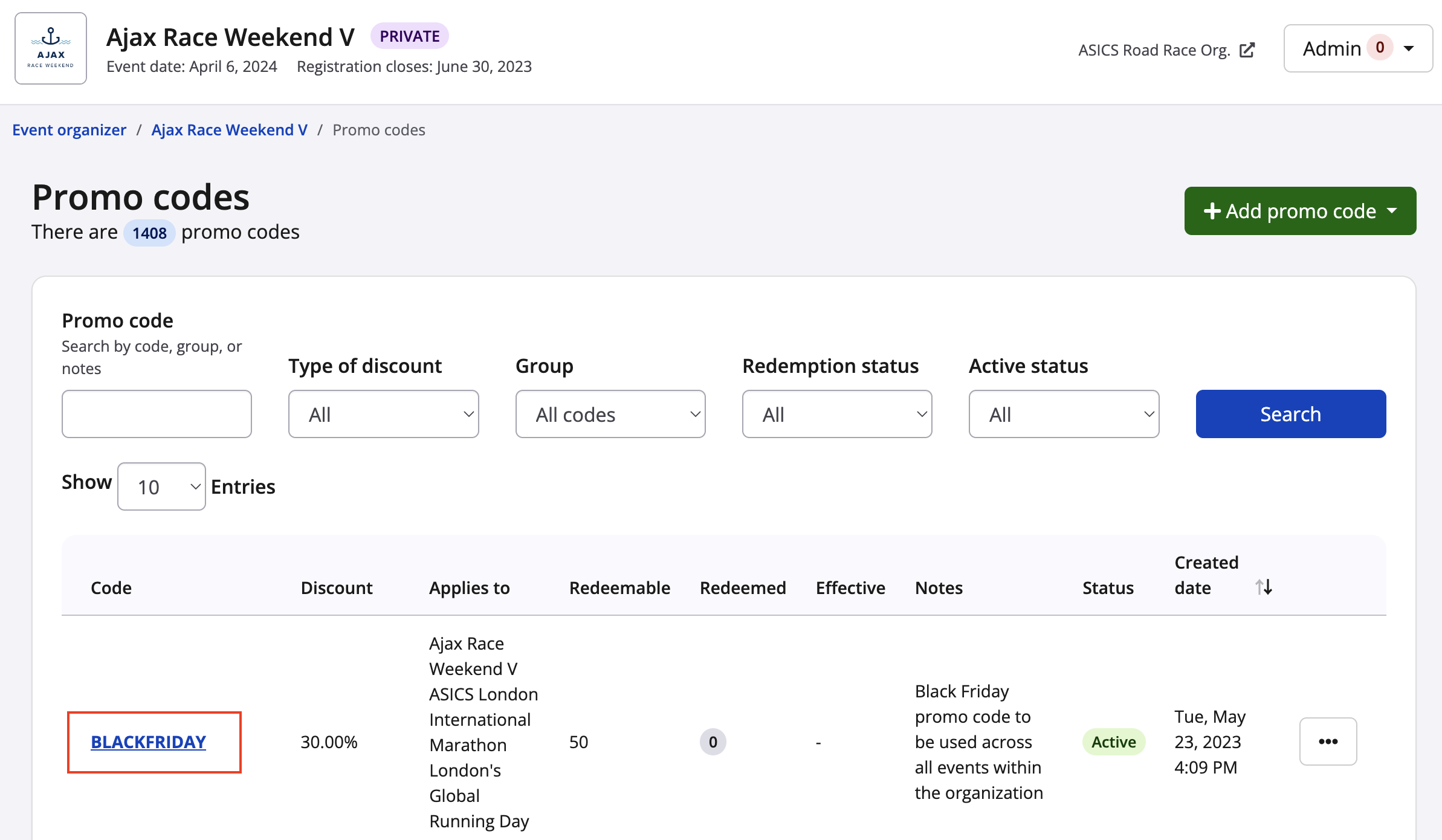
Things to note
- Once an organizational promo code has been redeemed, it cannot be deleted within any of the events
- Once an organizational promo code has been redeemed on any event within the selected events group, it will have one less redemption across all applicable events
- Once an organizational promo code has been redeemed on any event within the selected events group, you will be unable to remove that event from the promo code settings
- Once an organizational promo code has been redeemed on any event within the promo code group, the promo code will become locked to that event group and cannot be associated to a new event group
- To delete a promo code group, please reach out to our support team at director@raceroster.com (or director@raceroster.com.au)