The Events Overview page is a great way to view and get insights into how your events are doing. You as an Event Organizer can also duplicate event pages and quickly visit dashboards of other events you are associated with. To get to the Events Overview Page:
1. Go to your event dashboard and ensure you are on the correct event.
2. Navigate to the left-hand side and select Metrics.
3. Select Events Overview
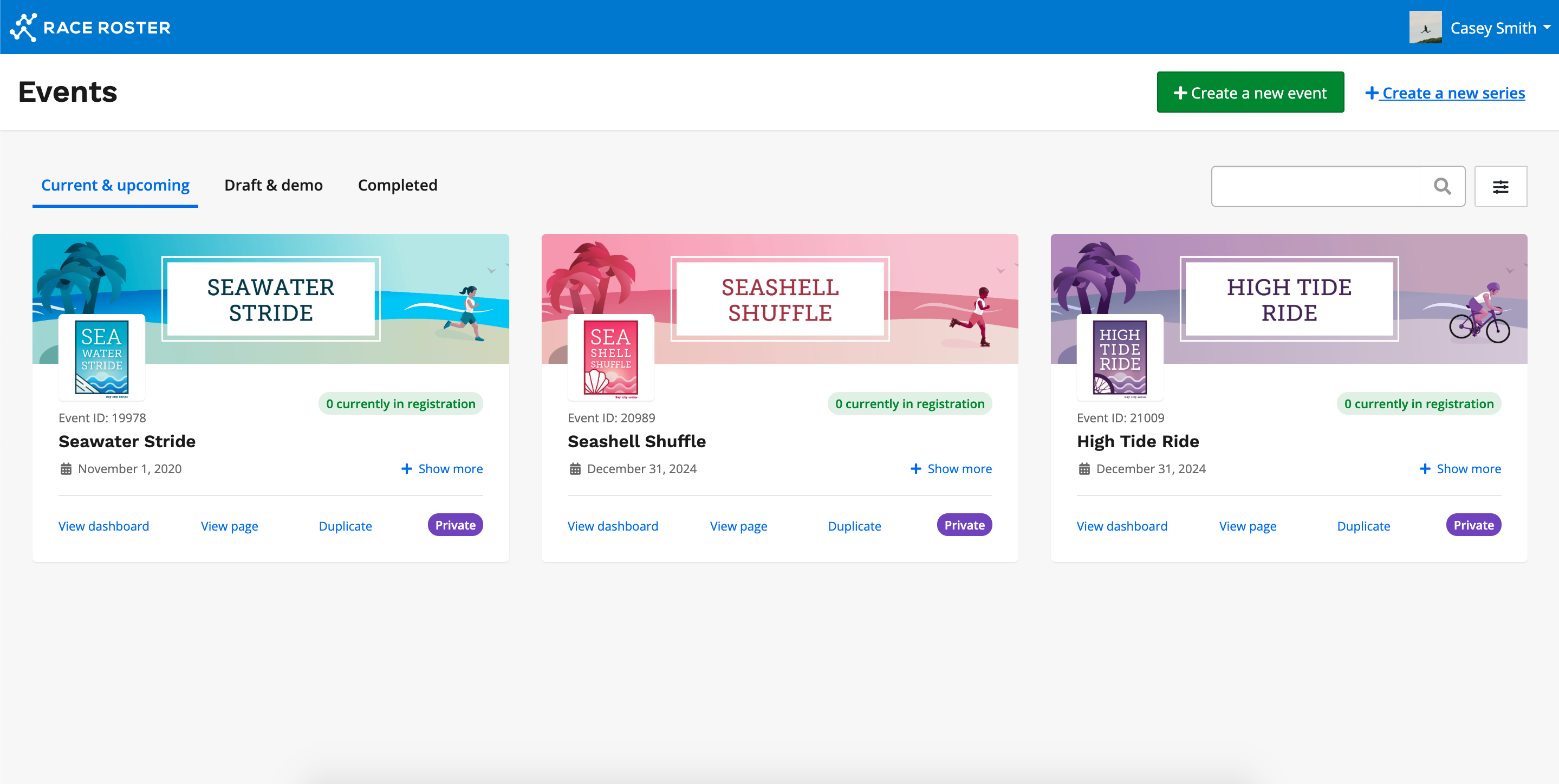
You will be then taken to the Events Overview page where you can see all the events that you are associated with. On this page, you can view your Current & Upcoming events, events that are in Draft or Demo, and your Completed events.
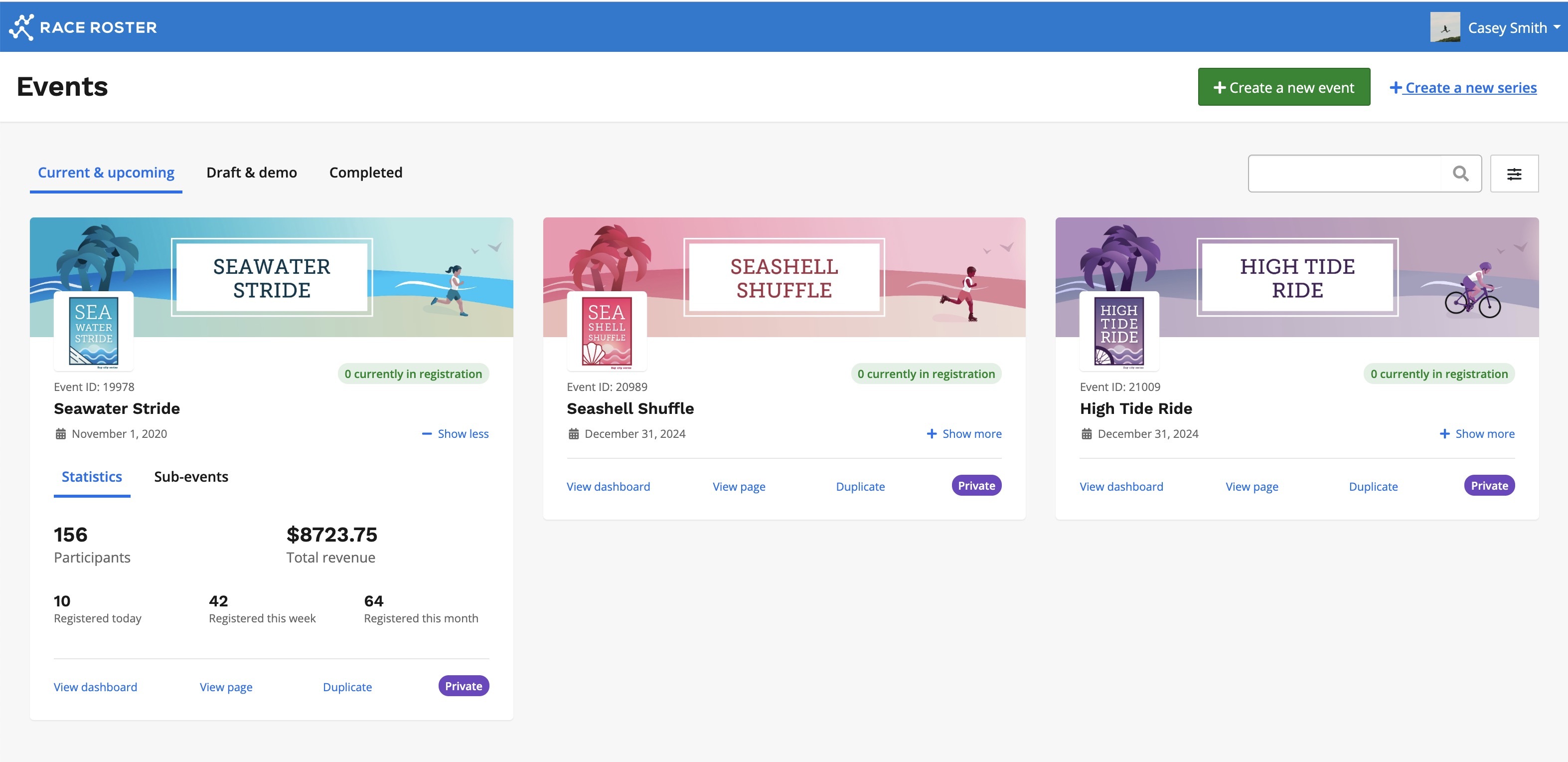
By clicking the + Show more button on one of your Events, the tile will expand and display statistics regarding your event.
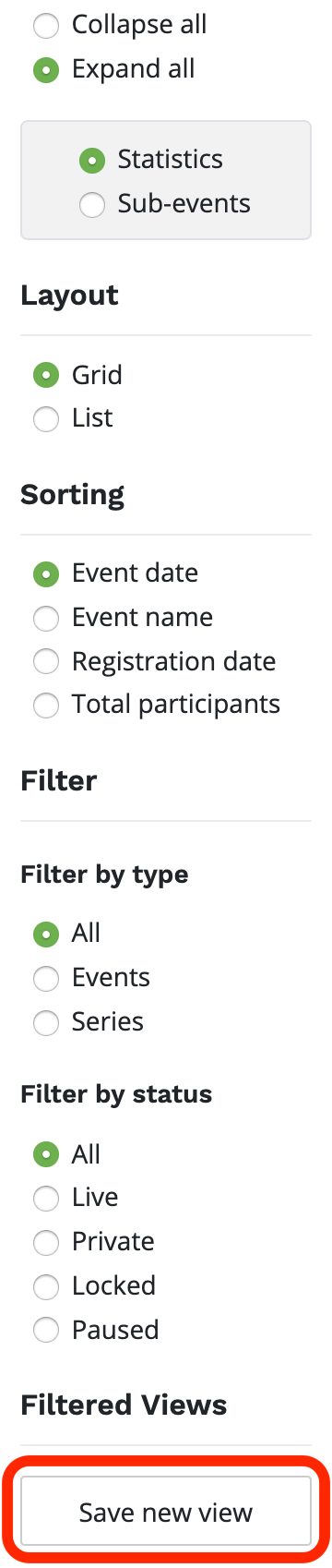
If you want to change the view of your Events Overview page, click the Hamburger icon in the right-hand corner 
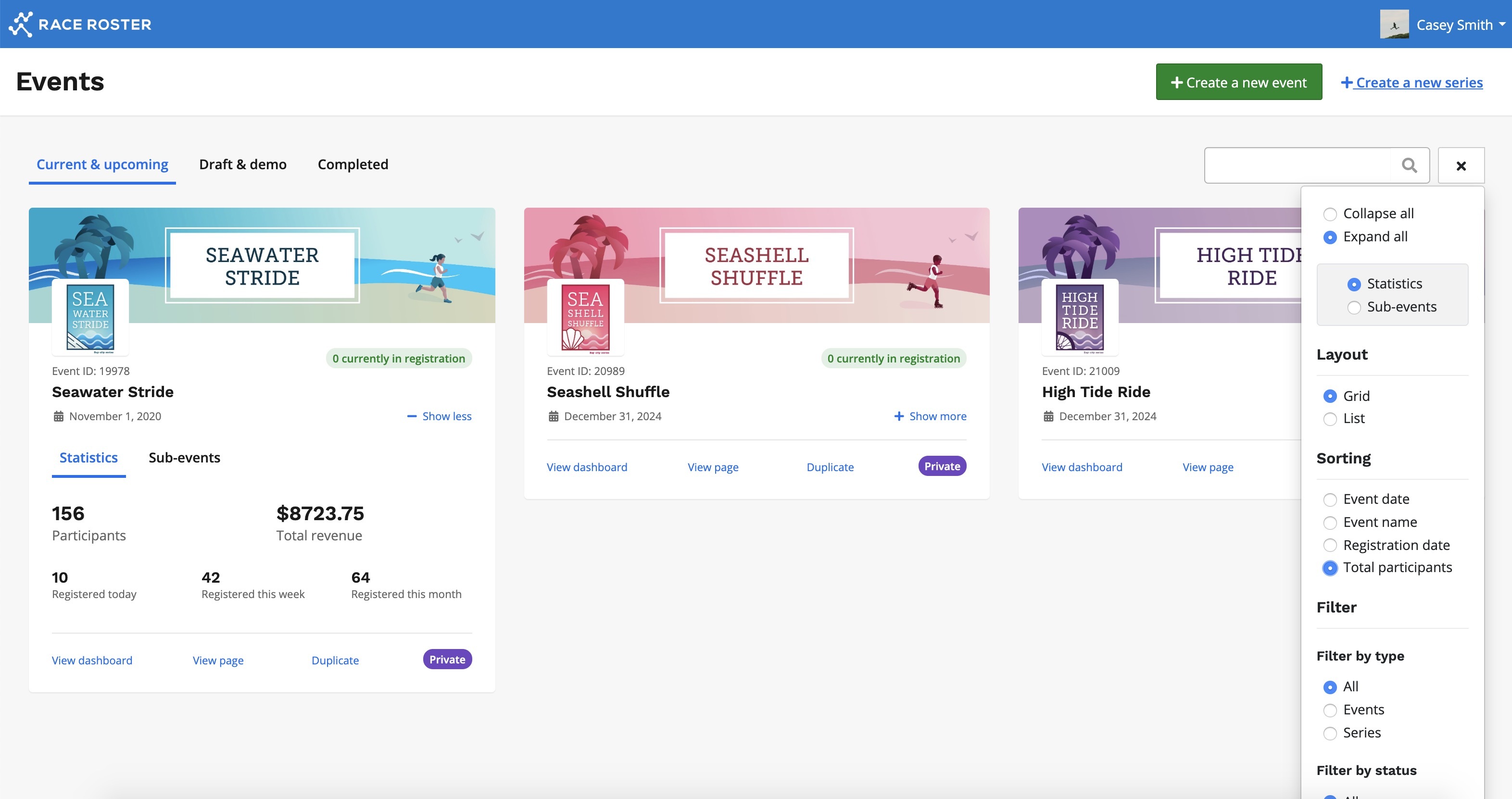
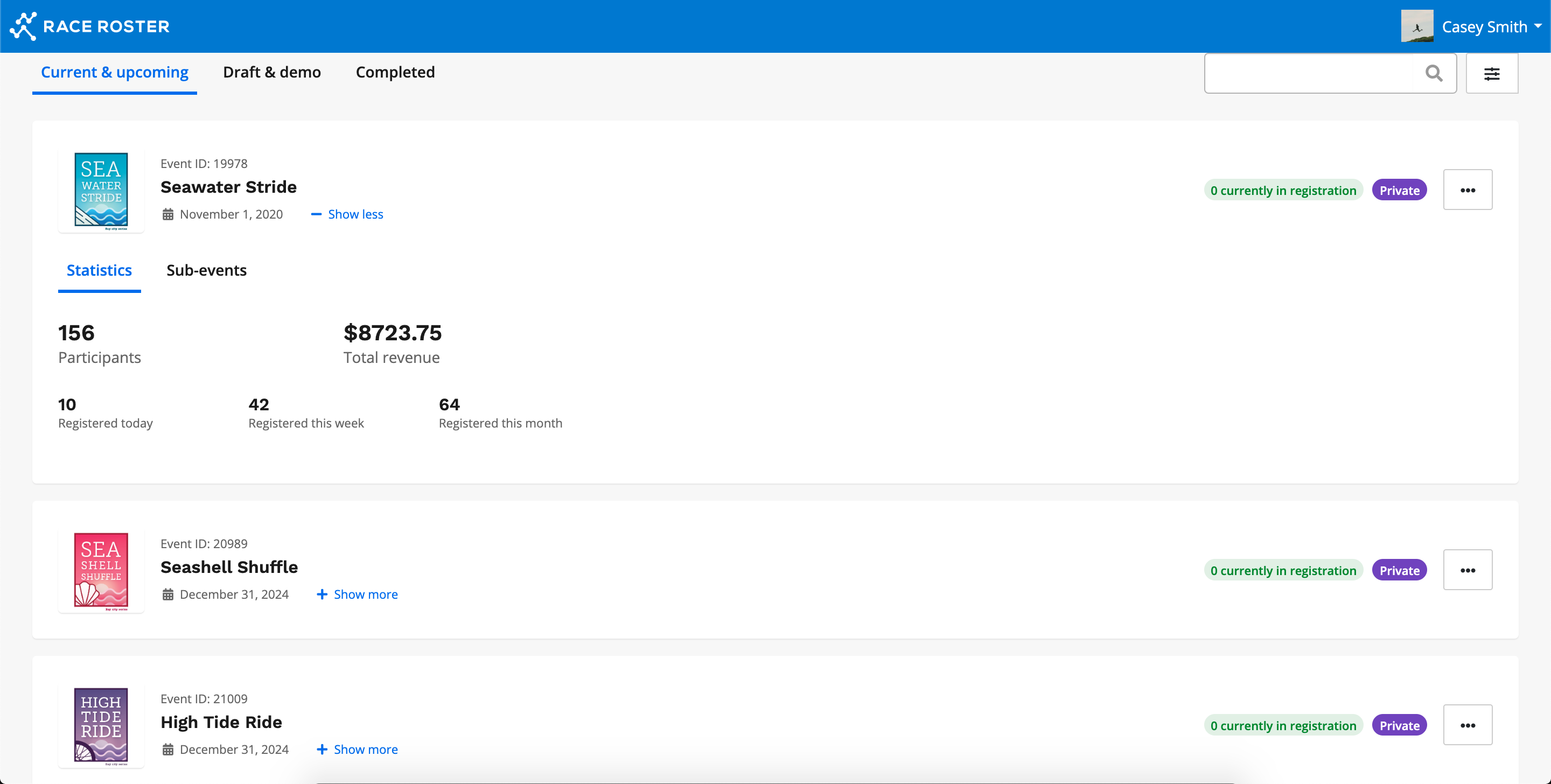
You will then be presented with a variety of options including layout, sorting, and filter types. If you switch it to list view, your Events Overview page will look like the image below:
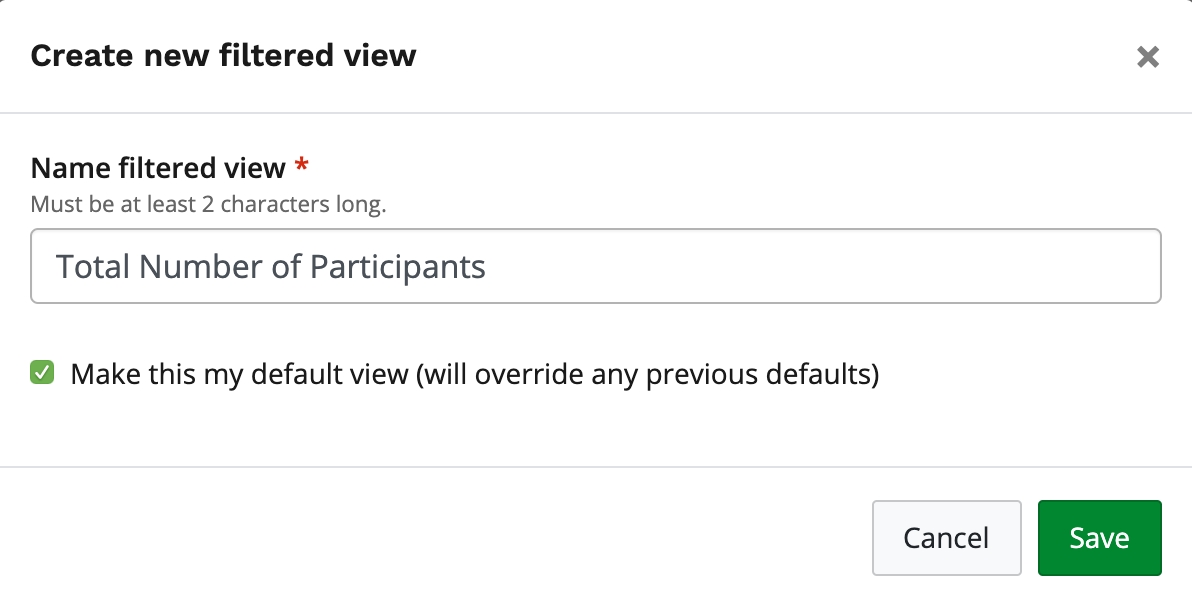
If you would like to save a new view, click the Hamburger icon in the top right-hand corner  and select which fields you would like displayed. Once you're satisfied with your chosen fields, click Save new filter, title your new filter, and your filter will be saved.