single prominent pricing (SPP) lawsperceived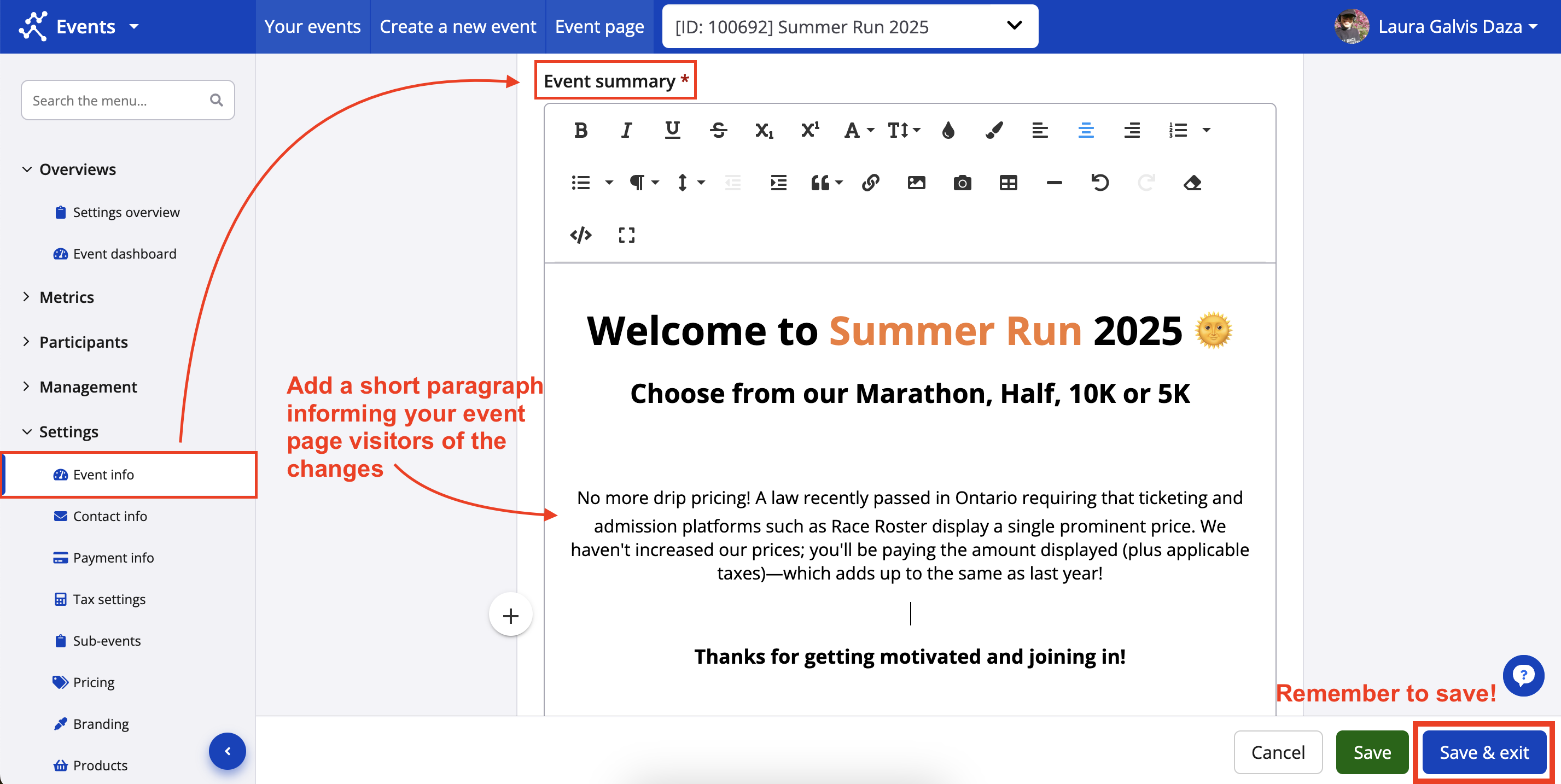 Here's how that would typically look on the event page:
 The verbiage of this paragraph is entirely up to you.
 2. Now in edit mode, click the small pencil icon next to the "Registration fees" label.
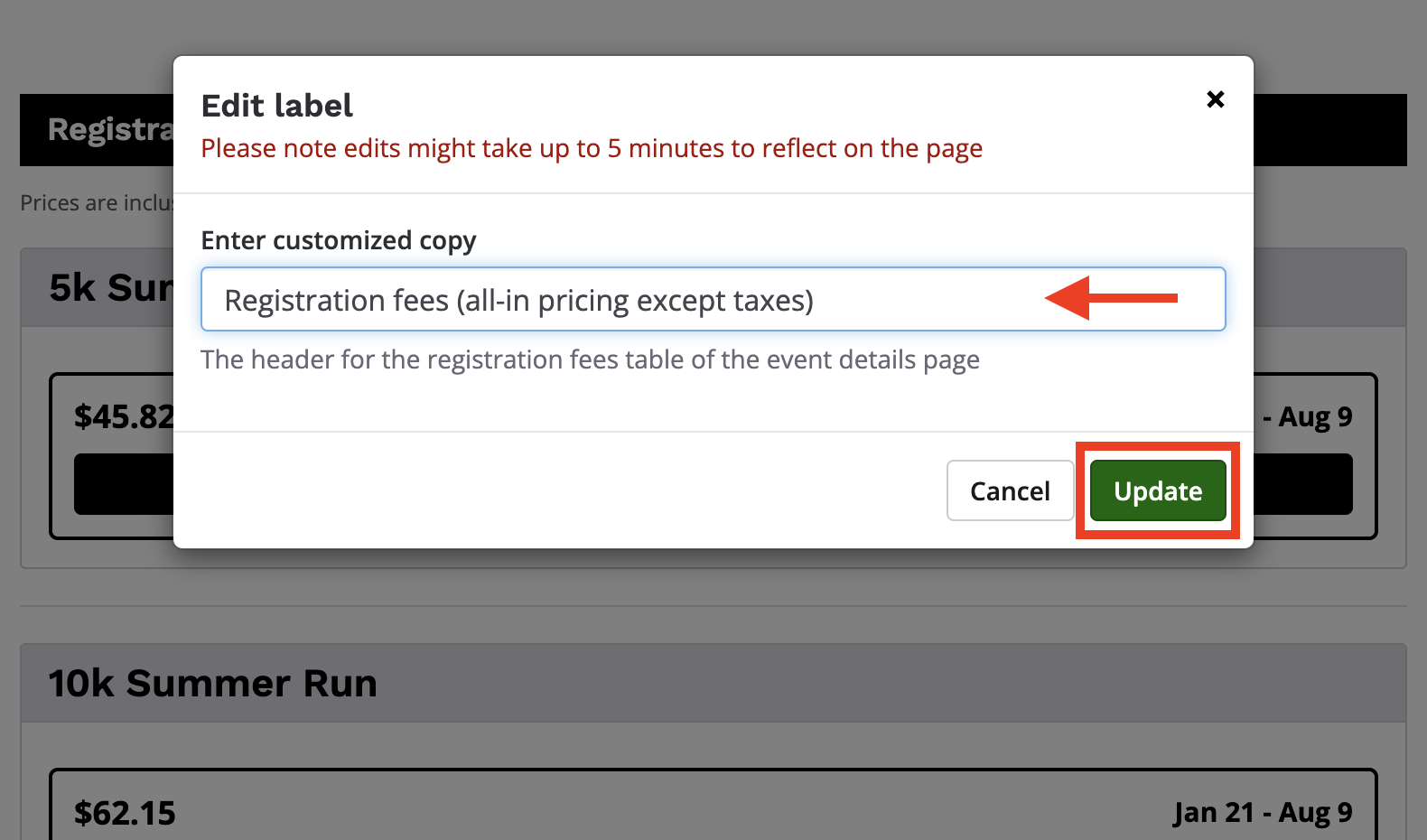
 3. Next, use the modal to edit the label. Be sure to click "Update" so that your changes save. See screenshot below.
 2. Once inside the pricing strategy settings, ensure that the "Show pricing" checkbox is selected. Then, enter a corresponding description that breaks down the pricing components or otherwise suits your needs. Click "Save & exit".
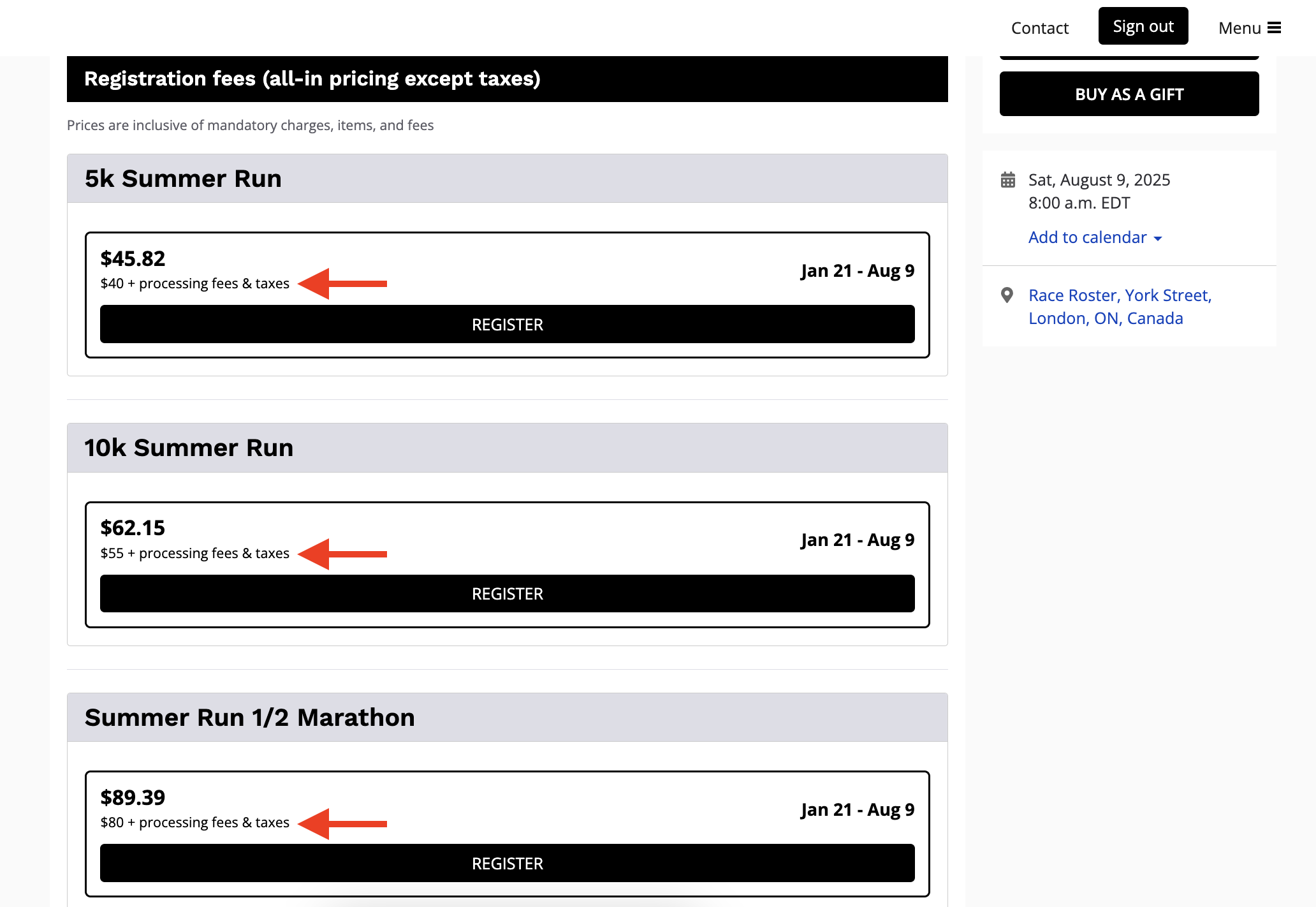
 3. Back on the event details page, any newly-edited descriptions will appear in the registration fees section.
 4. Descriptions will also appear in the registration form.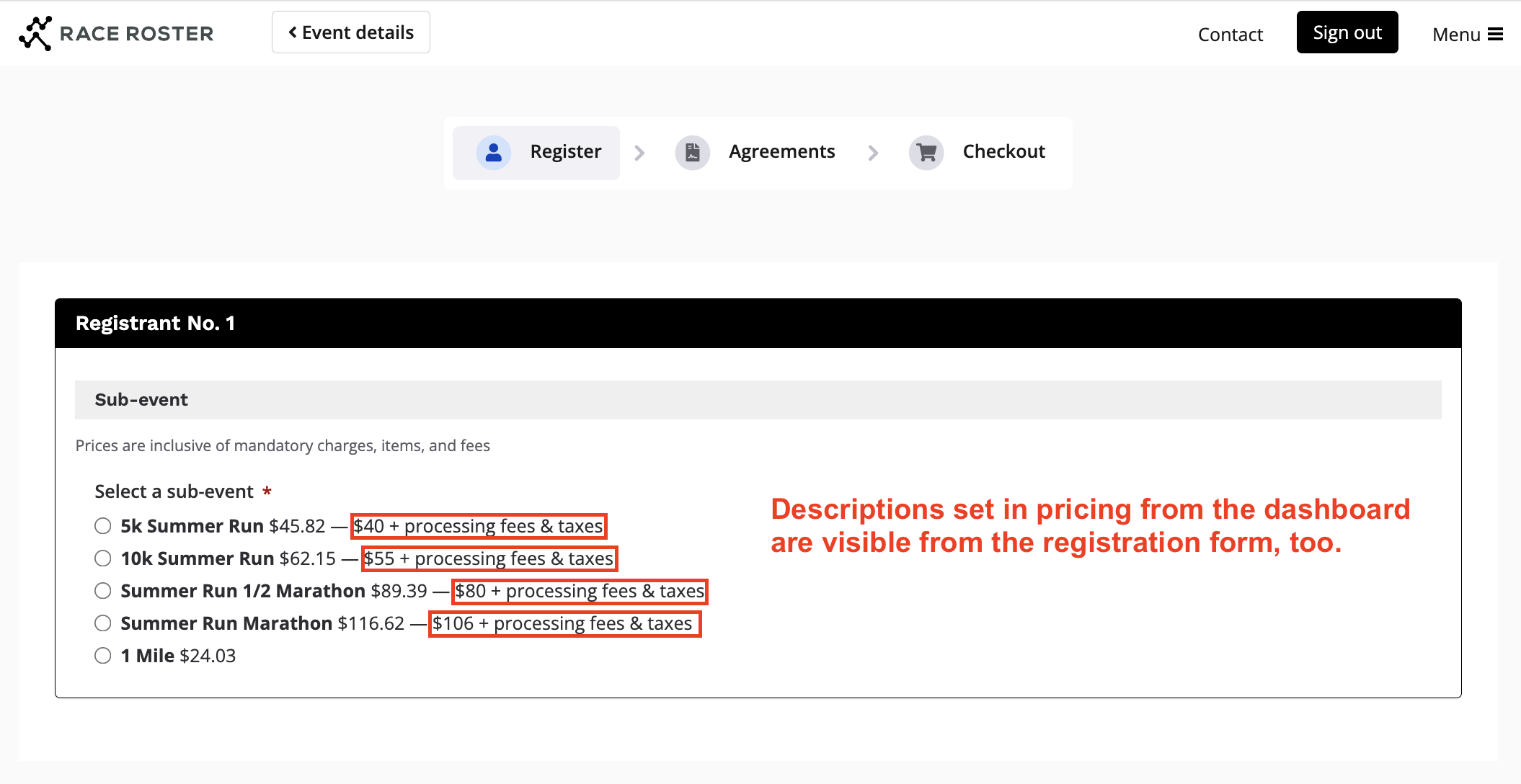
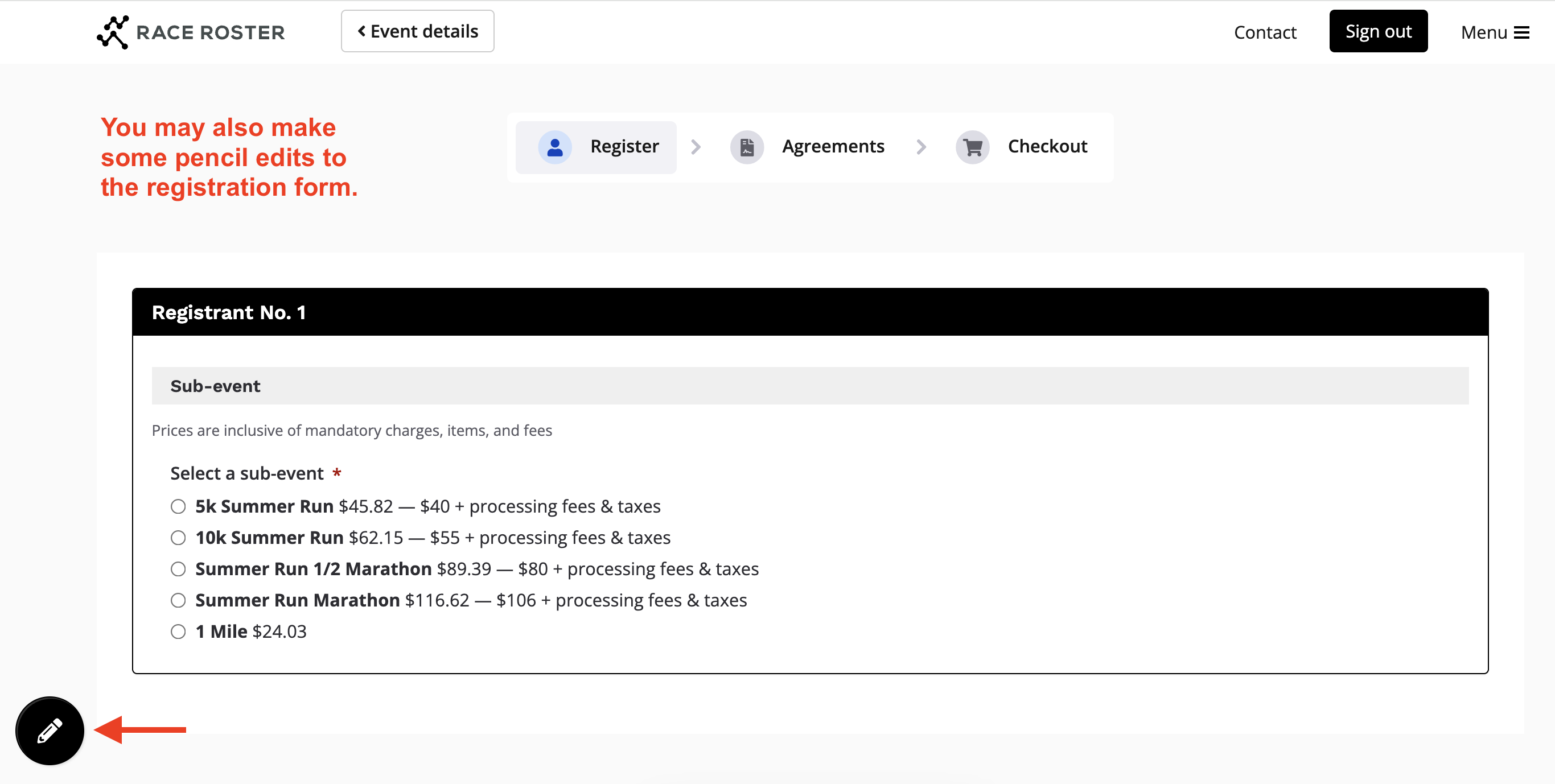 2. Next, choose which banner to create and add copy to. The top banner appears on almost all steps of the registration form, while the bottom banner only appears on the first page. We recommend the bottom banner. Click the appropriate small pencil icon.
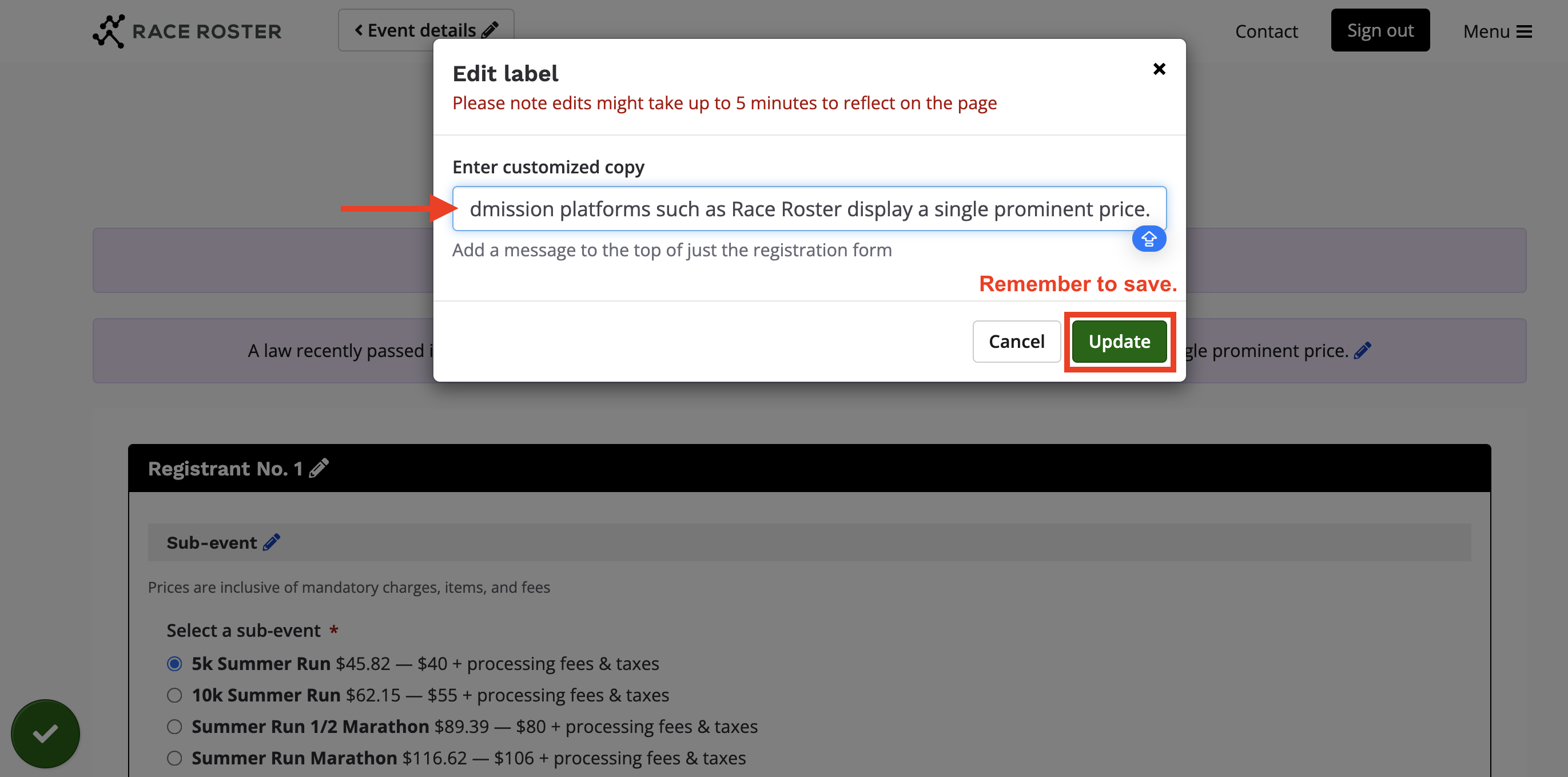
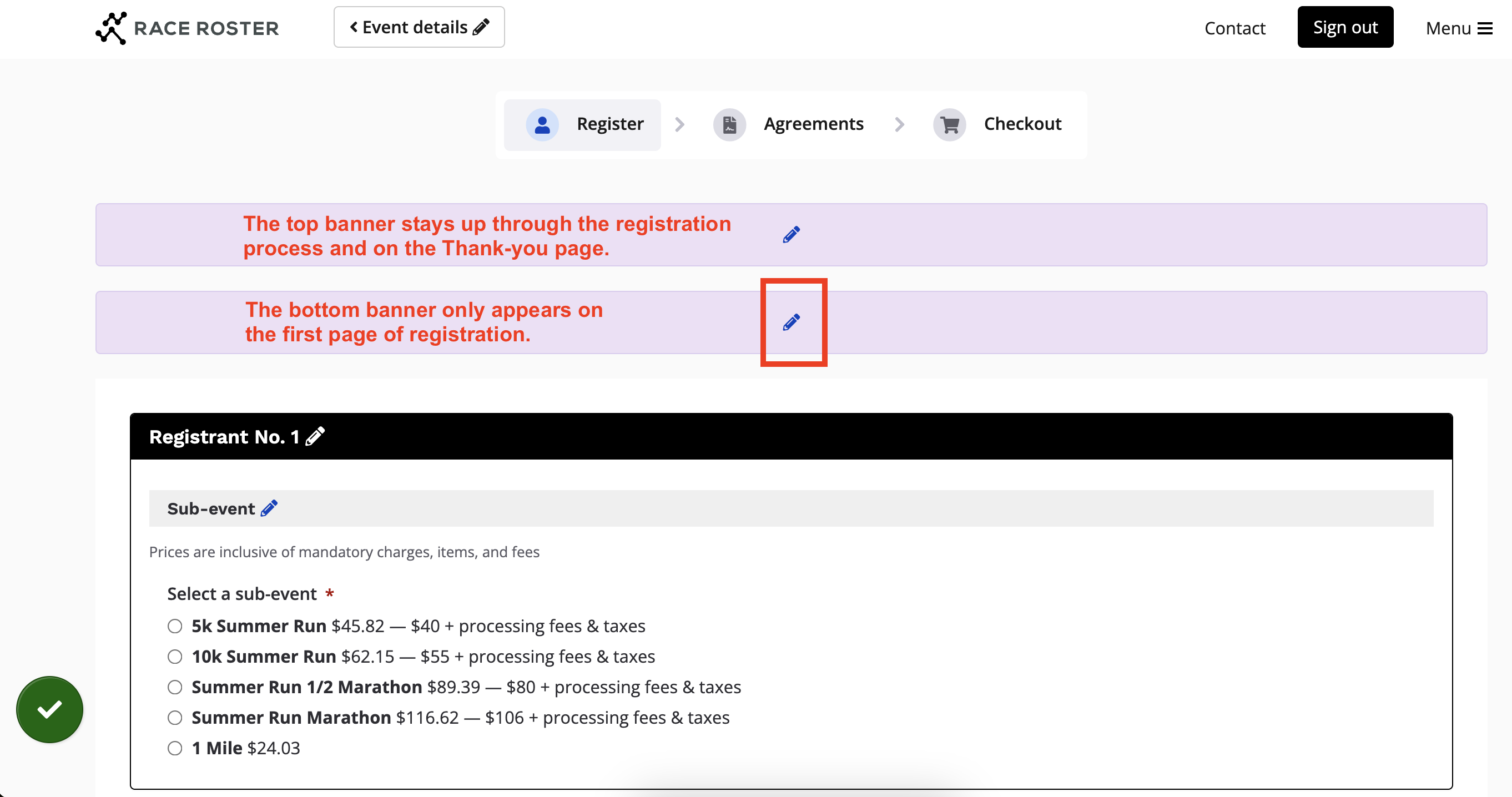 3. Now that you are inside the "Edit label" modal, enter customized copy and remember to save. See screenshot below.
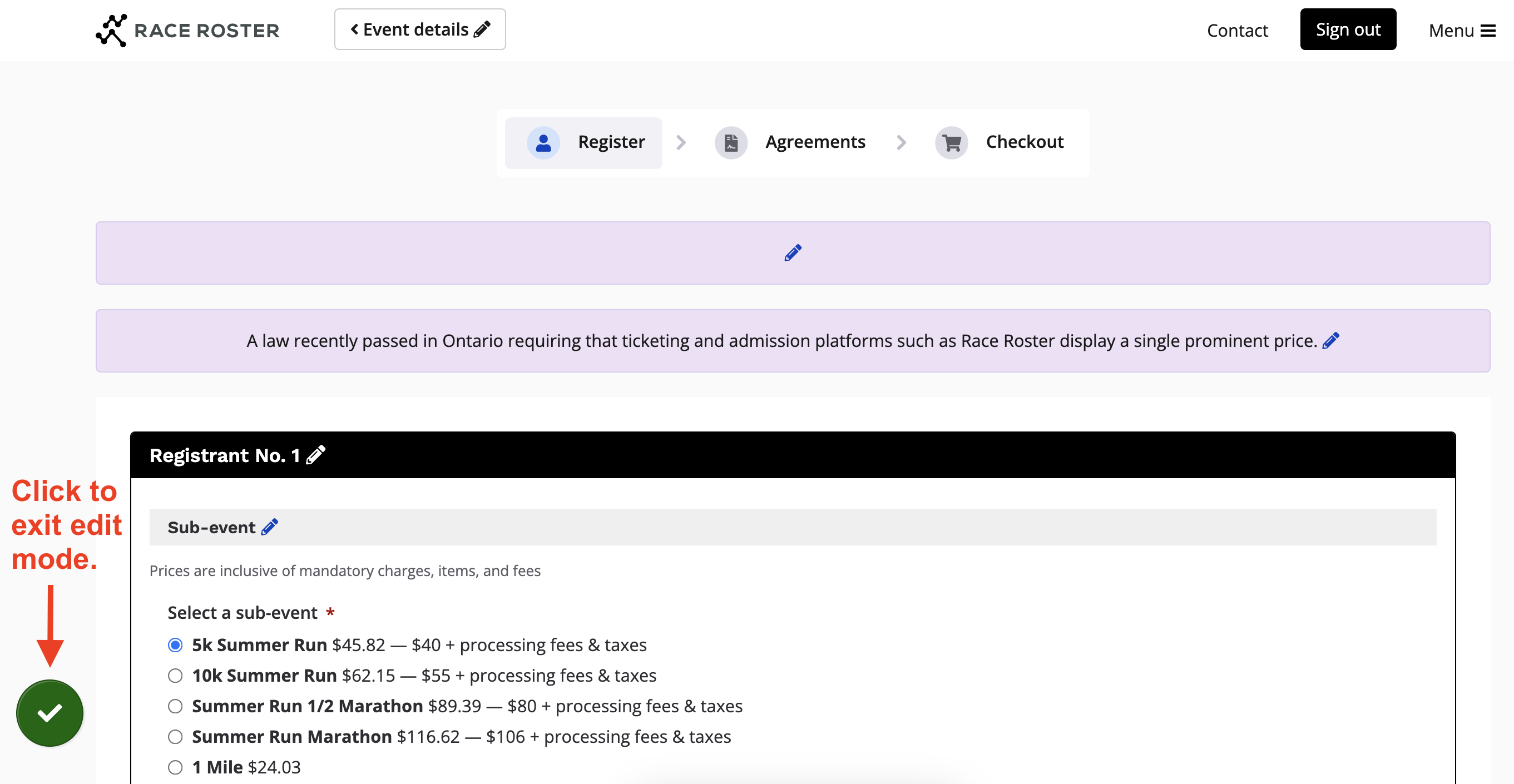
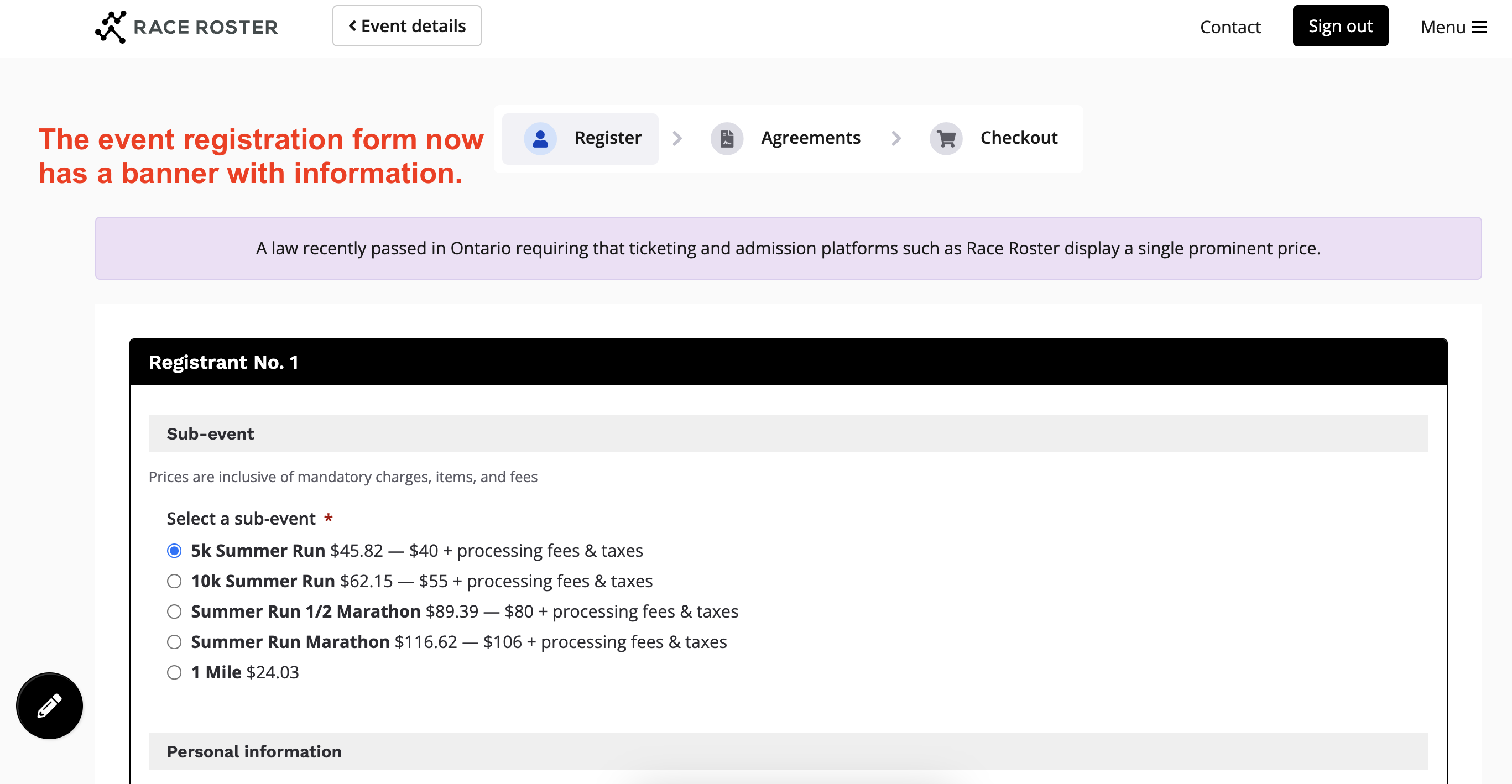
 4. Finally, be sure to click the pencil icon on the bottom left once again, to exit edit mode. See the two screenshots below.
- from now on the SPP will include applicable fees upfront (and even taxes as well, depending on your region)
- so, instead of the price displaying as $40, it could be displaying as an SPP of $45.82
- $45.85 + tax is what participants were paying at checkout in previous years
- however, since the upfront price is higher, this is perceived as an increase
Tip #1: Add a short paragraph in the event summary
event infoevent summary
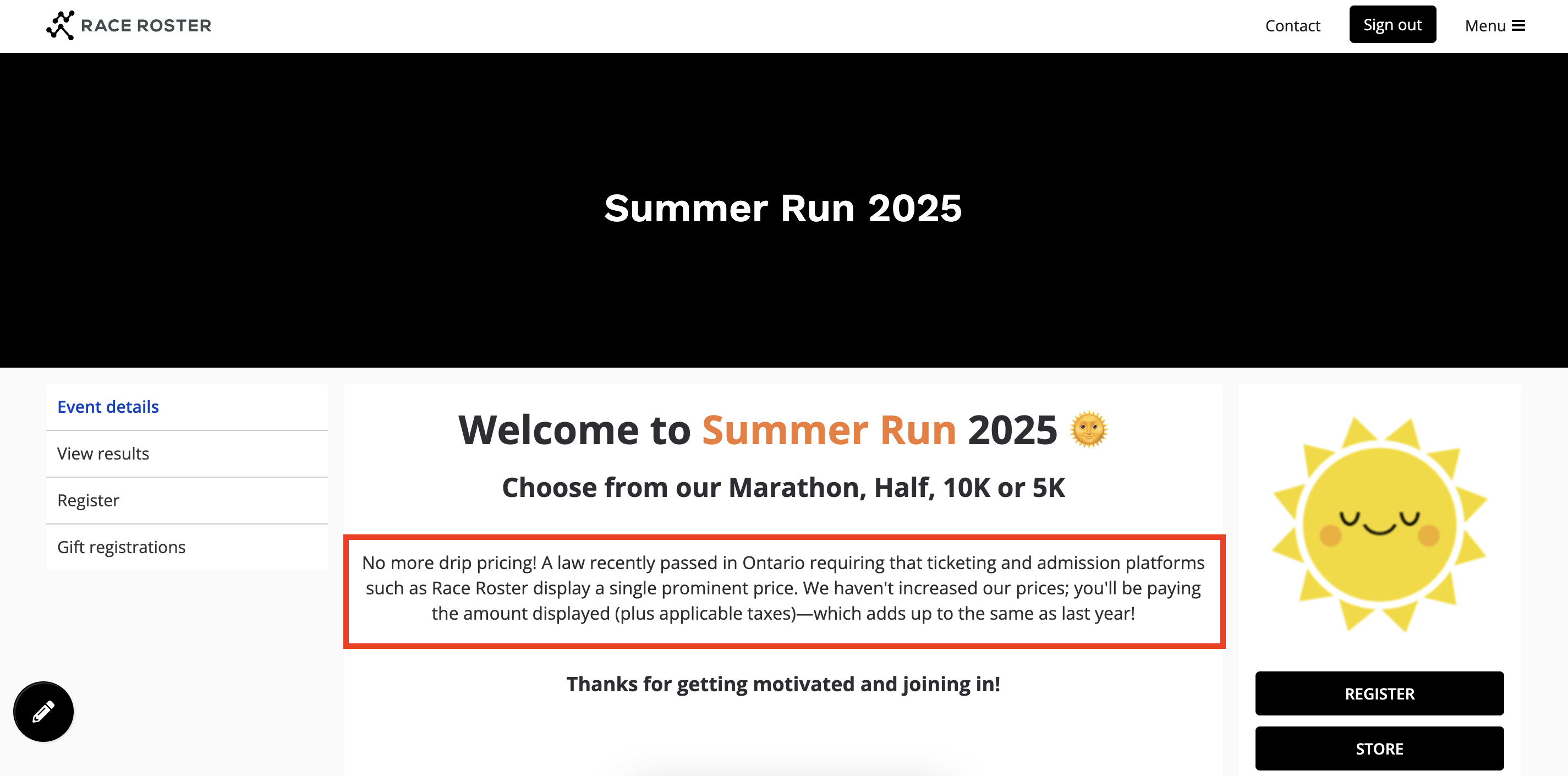
Here's how that would typically look on the event page:
The verbiage of this paragraph is entirely up to you.
Tip #2: Edit the "Registration fees" copy
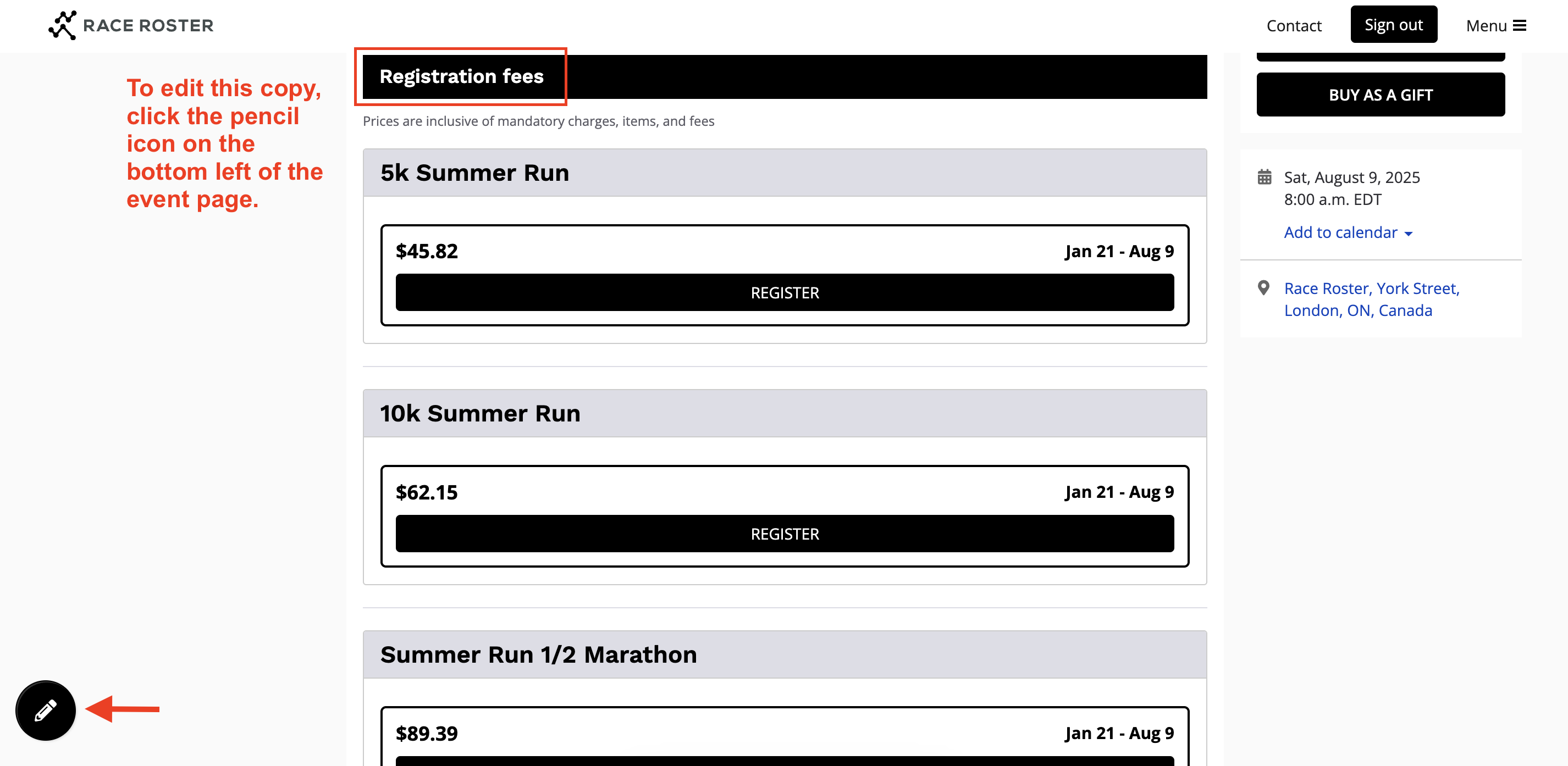
edit mode 1. To start, click the pencil icon on the bottom left of the event page.
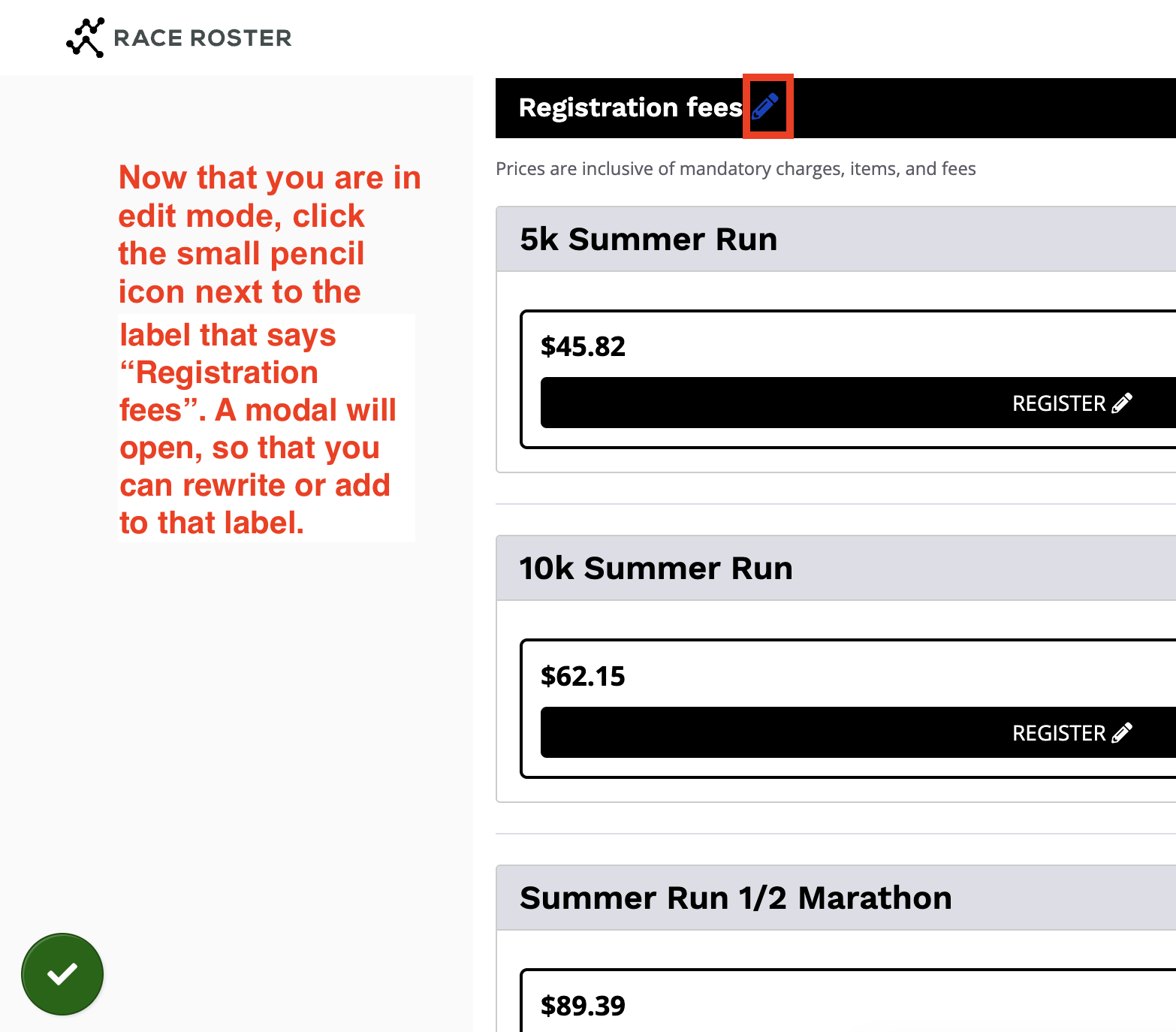
2. Now in edit mode, click the small pencil icon next to the "Registration fees" label.
3. Next, use the modal to edit the label. Be sure to click "Update" so that your changes save. See screenshot below.
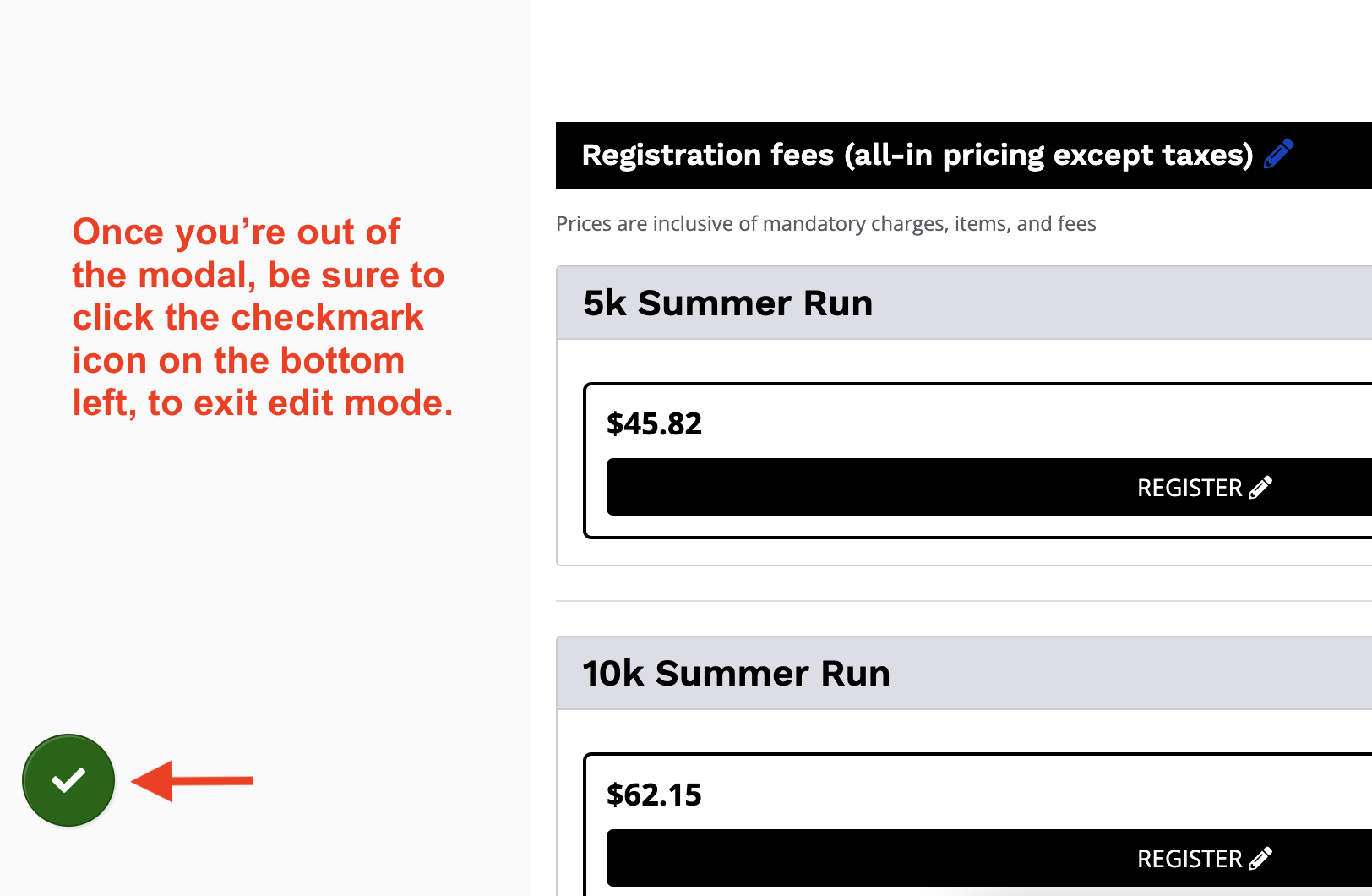
4. Finally, be sure to click the pencil icon on the bottom left once again, to exit edit mode. See screenshot below.
The verbiage of this label is entirely up to you.
Tip #3: Use the pricing description to provide a breakdown
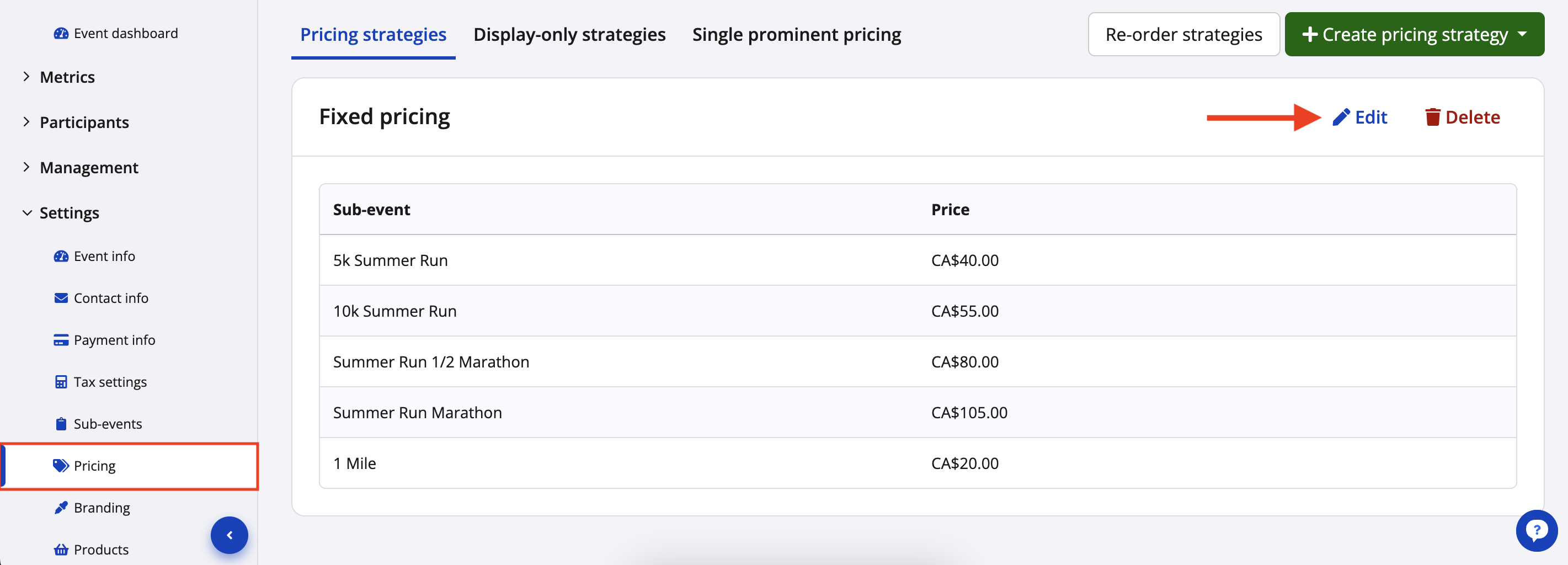
pricing pricing strategy"Show pricing""Description" field 1. While visiting Pricing in the event dashboard, click to edit the pricing strategy applicable to the sub-events in question.
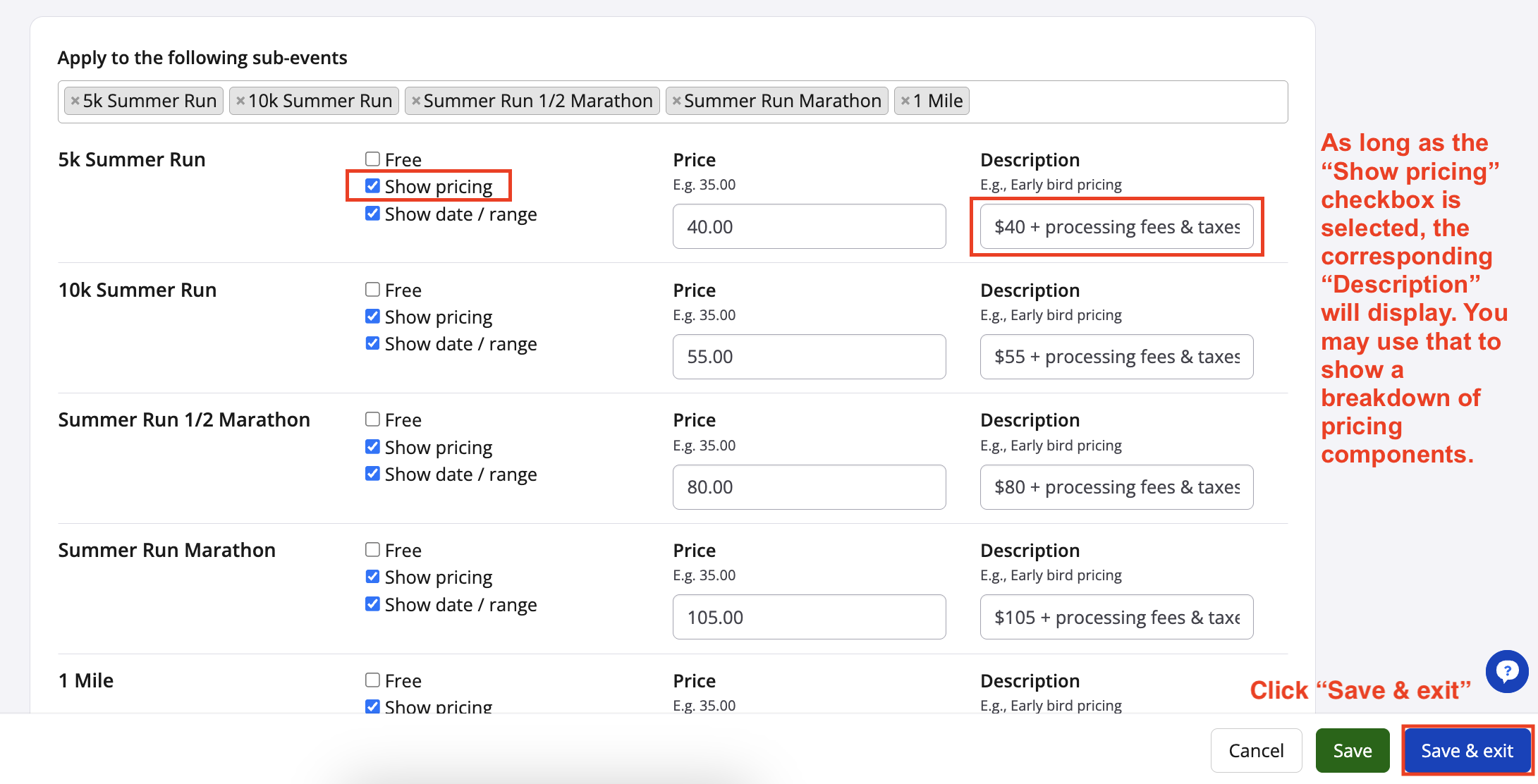
2. Once inside the pricing strategy settings, ensure that the "Show pricing" checkbox is selected. Then, enter a corresponding description that breaks down the pricing components or otherwise suits your needs. Click "Save & exit".
3. Back on the event details page, any newly-edited descriptions will appear in the registration fees section.
4. Descriptions will also appear in the registration form.
The copy in these descriptions is entirely up to you.
Tip #4: Add a banner in the registration form
edit mode 1. To start, click the pencil icon on the bottom left of the registration form.
2. Next, choose which banner to create and add copy to. The top banner appears on almost all steps of the registration form, while the bottom banner only appears on the first page. We recommend the bottom banner. Click the appropriate small pencil icon.
3. Now that you are inside the "Edit label" modal, enter customized copy and remember to save. See screenshot below.
4. Finally, be sure to click the pencil icon on the bottom left once again, to exit edit mode. See the two screenshots below.
Tip #5: Optimize your mandatory product setup (when applicable)
freepaid- In this situation, where the mandatory product has a mix of free and paid options, the mandatory product should be set as "Give away for free", and the paid option(s) set as an increase in price
- Do not set the product as a "Sell" with the free option set as a decrease in price, as this will skew the SPP to appear higher in all cases
If you have any questions about single prominent pricing, please email us or give us a call.