Adding a participant search widget allows participants to become more engaged with their results and provides a comprehensive look at a participant's events and results. The search widget allows a participant to search across all events on your past calendar (results) and view a comprehensive list of their results.
To use a search widget follow the instructions below:
1. Go to your Timer Dashboard
2. Navigate to the left hand side and select the Search Widget tab
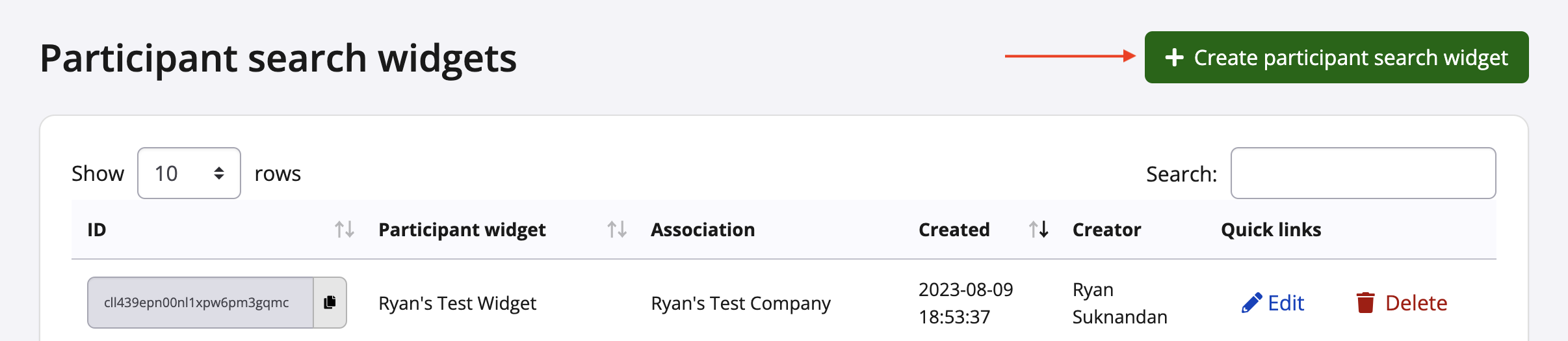
3. Click the blue + Add participant search widget
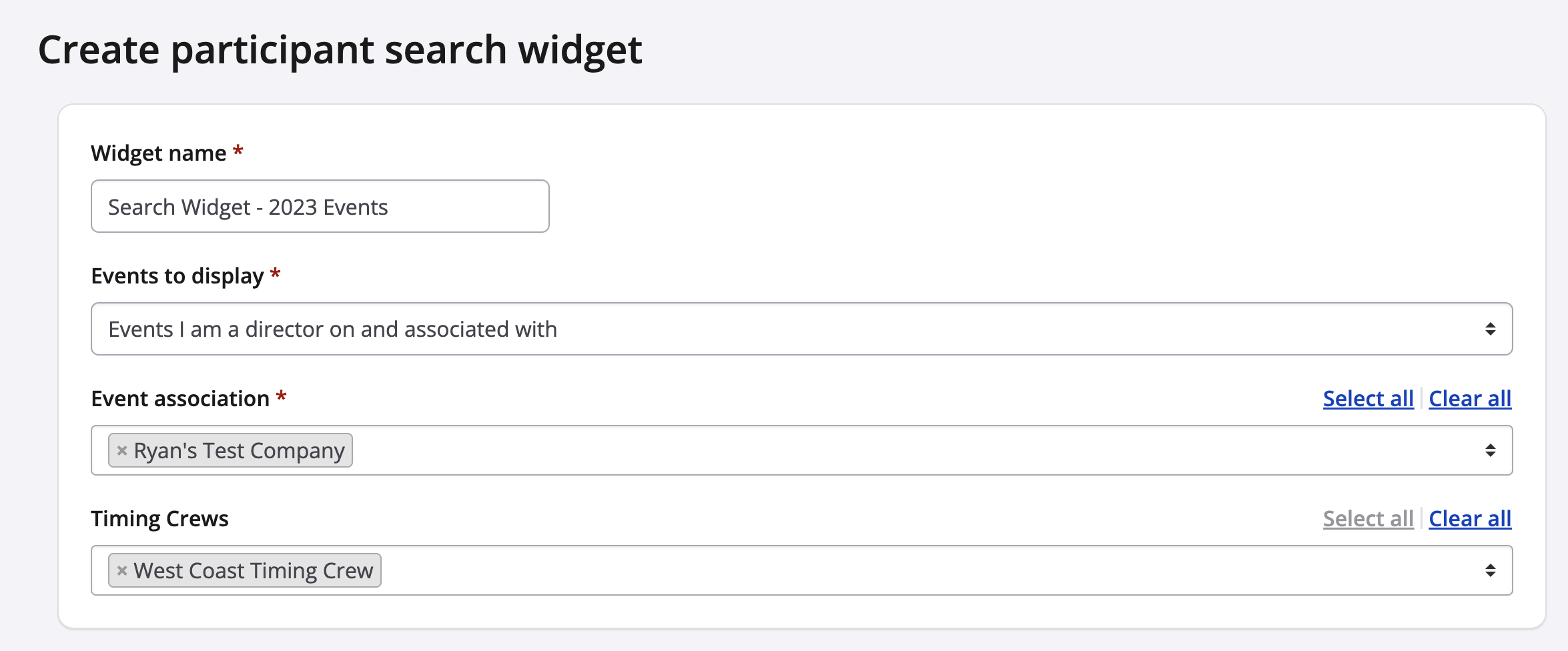
4. Add the widget name, your association (company) from the list, and indicate which events you would like to display (my events only vs all associated events)
5. Select the display configurations, choosing one or all of the following:
- Display event date column?
- Display event association column?
- Display event page link?
- Display association logo?
- Timezone
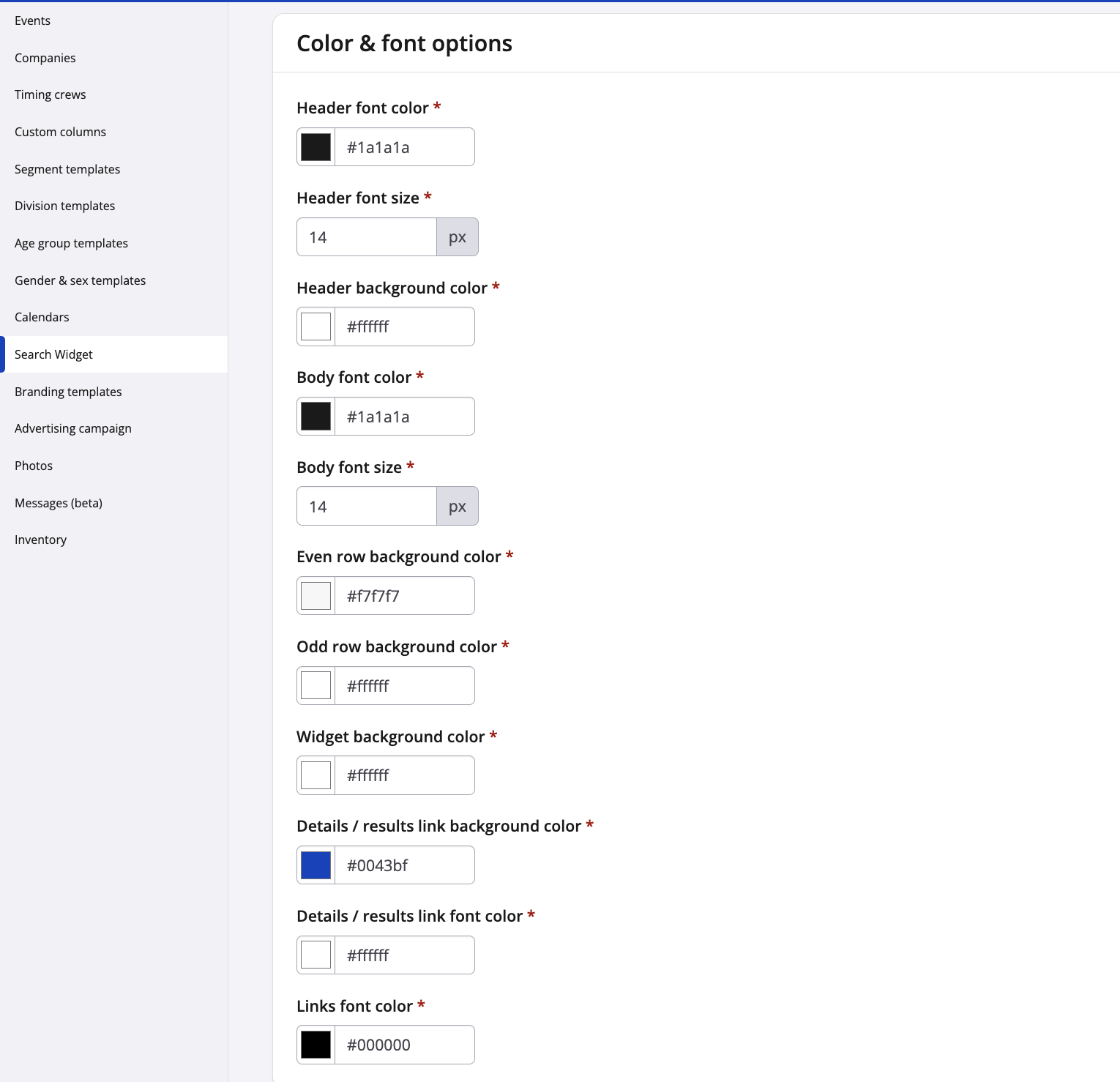
6. Adjust the colour and font options
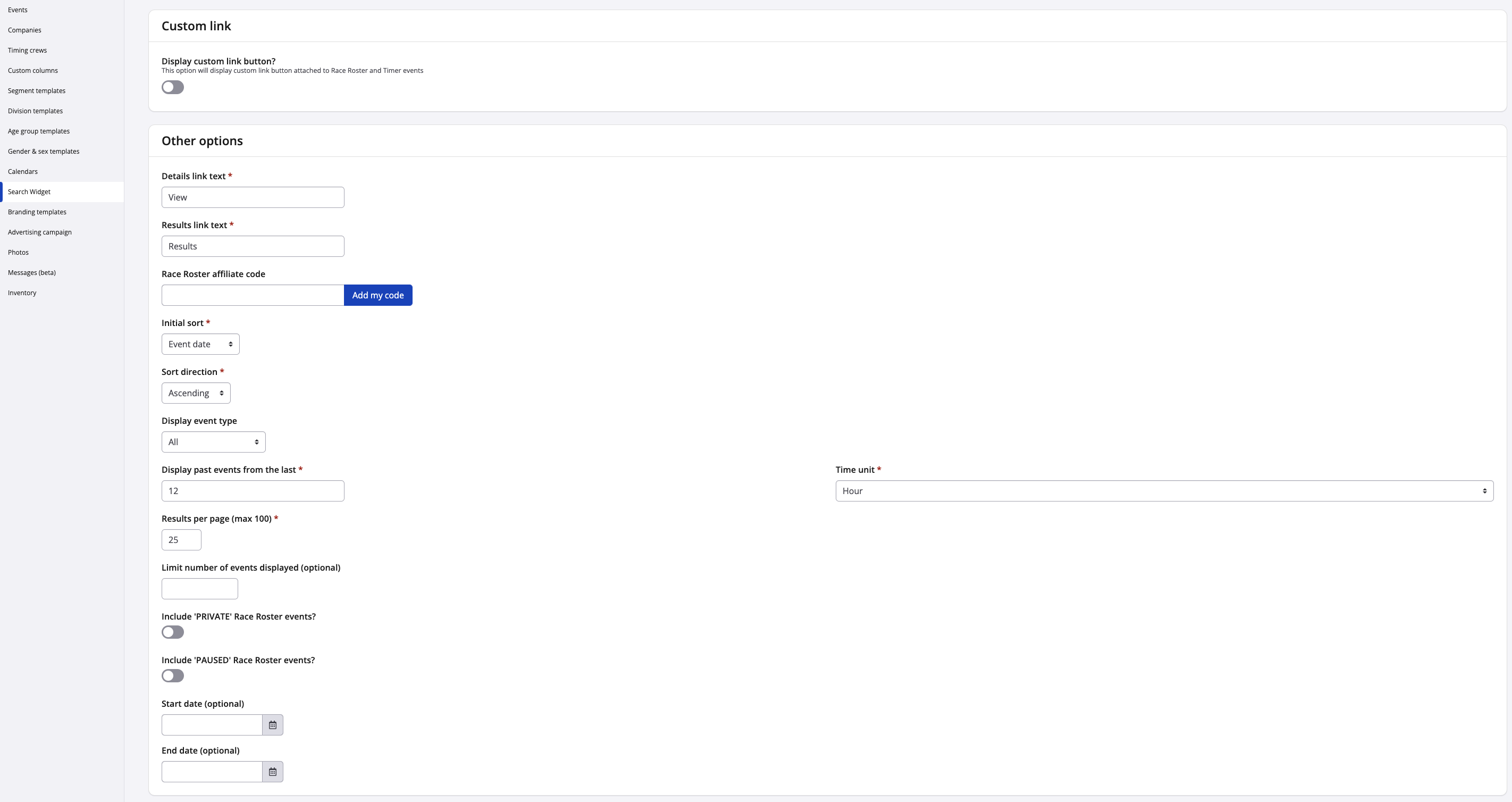
7. Review other configuration options
- Change Detail and Results link text
- Sorting and display of results
- Results per page
- Dates
8. Finally, IFrame configurations can adjusted by changing the IFrame height and width.
9. Click Save
10. After saving, you will be taken to a new page that contains the code snippet to copy and paste on your site
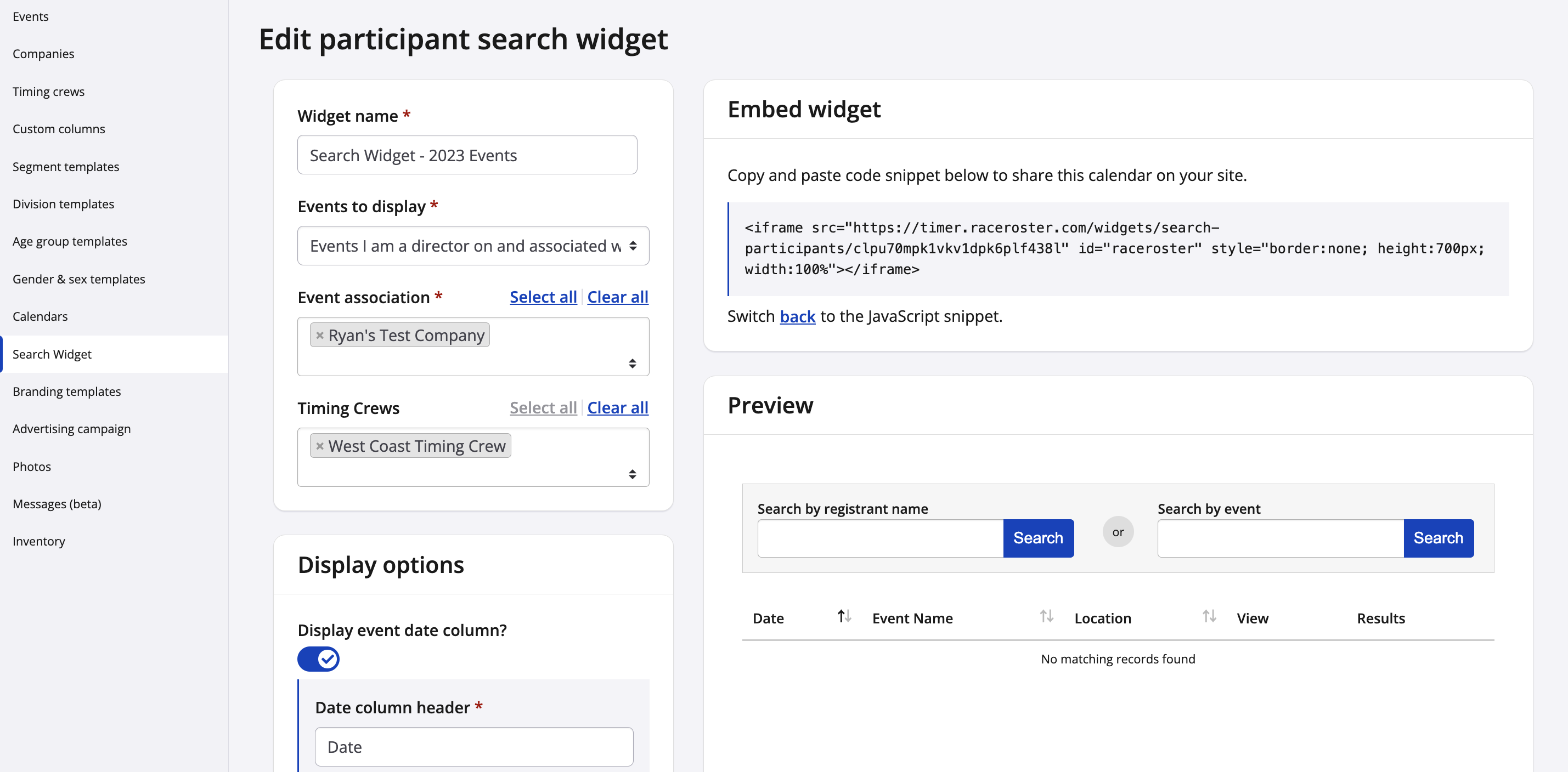
11. If adjustments are made on this page, ensure to scroll down and click Save