Effective September 2025, general discounts are a new Race Roster feature that allow for providing select participants with discounted registration pricing at checkout. A variety of settings are available within the feature, including enabling a validation for discount eligibility. General discounts are not to be confused with the following, separate features:
- group discounts, focused on transactions with multiple registrants
- age discounts, focused on registrants of select ages
- team discounts, focused on registrants who create or join teams in certain team categories
- promo codes, which require distribution prior to redemption
Follow the steps below for the general discounts setup.
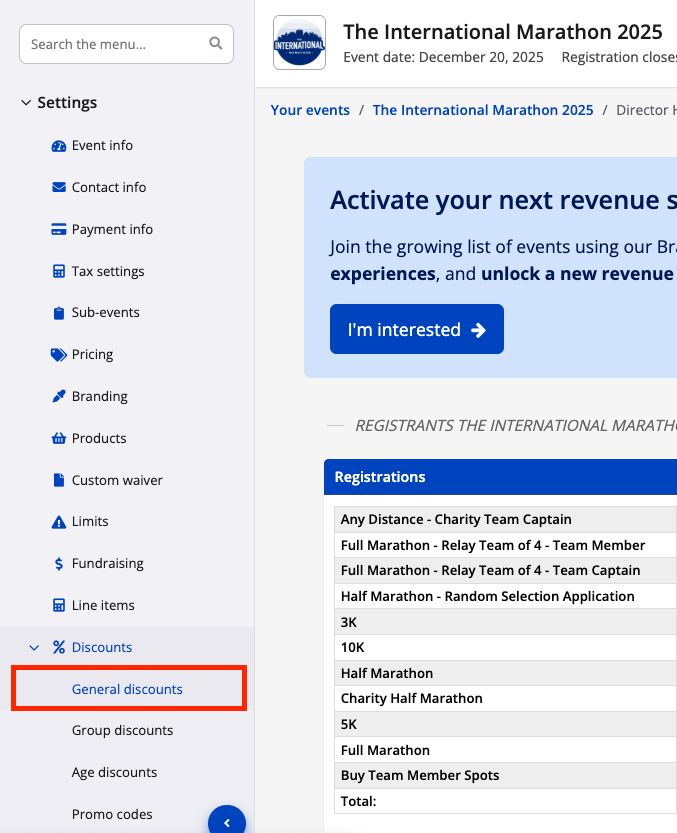
1. From the event dashboard, use the lefthand menu to navigate to Settings > Discounts > General discounts. Screenshot follows.
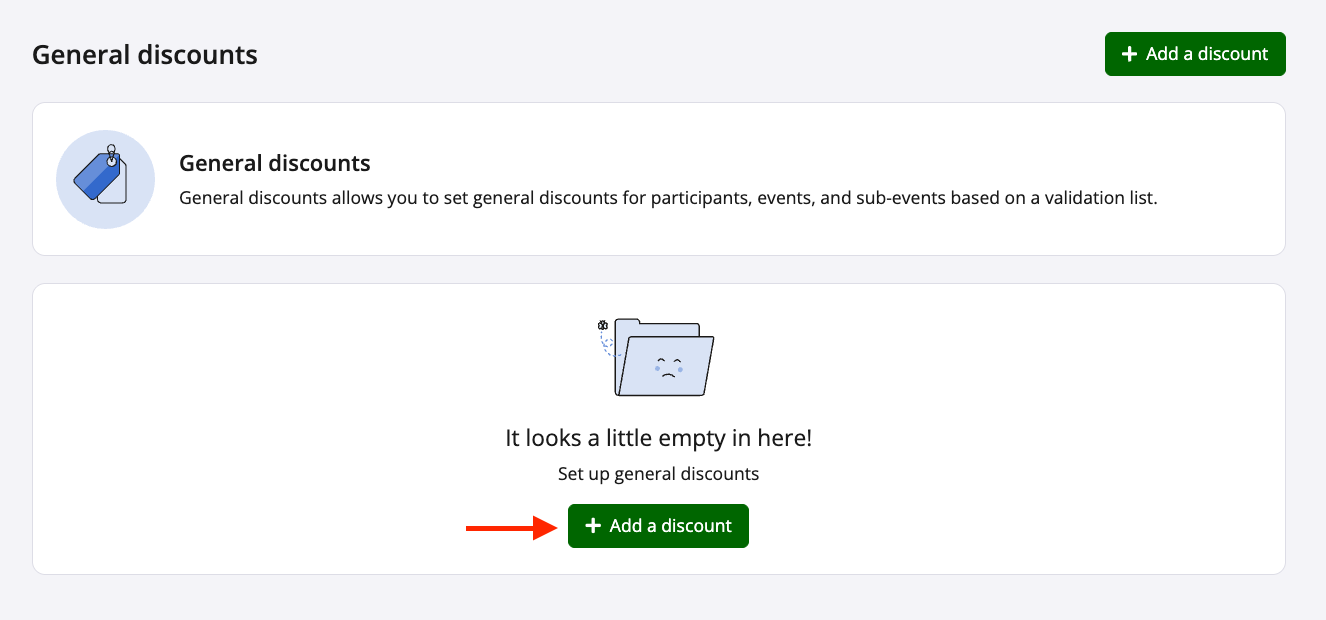
2. From the general discounts page, click one of the green "+ Add a discount" buttons. Screenshot follows.
3. On the create general discount page, you will be prompted to fill or select for various fields and settings. Screenshot follows.
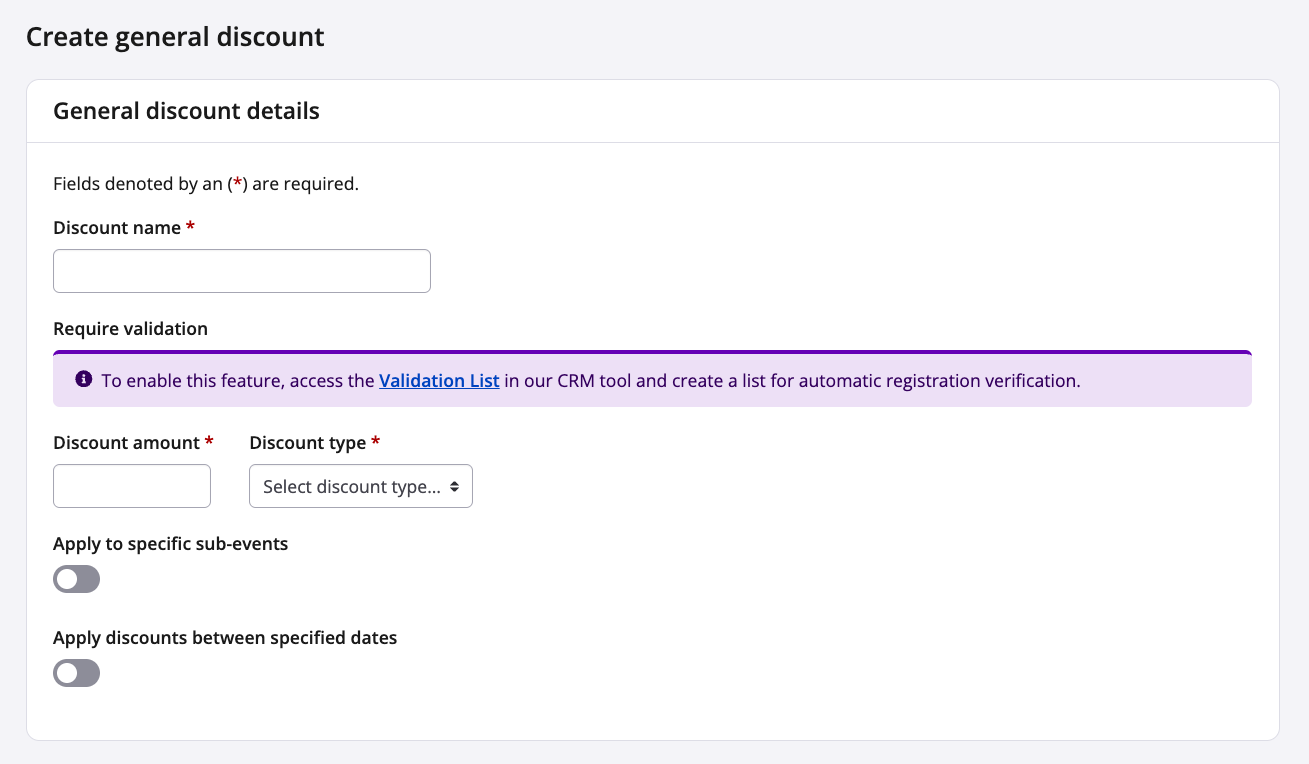
- Discount name - Provide a name for the discount, which will appear as a line item at checkout, on the registrant's transaction receipt and in financial reports.
- Require validation (optional) - Learn more in step 4 below.
- Discount amount - Type in a positive number up to two decimal points (e.g., 1088, 14.50).
- Discount type - Select what type of discount the amount represents.
- Flat rate: the amount is a monetary value subtracted from the price of the sub-event (e.g., ¥1088 off, $14.50 off)
- Percentage rate: the amount is a percentage subtracted from the sub-event price (only numbers less than or equal to 100 are eligible for this discount type; e.g., 14.5% off)
- Set price: the amount becomes the sub-event price (e.g., the registrant now pays ¥1088, $14.50)
- Apply to specific sub-events (optional) - Should you want this general discount applying only to registrants of select sub-events, you may enable this toggle. A new field will appear where you may indicate which ones.
For example, you may be offering a discount for the 10K Crit Ride only, while keeping the longer distance rides at regular pricing. As such, select the "10K Crit Ride" sub-event.
- Apply discounts between specified dates (optional) - Should you want this general discount applying within a specific time window, you may enable this toggle. New fields will appear to indicate the "From date" and/or the "To date" with exact times as well. The discount will not apply outside of the time window.
For example, to conduct a flash sale, you may indicate the start and end dates here. Screenshot follows with a sample setup.

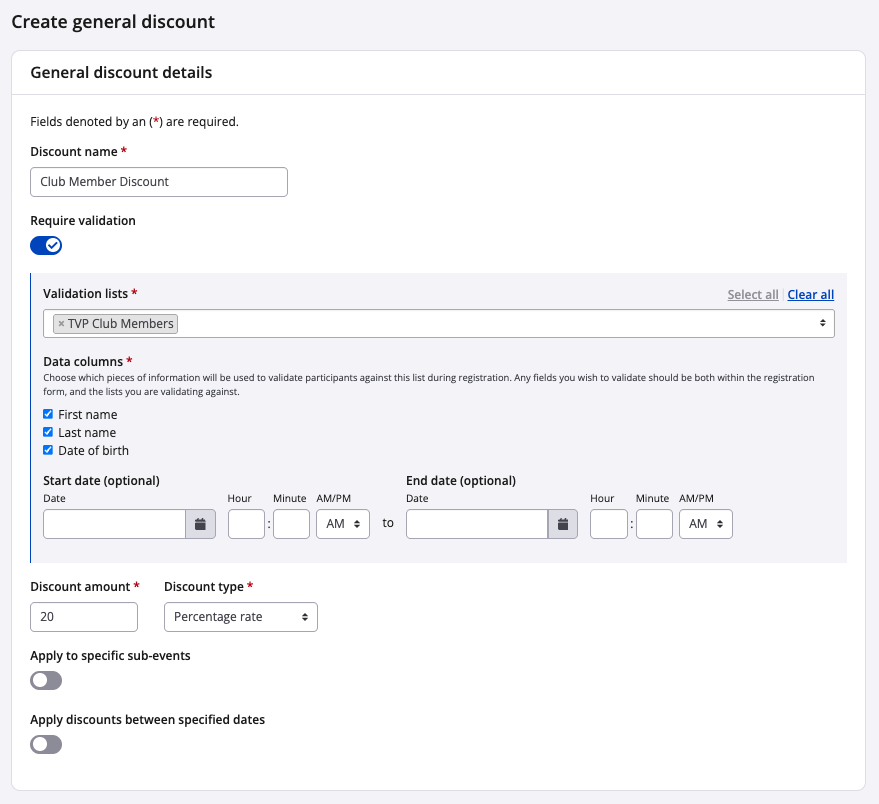
4. The "require validation" toggle allows you control who receives this discount by way of a validation list (i.e., only those on the list get the discount). You may enable requiring validation for a general discount only if there is a corresponding validation list in the event's owning organization. Learn more about that setup from our other article, Understanding Race Roster CRM's validation lists .
Once you've uploaded a list of whom you want to be eligible for the discount (into your CRM organization), enable the "require validation" toggle. A new set of fields will be revealed, where you may establish these settings:
- Validation lists - Select the list(s) against which you want to validate the general discount (e.g., employees of a sponsoring company, members of a club, deferral participants). Warning: all lists selected within this field must have uploaded the exact same data columns.
- Data columns - Choose which data columns (i.e., pieces of information) will be used to validate participants against during registration. Warning: The column checkboxes selected must match the exact data columns available on the validation list(s). For example, if the validation list was uploaded to the owning organization to feature "First name", "Last name" and "Date of birth", then all three of those must be selected here in the discount's validation data column checkboxes.
- Start date (optional) - Choose a date on which the discount begins validating against the list, if different from the registration start date.
- End date (optional) - Choose a date on which the sub-event stops validating against the list, if different from the registration end date.
Note: If dates are selected within the "require validation" fields, then outside of those dates the discount will apply to every registrant without validating. If dates are selected within the "apply discounts between specified dates" field, then outside of those dates the whole discount will be deactivated. If dates are left unspecified for both sets of fields, then the discount will always be active but only for those who successfully validate.
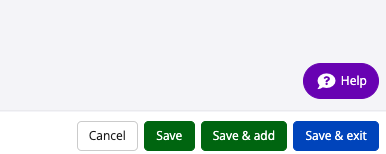
5. Once you're satisfied with your general discount, click:
- "Save" to save settings while remaining on the page,
- "Save & add" to save settings and begin creating a new general discount, or
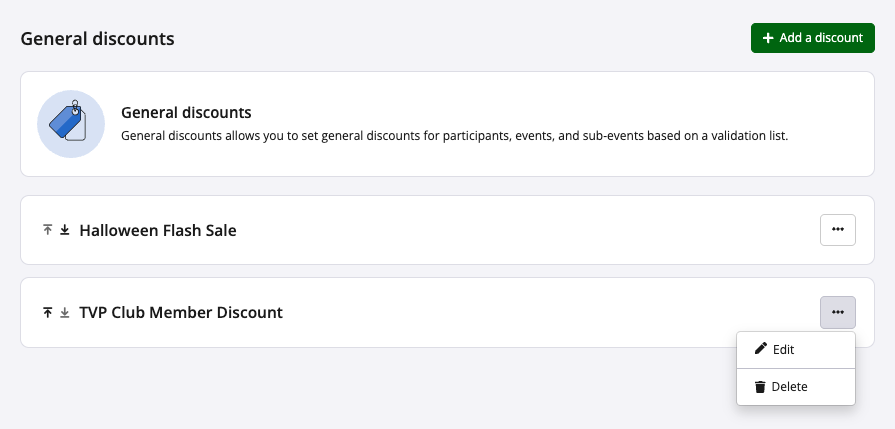
- "Save & exit" to save settings and return to the general discounts page, where you will see all general discounts for the event
If you have any questions about creating general discounts, pleas contact us at director@raceroster.com (director@raceroster.com.au).