As an event organizer, tools are available to you on Race Roster to handle participant transfers on an automated basis. You may select settings according to your policies, and then make "Transfer" buttons and links visible on public-facing pages. This allows participants to handle transfers on their own and provide appropriate payment when applicable. Here are the steps for setup.
1. Go to your events overview and click "View dashboard" for the correct event.
2. Navigate to the search box on the top lefthand side of the screen. Search and select Settings > Transfers. See screenshot below for the page you will land on.
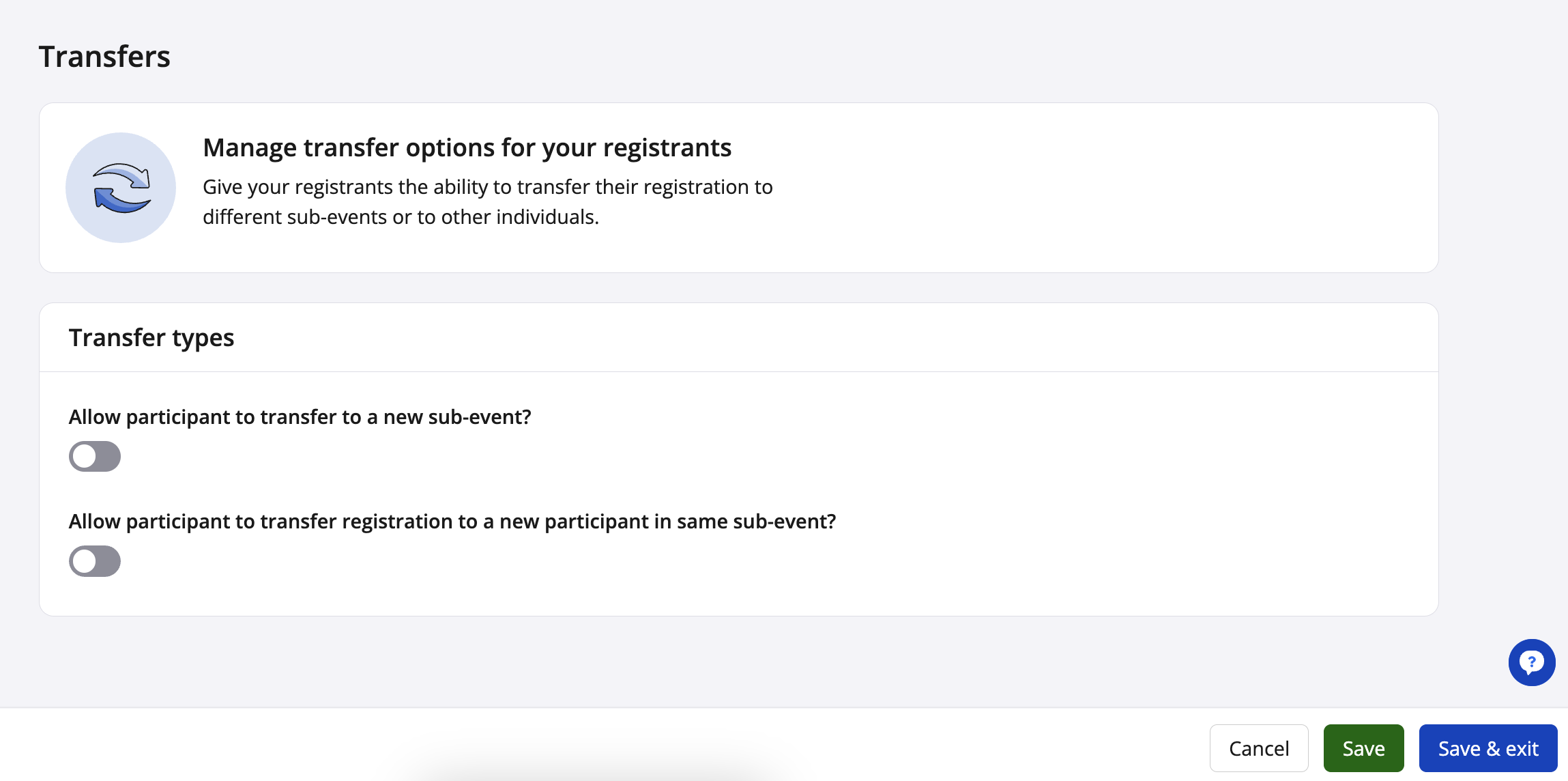
3. Under Transfer types, use the corresponding toggle to enable one or both types of transfers:
- Allow participant to transfer to a new sub-event? (i.e., distance transfer or sub-event transfer)
- Allow participant to transfer registration to a new participant in same sub-event (i.e., participant to participant (P2P) transfer or participant transfer)
4. A message box will ask "Are you sure you want to turn on transfers for this event?" Click the yellow "Continue" button. Then, click the green "Save" button to cement the change.
See screenshot below to view the settings outline revealed after a toggle is enabled.
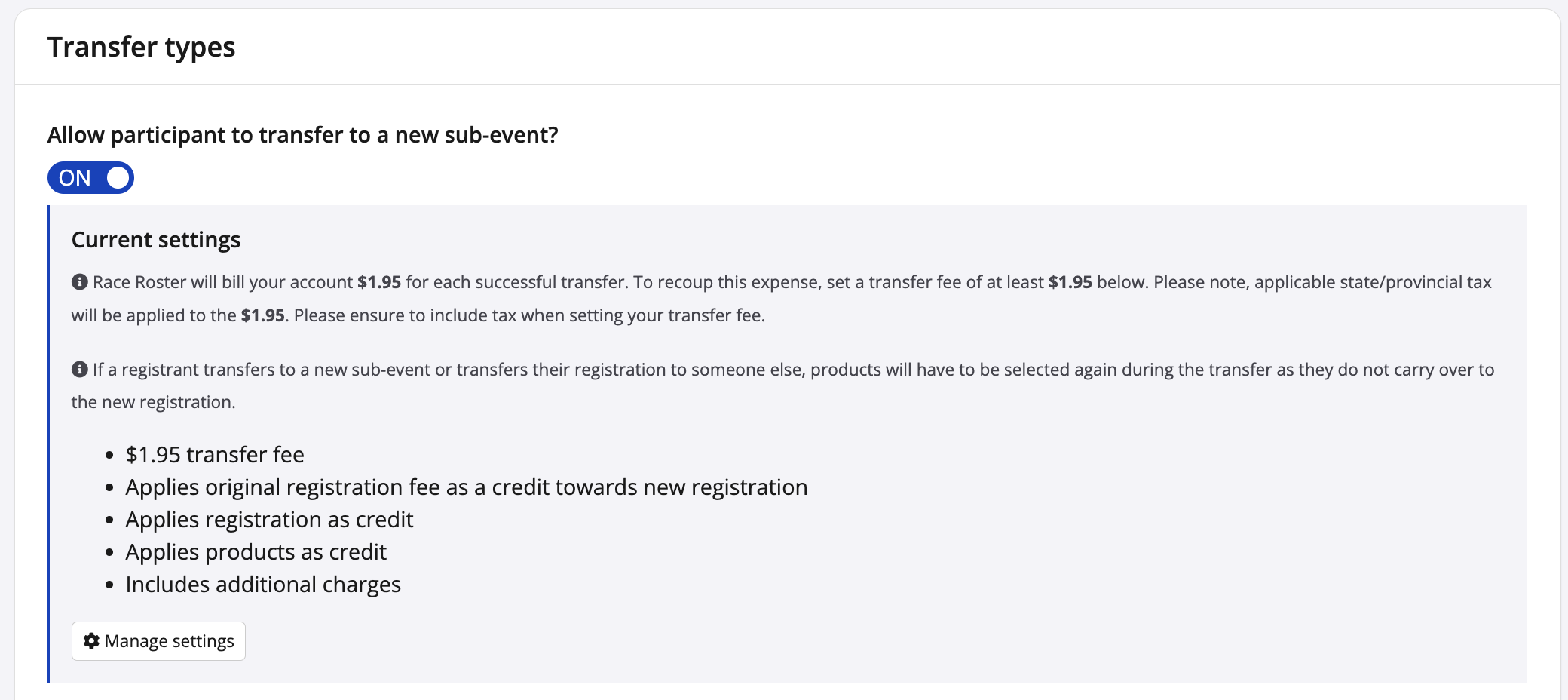
5. Next, for each transfer type, click the white "Manage settings" button to proceed with configuration on a new page.
NOTE: You can only manage the configurations of one transfer type at a time. After configuring one type, click "Save & exit" and then, if needed, re-enter Settings > Transfers to manage the settings of the second transfer type.
6. On the transfer settings page, select what kind of pricing you want to apply to the transfer type. This step features three key options.
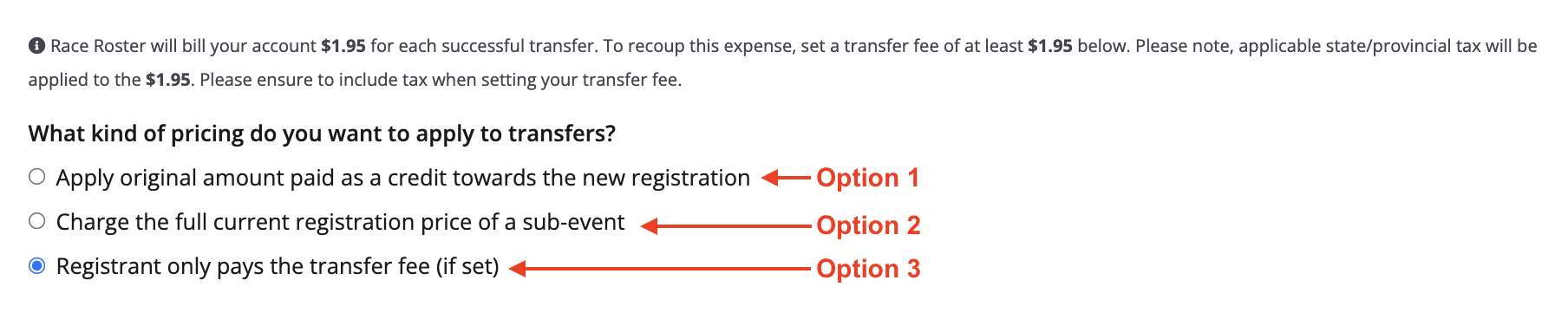
OPTION 1: Apply original amount paid as a credit towards the new registration
This option is a popular configuration, and is known as a "gift transfer". It allows an individual to use their original registration and (if applicable) product purchases towards their new sub-event registration or towards the registration of another individual. See screenshot below for a sample setup for sub-event transfers.
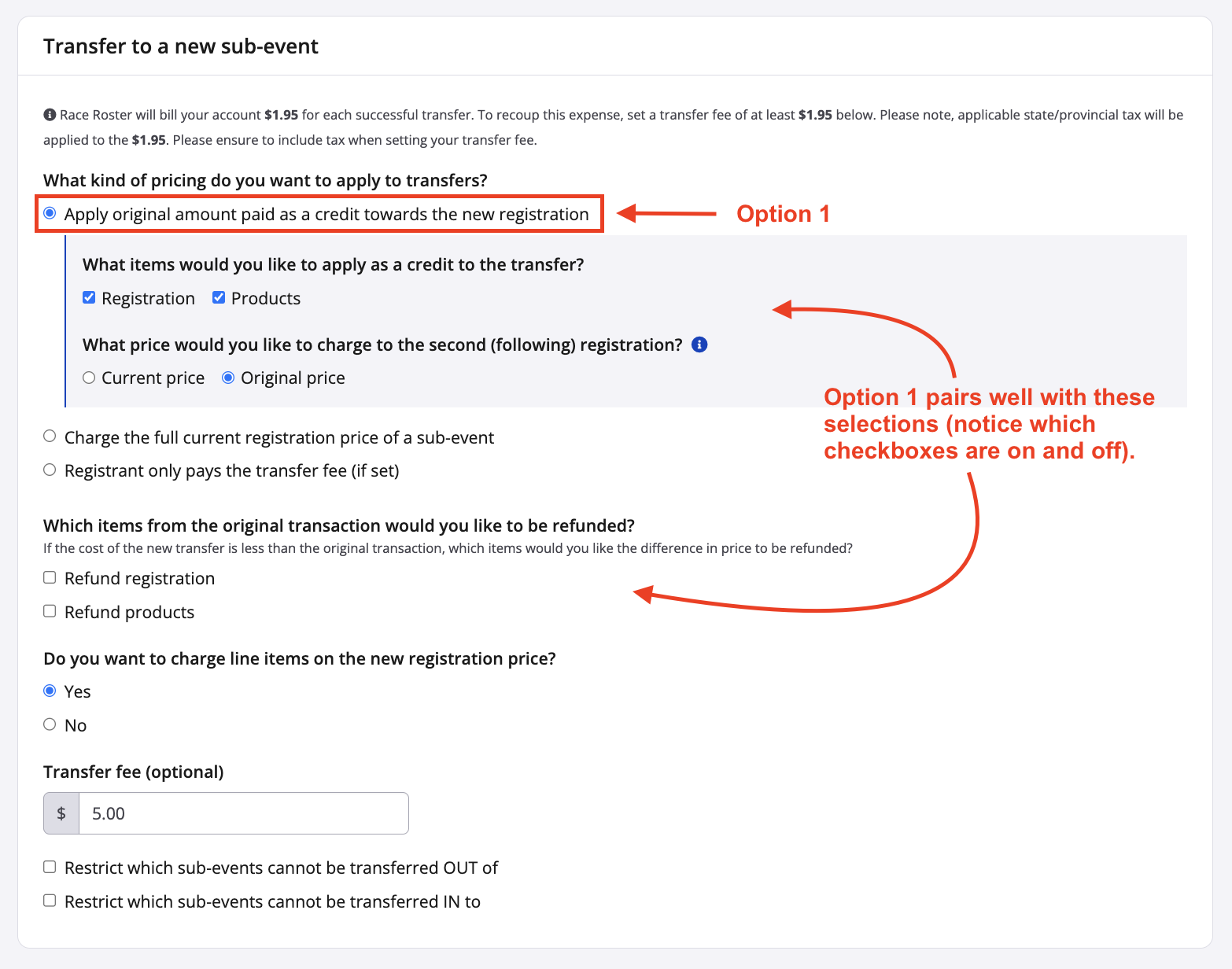
Under OPTION 1, you will be asked two additional questions:
- What items would you like to apply as a credit to the transfer? You may check off "Registration" and/or "Products". This will allow the participant who is completing the transfer to use the original registration and product funds to purchase the new registration and re-select the same or different products (as long as pricing is equivalent).
NOTE: If you do not select "Products", the credit for the purchased product(s) in the original registration will not carry over to the new registration. During the transfer process, the individual must select and pay for product items anew.
- What price would you like to charge to the second (following) registration? You can select if you would like to have participants pay for the new registration sub-event's Current price or Original price. This choice may have an effect on whether the credit that's being applied will cover the new registration in full or partially.
Now, selecting OPTION 1 can be paired with the next section, Which items from the original transaction would you like to be refunded? to yield different effects:
- When it's a sub-event transfer, the fine print says If the cost of the new transfer is less than the original transaction, which items would you like the difference in price to be refunded?
You may check off "Refund registration" and/or "Refund products" or, alternatively, leave both unchecked. If you make selections, once the registration and/or product credits are applied to the new registration, any leftover credit will be refunded (for example, during a distance downgrade from a $50 10K Run to a $30 5K Run, the participant would receive the $20 difference as a refund). If you don't make any selections in this section, no refunds will be issued and the remainder of the credit will be forfeited.
- When it's a participant transfer, the fine print says Refunds will be processed automatically, you are responsible for any costs that may be incurred by these refunds.
You may check off "Refund registration" and/or "Refund products" or, alternatively, leave both unchecked. Most event organizers leave both unchecked (i.e., no refund), as OPTION 1 aims to forward any and all credit to the new participant registering in the same sub-event.
Jump down to step 7 for the remainder of the setup.
OPTION 2: Charge the full current registration price of a sub-event
When selecting this second option, the new registration resulting from the transfer will be prompted to make full payment at the current price. See screenshot below for a sample setup for participant transfers.
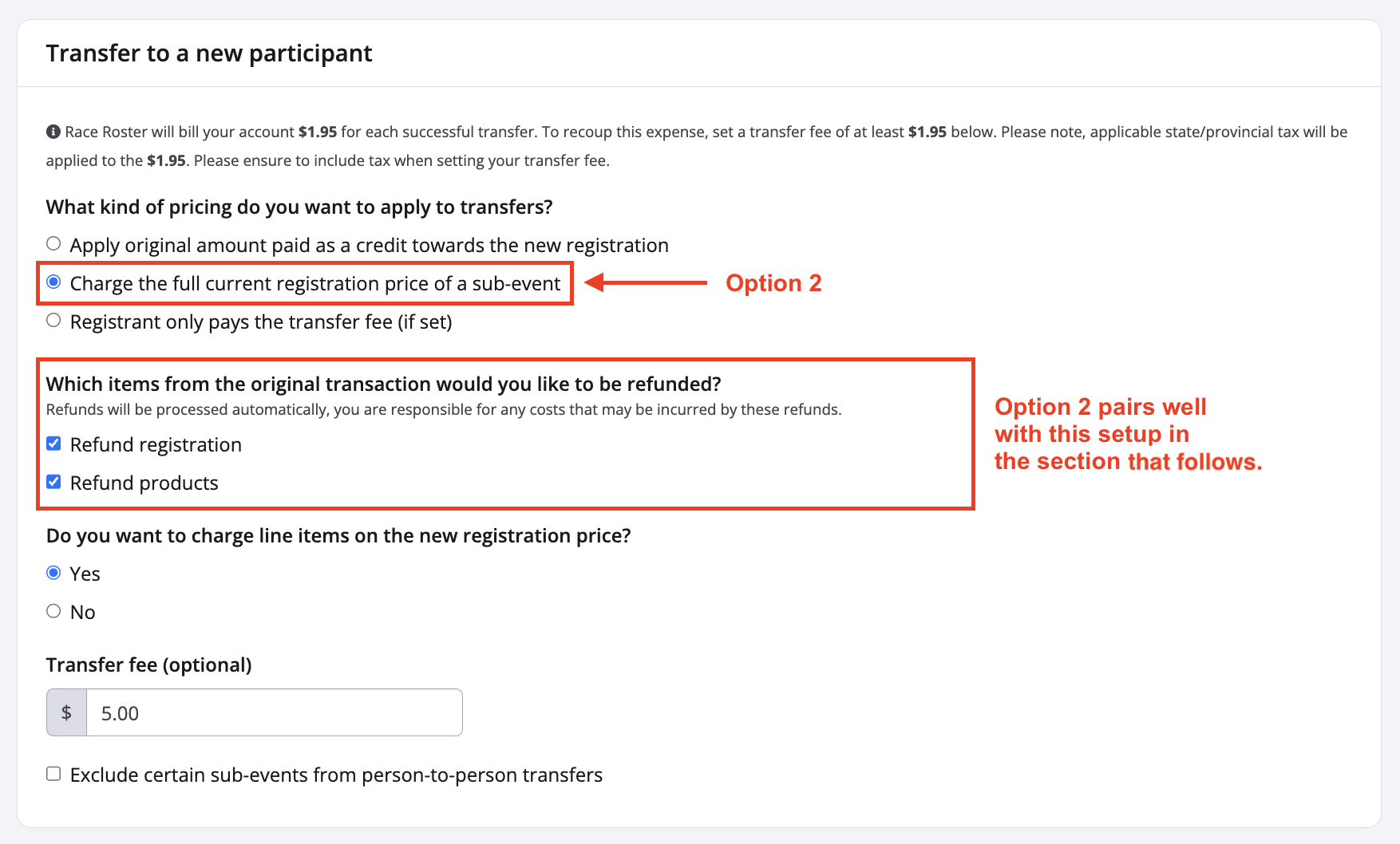
Now, selecting OPTION 2 can be paired with the next section Which items from the original transaction would you like to be refunded? to yield different effects:
- When it's a sub-event transfer, the fine print says If the cost of the new transfer is less than the original transaction, which items would you like the difference in price to be refunded?
Regardless of whether the new sub-event costs more or less than the original sub-event, your options will be to check off "Refund registration" and/or "Refund products" or, alternatively, leave both unchecked. Most event organizers choose to check off (i.e., refund), as OPTION 2 will fully charge the participant for their new sub-event and products. This way, the original registration will be refunded upon receiving full payment for the new one (in other words, when a participant is moving from one sub-event to another, this entire configuration refunds the original registration and charges for the new one; it's like starting fresh).
- When it's a participant transfer, the fine print says Refunds will be processed automatically, you are responsible for any costs that may be incurred by these refunds.
You may check off "Refund registration" and/or "Refund products" or, alternatively, leave both unchecked. Most event organizers choose to check off (i.e., refund), as OPTION 2 aims to charge full price to the new participant, so in most cases it makes sense for the original participant to be refunded. However, depending on your exact policies, there may be circumstances where the transfer is charged full price without refunding anything to the original participant (e.g. 1, you have a no-refund policy even when locating someone new to "buy a bib"; e.g. 2, you intend to refund the original participant only partially and/or outside of Race Roster).
NOTE: If "Refund products" is not selected during this step, the original products purchased will be left reflected on the original transaction and the product funds from said transaction will be kept. This works in circumstances where you have a participant dropping out of a race but you still intend to ship them merchandise that they paid for (be sure to look at inactive registrants on the participant list). The new participant who completes the transfer will be charged for everything they specifically select in registration.
Jump down to step 7 for the remainder of the setup.
OPTION 3: Registrant only pays the transfer fee (if set)
When selecting this third option, the new registration resulting from the transfer will only be prompted to pay the transfer fee (if such a fee is set at all). No credit from the original registration will be forwarded; the sub-event price will simply be removed from the new registration. See screenshot below for a sample setup for participant transfers.
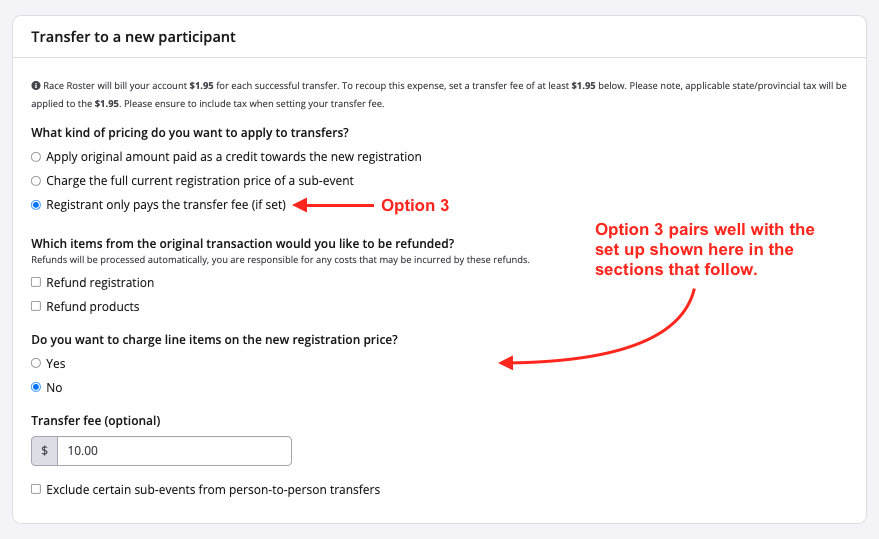
When using this type of transfer, the new participant will fill out the transfer form and be responsible for selecting and paying for their new product purchases. Selecting OPTION 3 can be paired with the next section Which items from the original transaction would you like to be refunded? to yield different effects:
- When it's a sub-event transfer, the fine print says If the cost of the new transfer is less than the original transaction, which items would you like the difference in price to be refunded?
You may check off "Refund registration" and/or "Refund products" or, alternatively, leave both unchecked. Most event organizers leave both unchecked, so that no refunds are issued and hence the event gets to keep all funds from the original transaction and, in addition, collect that extra transfer fee. There may be circumstances (e.g., for distance downgrades) in which you may want to enable the registration refund so that the difference is price is returned to the participant.
- When it's a participant transfer, the fine print says Refunds will be processed automatically, you are responsible for any costs that may be incurred by these refunds.
You may check off "Refund registration" and/or "Refund products" or, alternatively, leave both unchecked. Most event organizers leave both unchecked, so that the event gets to keep the funds from the original transaction and, in addition, collect that extra transfer fee.
NOTE: If "Refund products" is not selected, the original merchandise purchased will be removed from the participant and the funds from said transaction will be kept. If you want the participant to re-select their merchandise, select to refund products.
7. The next sections asks Do you want to charge line items on the new registration price? This allows you to choose whether or not additional charges, applicable taxes (whether marketplace or non-marketplace) and other line items will apply to the new transaction.
8. The final step Transfer fee (optional) allows you to add a transfer fee to the new transaction.
NOTE: Race Roster will bill your event's account a fee + applicable taxes for each successful transfer. To recoup this expense, set a transfer fee of at least that sum in the box provided. The fees in each currency follow:
Tables can't be imported directly. Please insert an image of your table which can be found here.
CurrencyTransfer Fee
As always, Race Roster is happy to offer troubleshooting assistance. For help with your event's automated transfer settings, please email director@raceroster.com (director@raceroster.com.au) or give us a call:
- Australia: 1800 734 669
- New Zealand: 0800 734 669
- North America and the rest of the world: 1 855 969 5515