Race Roster's registration technology offers event organizers the ability to ask participants to provide personal information regarding sex or gender. By default, Race Roster will display the format:
- Sex - male; female
but the question can also be toggled to display a format with up to four alternative options:
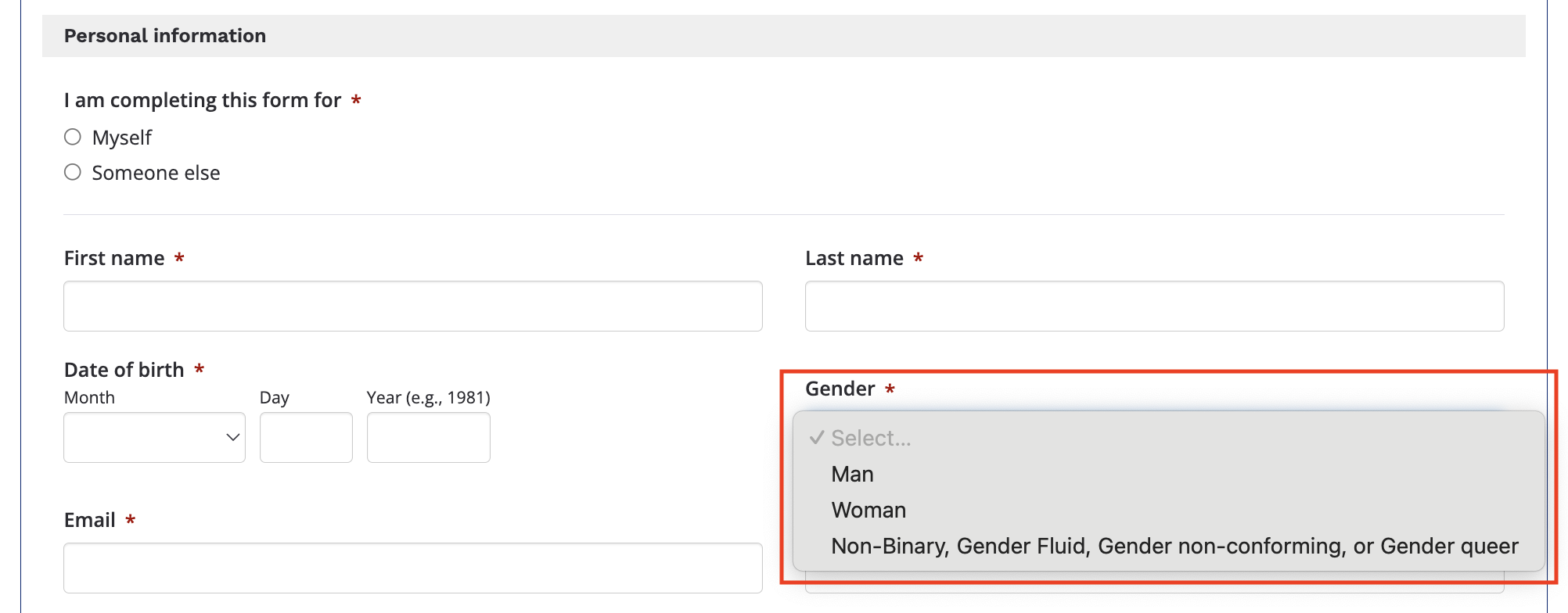
- Gender - prefer not to disclose; man; woman; non-binary, gender fluid, gender non-conforming, or gender queer
Here is how these look in the registration form:
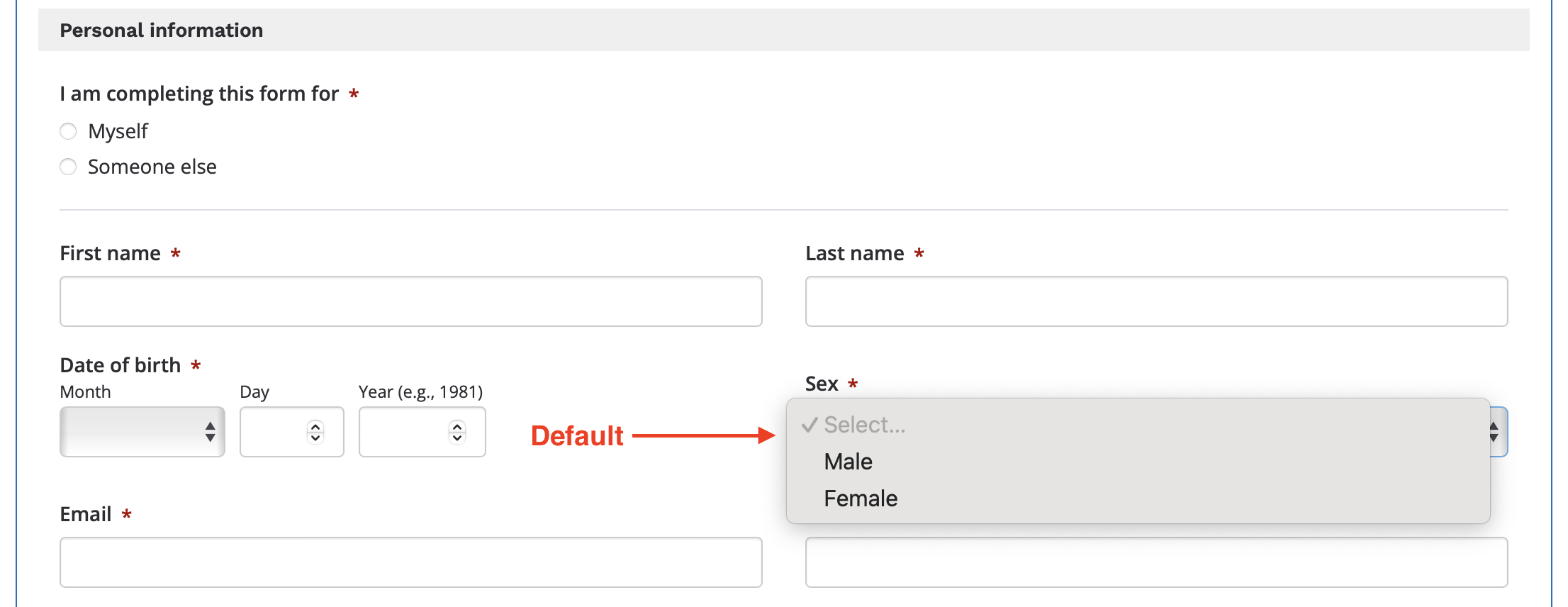
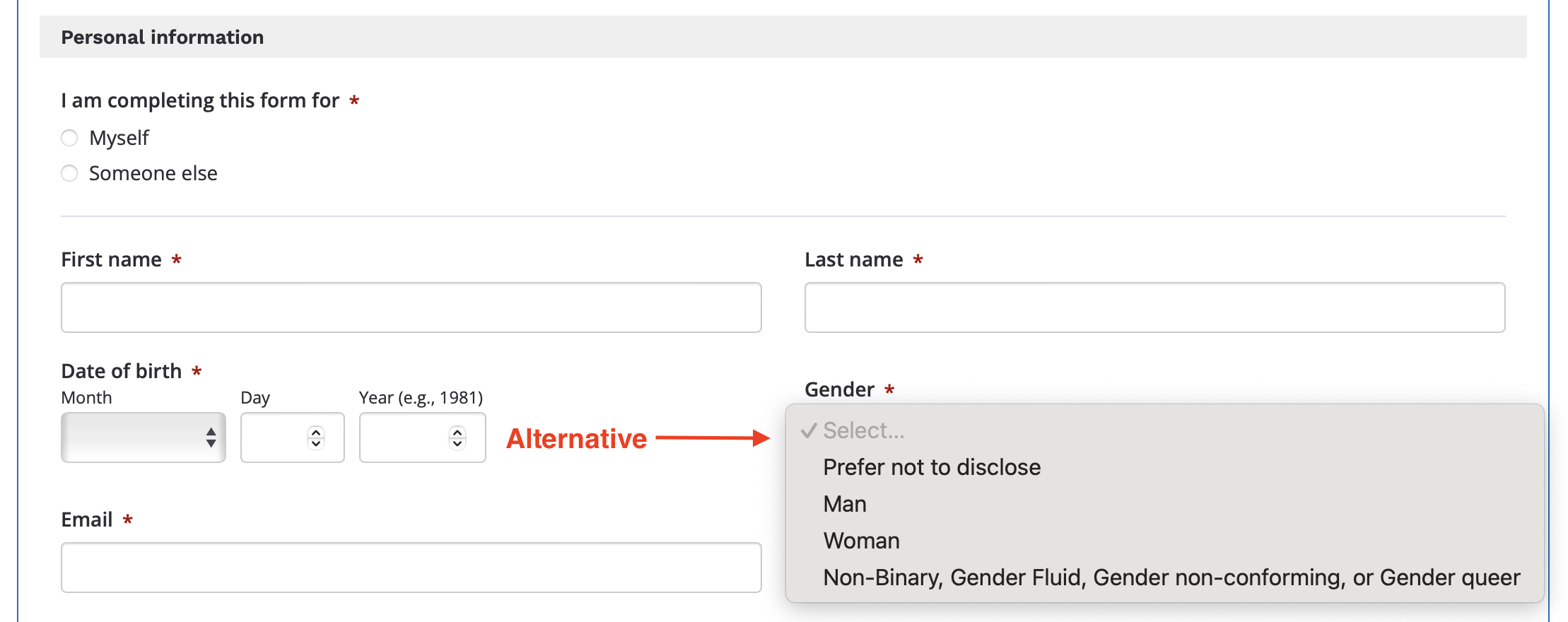
These display formats can be customized from your event's registration question settings, under the personal information tab, by clicking the blue button "Sex/gender customization settings".
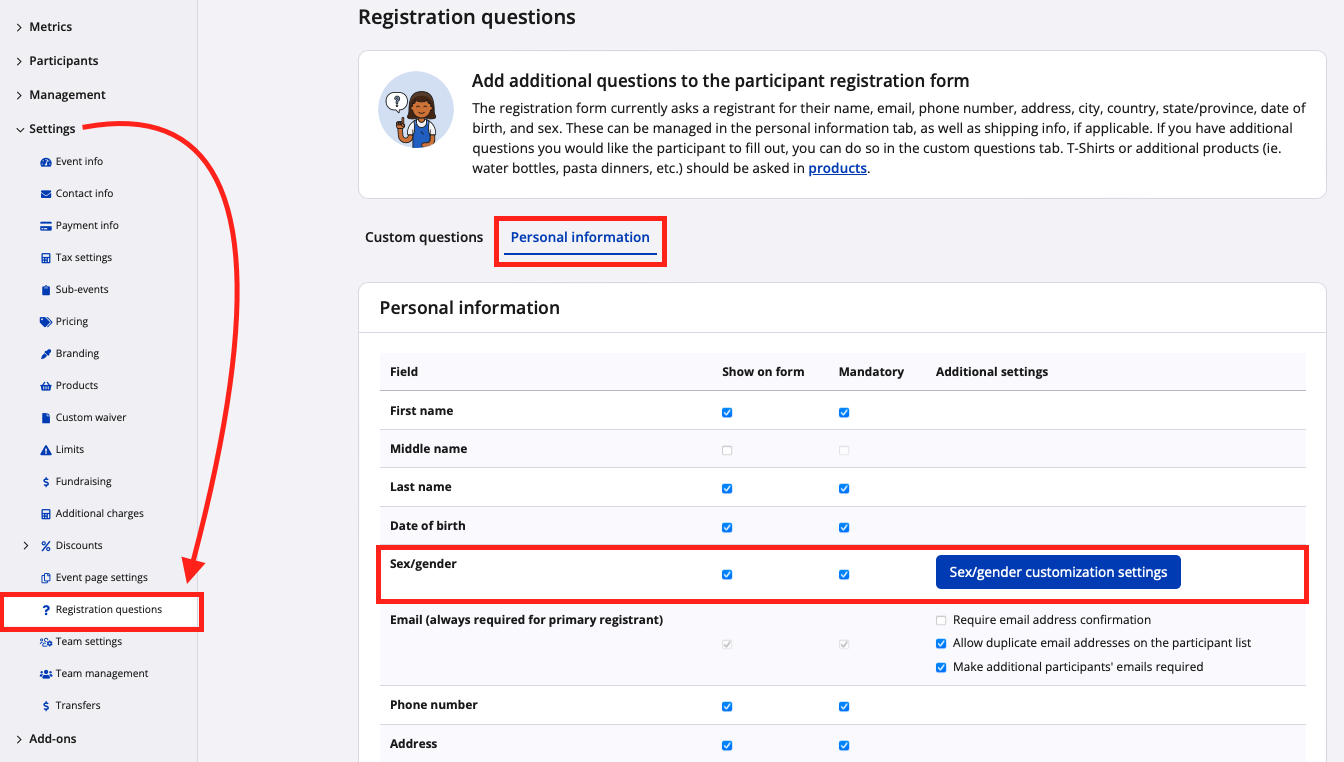
Below you will find an overview of the kinds of customization available in the system-coded sex/gender settings.
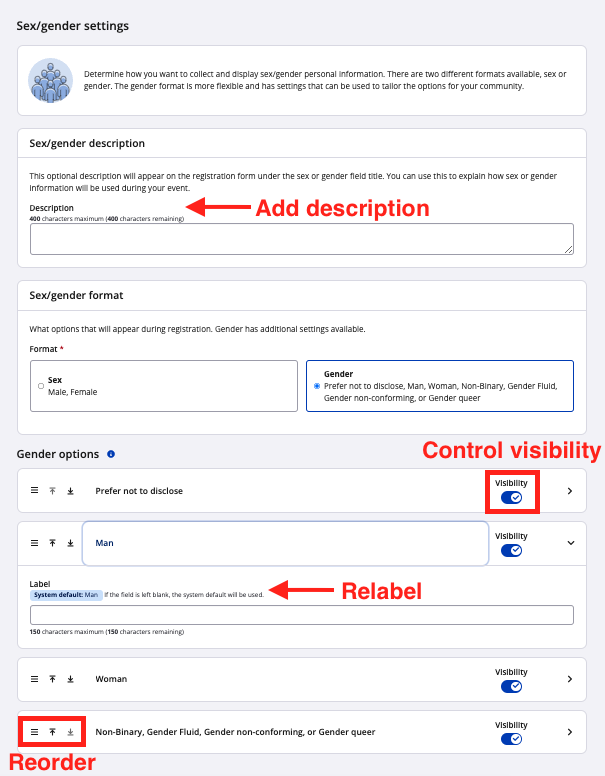
Add description
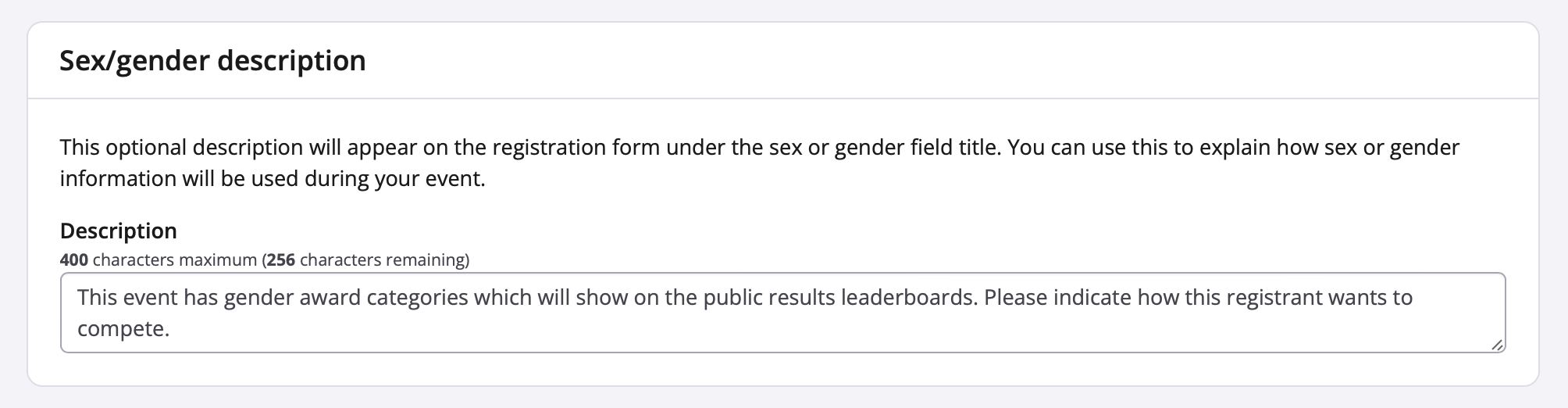
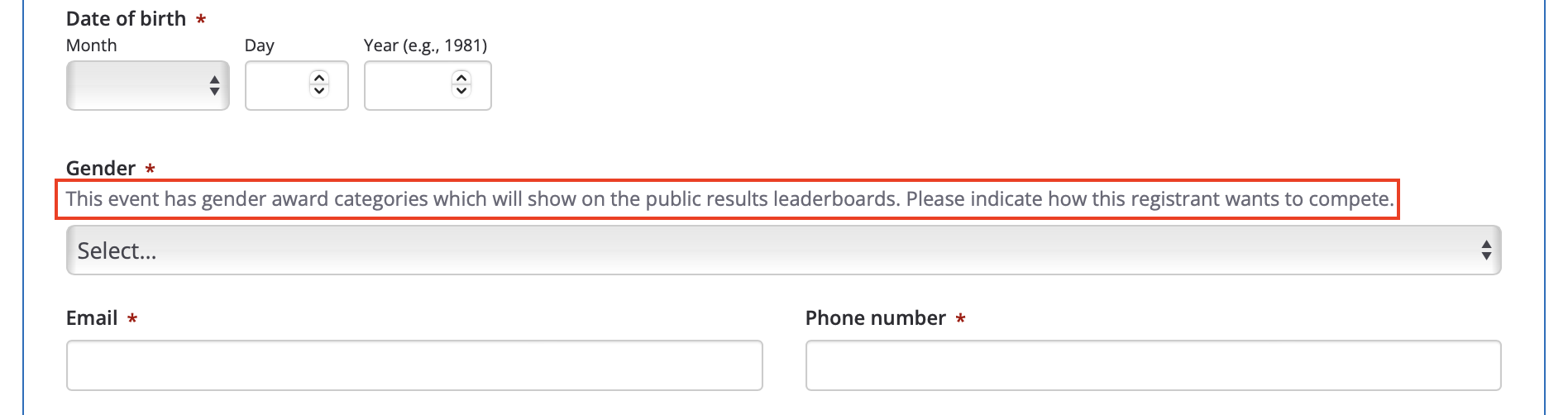
A description can now be added to accompany your sex/gender input field on the event registration form. This allows you to convey to registrants how this information will be used, such as for award groupings.
Relabel
If you are not satisfied with the exact wording of the sex/gender options, you may relabel your chosen set to align with the needs of your event and community. For example, you may have a reason to rename "Male/Female" to "Men's Category/Women's Category" or to shorten "Non-Binary, Gender Fluid, Gender non-conforming, or Gender queer" to appear as only "Non-Binary".
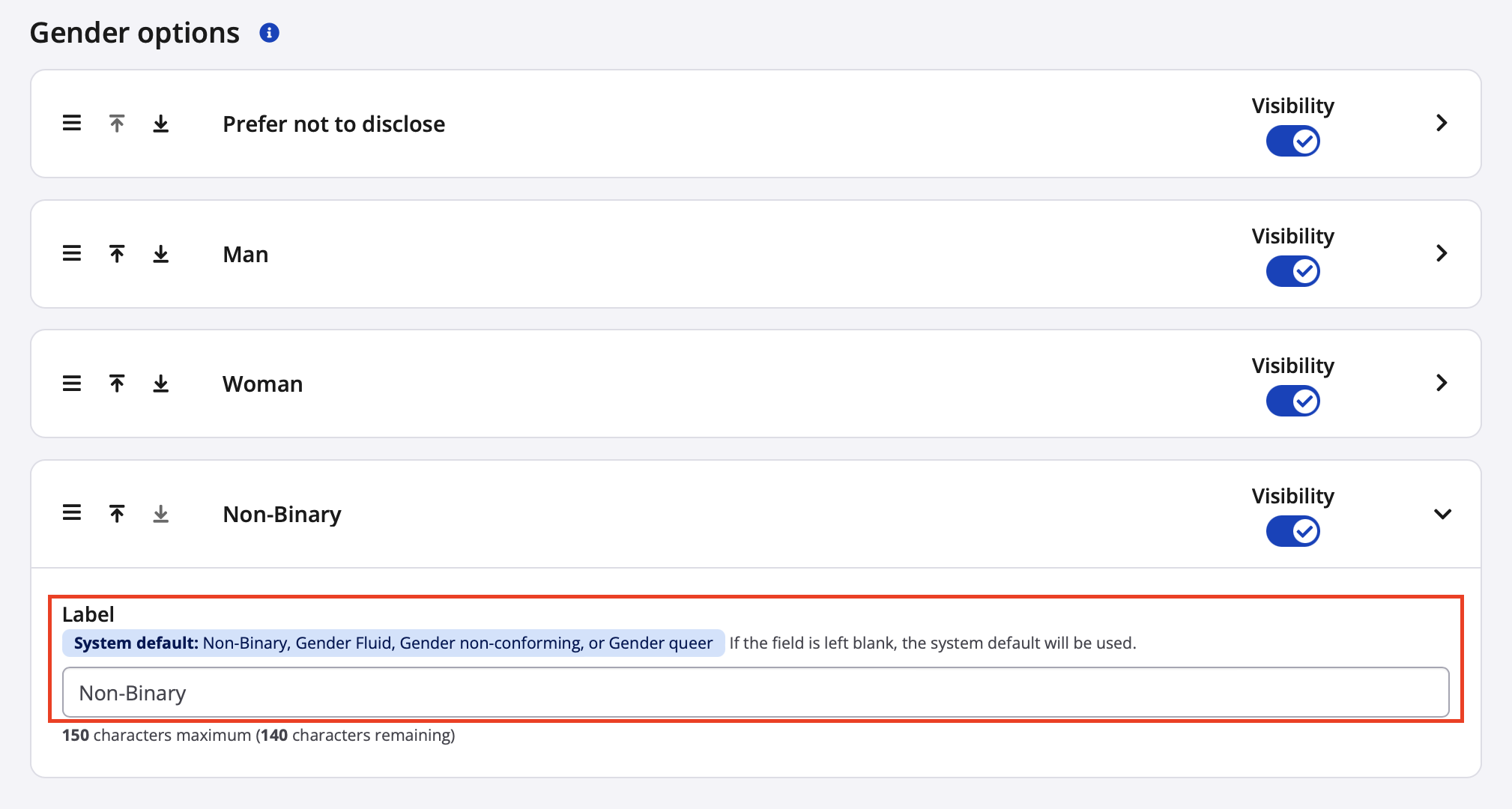
The updated labels will appear in registration, on the participant dashboard, and on parts of the event dashboard. These updated labels will not affect other systems such as results or Race Roster CRM---each individual option will still correspond to a system code. See the chart below.
Tables can't be imported directly. Please insert an image of your table which can be found here.
System options for sexSystem options for genderPossible custom labels (examples only)Corresponding 1-character codesCorresponding ISO/IEC 52181 codesReorder
The order of gender options in the dropdown menu is completely up to you! Simply drag and drop, or utilize the up and down icons to get the options into your preferred placements. A video follows to show you how.
Control Visibility
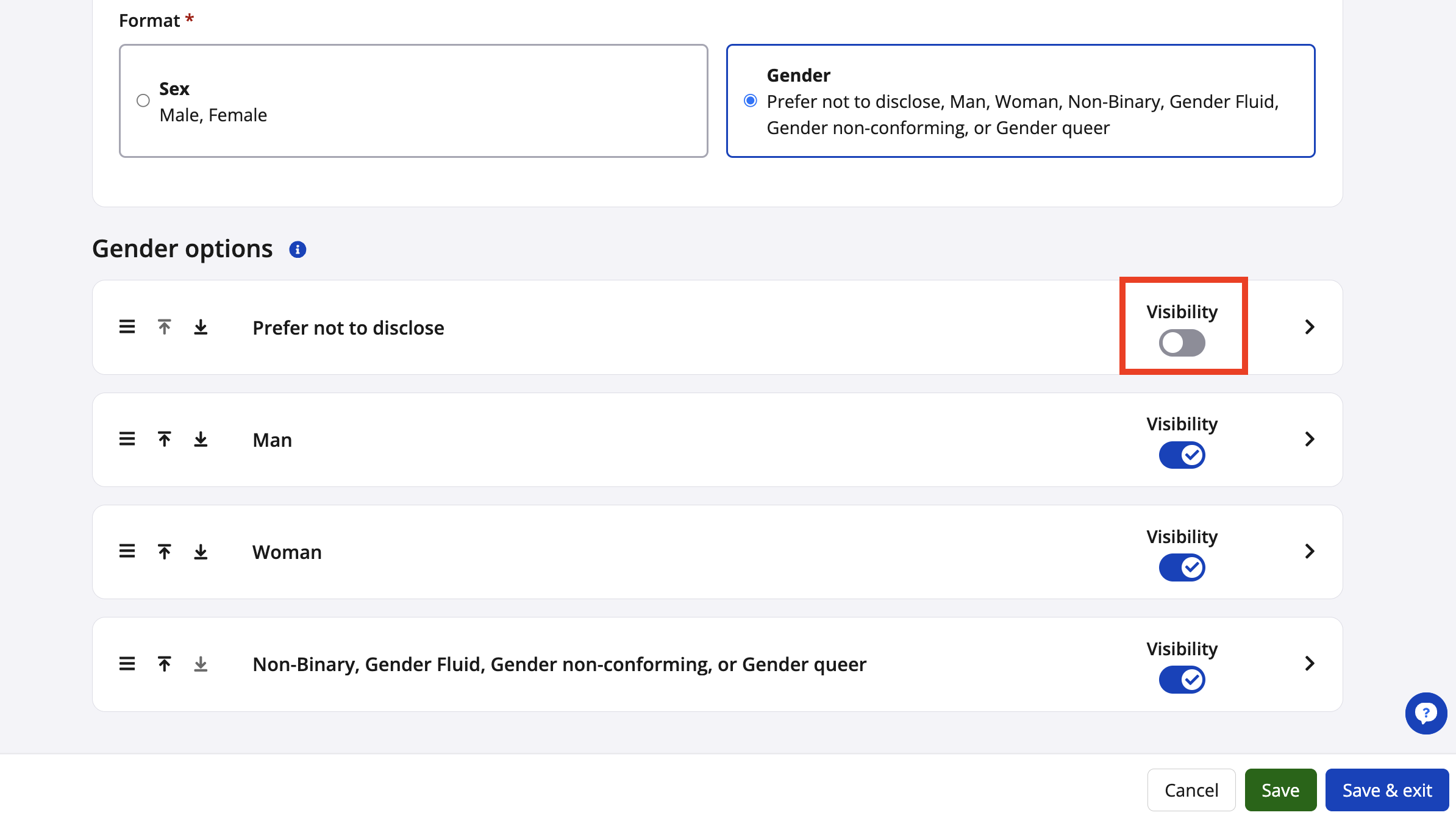
Available for the gender format only: You can set the visibility of each option individually, allowing you to hide one or more of the gender options within registration. Be sure to leave at least one option visible for selection.
If the system's available options and customizations for sex and gender do not fully encompass what you wish to display, a custom registration question can be created. Warning: By creating your own custom question, sex/gender data:
- will not exist under the regular "sex" field on the participant list, but instead under the custom field
- will not be reflected under the built-in sex/gender metrics found under the dashboard's demographics tab, but instead under the registration question metrics
- will not connect to the sex/gender fields in the results dashboard or Race Roster CRM; additional work will be required to migrate this custom field data to the other systems
Please reach out to our Customer Success team via director@raceroster.com to inquire about customization options.